
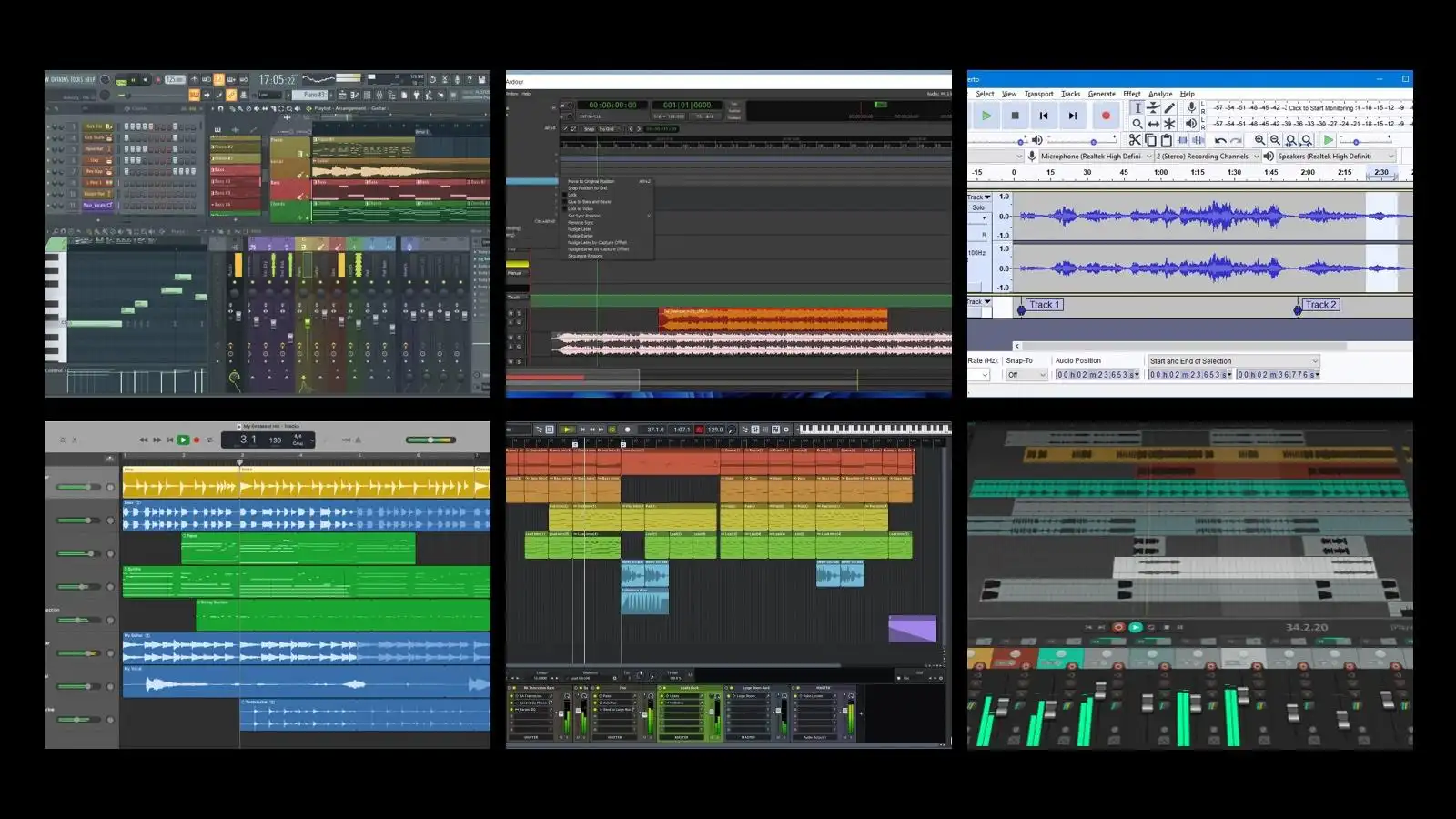
How to Cut Songs on Mac: A Step-by-step Guide
Are you tired of having long songs that take up too much space on your Mac? Do you want to create a playlist with only the best parts of your favorite tracks? Look no further! In this article, we will guide you through the process of cutting songs on Mac using various software and online services.
Why Cut Songs on Mac?
Cutting songs on Mac can be useful for several reasons. First, it allows you to create a playlist with only the best parts of your favorite tracks, making it easier to enjoy them without having to listen to the entire song. Second, cutting songs can help you save storage space on your Mac by removing unnecessary files.
Software Options
There are several software options available for cutting songs on Mac. Here are some of the most popular ones:
Garageband
One of the best software options for cutting songs on Mac is GarageBand. Developed by Apple, GarageBand is a free music editing software that allows you to create and edit musical compositions, including cutting songs.
To cut a song using GarageBand, follow these steps:
- Launch GarageBand and select the “Create” button.
- Choose the microphone or line option and drag the file audio that you want to cut into the GarageBand window.
- Select the portion of the audio that you want to cut by clicking on the pencil icon in the top-left corner and highlighting the desired section.
- Click on the “Cut” button in the top-right corner to separate the selected portion from the rest of the song.
Quicktime Player
Another software option for cutting songs on Mac is QuickTime Player. While primarily a media player, QuickTime Player also has an editing feature that allows you to cut audio files.
To cut a song using QuickTime Player, follow these steps:
- Launch QuickTime Player and select the “Open” button.
- Choose the file audio that you want to cut and click on the “Open” button.
- Select the portion of the audio that you want to cut by dragging the yellow slider in the bottom-left corner.
- Click on the “Trim” button to separate the selected portion from the rest of the song.
Online Services
If you don’t have any software installed on your Mac or prefer not to download anything, there are several online services available for cutting songs on Mac. Here are some of the most popular ones:
Cut Audio by 123Apps
One of the best online services for cutting songs on Mac is Cut Audio by 123Apps. This service allows you to cut audio files without any software installation and supports various file formats.
To use Cut Audio by 123Apps, follow these steps:
- Launch your web browser and navigate to the Cut Audio website.
- Select the file audio that you want to cut and click on the “Upload” button.
- Use the cursor controls in the bottom-left corner to select the portion of the audio that you want to cut.
- Click on the “Trim” button to separate the selected portion from the rest of the song.
Audio Trimmer
Another online service for cutting songs on Mac is Audio Trimmer. This service allows you to trim audio files without any software installation and supports various file formats.
To use Audio Trimmer, follow these steps:
- Launch your web browser and navigate to the Audio Trimmer website.
- Select the file audio that you want to cut and click on the “Choose” button.
- Use the cursor controls in the bottom-left corner to select the portion of the audio that you want to cut.
- Click on the “Crop” button to separate the selected portion from the rest of the song.
Conclusion
Cutting songs on Mac can be a useful skill to have, especially if you’re an avid music lover or need to create playlists for specific occasions. With various software options and online services available, it’s easier than ever to cut songs on Mac without breaking the bank. Whether you choose GarageBand, QuickTime Player, Cut Audio by 123Apps, or Audio Trimmer, we hope this article has provided you with a comprehensive guide to cutting songs on your Mac.
Frequently Asked Questions
- What is The Best Software For Cutting Songs on Mac?
The best software for cutting songs on Mac depends on your personal preferences and needs. However, GarageBand and QuickTime Player are two popular options that offer free and user-friendly interfaces.
- How do I Cut a Song Using Garageband?
To cut a song using GarageBand, select the “Create” button, choose the microphone or line option, drag the file audio into the GarageBand window, select the portion of the audio to be cut, click on the “Cut” button, and separate the selected portion from the rest of the song.
- Can I Use Online Services to Cut Songs on Mac?
Yes, you can use online services such as Cut Audio by 123Apps or Audio Trimmer to cut songs on Mac without any software installation.
- What File Formats do Online Services Support?
Online services typically support various file formats such as MP3, WAV, WMA, OGG, M4R, and 3GPP.
- Can I Add Effects to The Audio Using Online Services?
Yes, some online services like Cut Audio by 123Apps and Audio Trimmer allow you to add effects to the audio, such as fade-in or fade-out transitions.


