
How to Save a Word Document as Pdf: A Step-by-step Guide
Are you tired of saving your Microsoft Word documents in their native format, only to have them lose some of their formatting and features when shared with others? Look no further! In this article, we will guide you through the process of saving a Word document as a PDF (Portable Document Format) file.
Why Save a Word Document as Pdf?
Saving a Word document as a PDF is an excellent way to preserve its formatting, layout, and features. A PDF file can be viewed on any device with Adobe Reader or other compatible software, ensuring that the document looks exactly as intended. This is particularly useful when sharing documents with others, especially in business or academic settings.
Methods For Saving a Word Document as Pdf
There are several ways to save a Word document as a PDF, depending on your operating system and preferred software. Here are some of the most popular methods:
1. Using Microsoft Office
If you have Microsoft Office installed on your computer, you can follow these steps to save a Word document as a PDF:
Microsoft Word (Windows/MacOS)
- Open the Word document you want to convert.
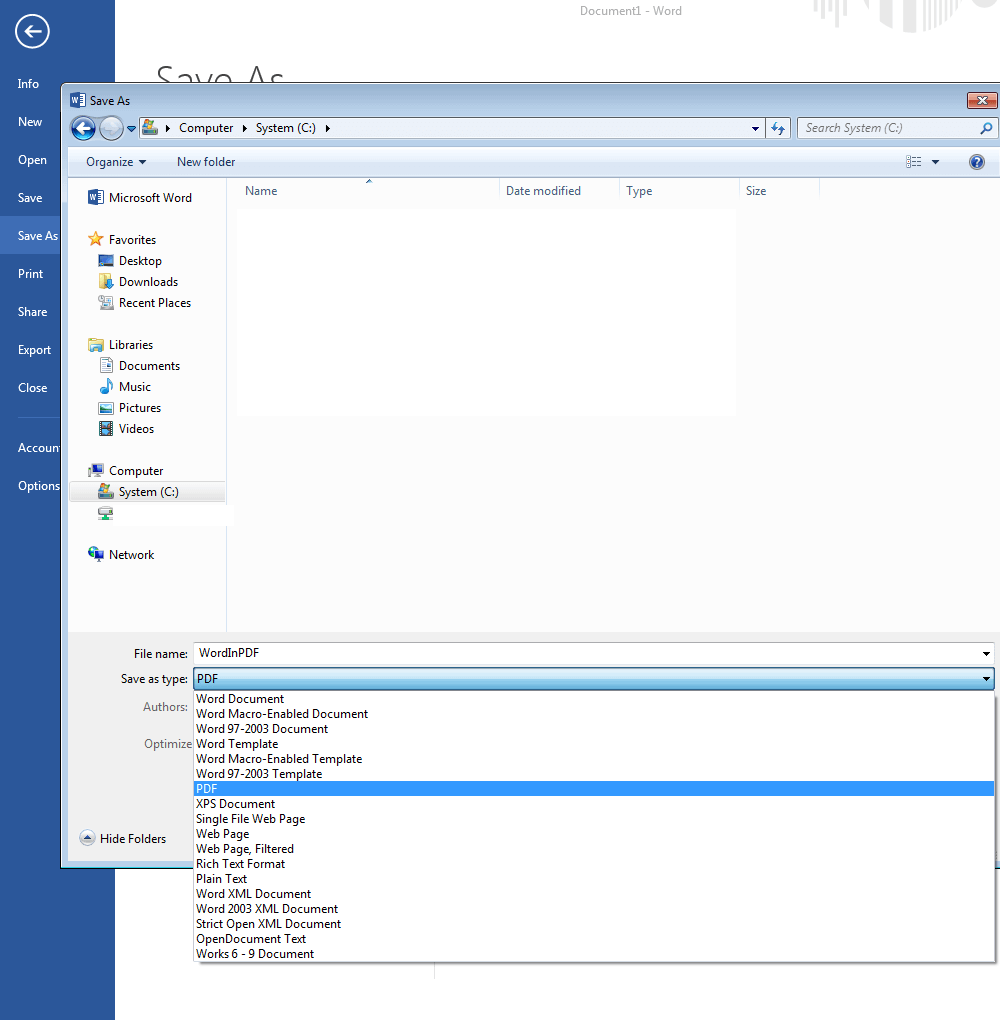
- Click on the “File” menu and select “Save As.”
- In the “Save As” dialog box, choose “PDF” from the list of file formats.
- Select a location to save the PDF file and click “Save.”
Microsoft Office Online
You can also use Microsoft Office Online to convert your Word document to PDF. To do this:
- Log in to your Microsoft account online.
- Open the Word document you want to convert.
- Click on the three dots at the top-right corner of the screen.
- Select “Download” and choose “PDF” from the list of file formats.
2. Using Libreoffice
If you don’t have Microsoft Office, you can use LibreOffice, a free and open-source office suite. To save a Word document as a PDF in LibreOffice:
Libreoffice (Windows/MacOS/Linux)
- Open the Word document you want to convert using LibreOffice.
- Click on the “File” menu and select “Export.”
- In the “Export” dialog box, choose “PDF” from the list of file formats.
- Select a location to save the PDF file and click “Save.”
3. Using Virtual Printers
You can also use virtual printers to convert your Word document to PDF. This method works on both Windows and MacOS.
Virtual Printer (Windows/MacOS)
- Open the Word document you want to convert.
- Click on the “File” menu and select “Print.”
- Choose a virtual printer, such as Microsoft Print to PDF or doPDF.
- Select a location to save the PDF file and click “Save.”
Saving a Word Document as Pdf on Mobile Devices
If you need to save a Word document as a PDF on your mobile device, you can use the Word app (on Android and iOS) or Microsoft 365 (on Android and iOS). To do this:
Word App (Android/iOS)
- Open the Word document you want to convert.
- Tap on the three dots at the top-right corner of the screen.
- Select “Print.”
- Choose a virtual printer, such as Microsoft Print to PDF or doPDF.
Microsoft 365 (Android/iOS)
- Open the Word document you want to convert.
- Tap on the three dots at the top-right corner of the screen.
- Select “Export.”
- Choose “PDF” from the list of file formats.
- Select a location to save the PDF file and tap “Save.”
Conclusion
Saving a Word document as a PDF is an essential skill for anyone working with Microsoft Office. By following these step-by-step guides, you can easily convert your documents to the widely accepted PDF format.
Frequently Asked Questions (FAQs)
- What is The Difference Between Saving a Word Document as a Pdf And Printing It?
Saving a Word document as a PDF preserves its formatting and layout, while printing it may not retain these features.
- Can I Save a Word Document as a Pdf on my Mobile Device?
Yes, you can use the Word app or Microsoft 365 to convert your Word documents to PDF on your Android or iOS device.
- Do I Need to Have Microsoft Office Installed on my Computer to Save a Word Document as a Pdf?
No, you can also use LibreOffice or virtual printers to convert your Word documents to PDF.
- What is a Virtual Printer?
A virtual printer is a software that allows you to print documents without the need for an actual physical printer.
- Can I Edit a Pdf File After it Has Been Converted From a Word Document?
Yes, you can edit a PDF file using Adobe Reader or other compatible software.
- What Are The Benefits of Saving a Word Document as a Pdf?
Saving a Word document as a PDF preserves its formatting and layout, making it easier to share with others.


