
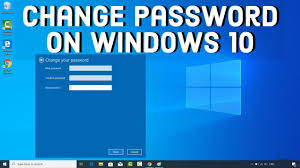
How to Change Your Password on Windows 10: A Step-by-step Guide
Are you tired of using the same old password for your Windows 10 account? Do you want to ensure that your computer and online accounts are secure from unauthorized access? Look no further! In this article, we will guide you through the process of changing your password on Windows 10.
Why Change Your Password?
Changing your password regularly is essential for maintaining the security of your computer and online accounts. A strong password can prevent hackers from gaining access to your personal data, financial information, and other sensitive details. Moreover, using a different password for each account can help protect you against identity theft and cyber attacks.
Step 1: Accessing The Settings Menu
To change your password on Windows 10, start by accessing the Settings menu. You can do this by:
- Clicking on the Start button located at the bottom left corner of the screen
- Typing “Settings” in the search bar
- Selecting the Settings icon from the results
Step 2: Opening The Accounts Menu
Once you are in the Settings menu, click on the “Accounts” option. This will take you to a new page where you can manage your user account settings.
Step 3: Changing Your Password
In the Accounts menu, click on the “Options for access” tab. Scroll down and find the “Password” section. Click on the “Modify” button next to it.
Step 4: Entering Your Current Password
Enter your current password in the box provided. This will verify that you are the authorized user.
Step 5: Creating a New Password
Create a new password by typing it in the “New password” field. Make sure it is strong and unique, as recommended by security experts.
Step 6: Confirming Your New Password
Enter your new password again in the “Confirm password” field to confirm that you have entered it correctly.
Step 7: Saving Your Changes
Click on the “Save changes” button to apply the new password to your account.
Alternative Method: Using The Command Prompt
If you prefer using the command prompt, you can also change your password by:
- Opening the Command Prompt as an administrator
- Typing the command
net user [username] *(replace [username] with your actual username) - Following the prompts to enter and confirm your new password
Changing Your Password on Microsoft Account
If you have a Microsoft account associated with your Windows 10 login, you can change your password by:
- Opening the Settings menu
- Selecting the “Accounts” option
- Clicking on the “Options for access” tab
- Scrolling down and finding the “Password” section
- Clicking on the “Modify” button next to it
Changing Your Graphic Password
If you have a graphic password associated with your Windows 10 account, you can change it by:
- Opening the Settings menu
- Selecting the “Accounts” option
- Clicking on the “Options for access” tab
- Scrolling down and finding the “Graphic password” section
- Clicking on the “Modify” button next to it
Tips For Creating a Strong Password
When creating a new password, remember to:
- Use a combination of uppercase and lowercase letters
- Include numbers and special characters
- Avoid using easily guessable information such as your name or birthdate
- Keep your password unique for each account
- Change your password regularly (every 60-90 days)
Conclusion
Changing your password on Windows 10 is an essential step in maintaining the security of your computer and online accounts. By following these steps, you can ensure that your personal data and financial information are protected from unauthorized access.
Faqs
- Q: Why Should I Change my Password Regularly?
A: Changing your password regularly helps prevent hackers from gaining access to your personal data and financial information. - Q: How do I Create a Strong Password?
A: Use a combination of uppercase and lowercase letters, numbers, and special characters to create a strong password. - Q: Can I Use The Same Password For All my Accounts?
A: No, it’s recommended that you use a unique password for each account to prevent identity theft and cyber attacks. - Q: How do I Change my Password on Microsoft Account?
A: You can change your password by following the steps outlined in this article or by using the online password reset tool provided by Microsoft. - Q: Can I Use a Graphic Password Instead of a Text-based One?
A: Yes, you can use a graphic password if you prefer. Follow the same steps as changing a text-based password to change your graphic password.
Additional Resources
- Microsoft Support: Https://Support.Microsoft.Com/en-us
- Windows 10 Help and Support: Https://Www.Windowscentral.Com


