
How to Qualify And Disable Shoppings In-app on Your Device: A Step-by-step Guide
Are you tired of shoppings in-app eating into your device’s storage space and battery life? Do you want to regain control over your device’s shopping habits? Look no further! In this article, we will guide you through the process of qualifying and disabling shoppings in-app on your Android, iOS, Windows, or Mac device.
Why Qualify Shoppings In-app?
Before we dive into the step-by-step guide, let’s understand why qualifying shoppings in-app is essential. Shoppings in-app can be a convenient way to purchase digital content, but they can also consume your device’s resources and lead to unwanted purchases. By qualifying shoppings in-app, you can set restrictions on your device’s shopping habits, ensuring that you only make purchases when you intend to.
How to Qualify Shoppings In-app on Android
If you’re using an Android device, follow these steps to qualify shoppings in-app:
- Open the Google Play Store and tap on the profile icon.
- Select “Settings” from the menu.
- Tap on “Authentication” and then select “Require authentication for shopping.”
- Choose one of the three options:
- “Ever”: The password will not be required for future shoppings.
- “Each 30 minutes”: The password will be required for every shopping transaction within a 30-minute window.
- “Require always”: The password will be required for every shopping transaction.
How to Qualify Shoppings In-app on Ios
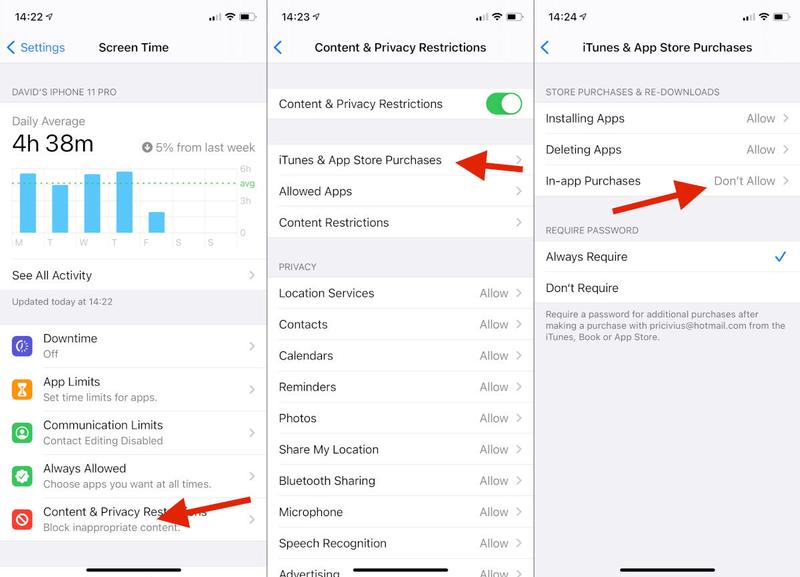
If you’re using an iOS device, follow these steps to qualify shoppings in-app:
- Open the Settings app and tap on “Weather of Use.”
- Select “Restrictions” and then tap on “Shoppings on iTunes to App Store.”
- Choose one of the three options:
- “Consent”: The password will be required for all future shopping transactions.
- “Not requiring”: The password will only be required for the first shopping transaction with this account.
How to Qualify Shoppings In-app on Windows
If you’re using a Windows device, follow these steps to qualify shoppings in-app:
- Open the Microsoft Store and click on your profile icon.
- Select “Settings” from the menu.
- Tap on “Authentication” and then select “Require authentication for shopping.”
- Choose one of the three options:
- “Ever”: The password will not be required for future shoppings.
- “Each 30 minutes”: The password will be required for every shopping transaction within a 30-minute window.
- “Require always”: The password will be required for every shopping transaction.
How to Qualify Shoppings In-app on Mac
If you’re using a Mac device, follow these steps to qualify shoppings in-app:
- Open the System Preferences app and click on the “Weather of Use” icon.
- Select “Restrictions” and then tap on “Shoppings.”
- Choose one of the three options:
- “Require password”: The password will be required for every shopping transaction.
- “Not requiring ever”: The password will not be required for any future shopping transactions.
How to Disable Shoppings In-app
If you’ve already qualified shoppings in-app and want to disable them, follow these steps:
- Go back to the settings menu and select “Authentication.”
- Tap on “Require authentication for shopping” and choose the option that says “Not requiring ever.”
Conclusion
Qualifying and disabling shoppings in-app is a straightforward process that can help you regain control over your device’s shopping habits. By following these step-by-step guides, you can ensure that you only make purchases when you intend to, and avoid unwanted transactions.
Faqs
- What Are Shoppings In-app?
Shoppings in-app refer to the digital content purchase functionality within apps on your device. - Why Qualify Shoppings In-app?
Qualifying shoppings in-app allows you to set restrictions on your device’s shopping habits, ensuring that you only make purchases when you intend to. - How do I Qualify Shoppings In-app on Android?
To qualify shoppings in-app on Android, follow the steps outlined in this article. - Can I Disable Shoppings In-app if I’ve Already Qualified Them?
Yes, you can disable shoppings in-app by going back to the settings menu and selecting “Not requiring ever.” - Will Qualifying Shoppings In-app Affect my Device’s Performance?
Qualifying shoppings in-app should not affect your device’s performance. - Can I Use a Password to Authenticate Shopping Transactions on Ios?
Yes, you can use a password to authenticate shopping transactions on iOS. - How do I Enable or Disable Parental Controls on Windows?
To enable or disable parental controls on Windows, follow the steps outlined in this article. - Can I Use a Password to Authenticate Shopping Transactions on Mac?
Yes, you can use a password to authenticate shopping transactions on Mac.
Additional Resources
For more information on qualifying and disabling shoppings in-app, visit our website at [insert link].


