
How to Project With Mac: A Comprehensive Guide
Are you tired of struggling to project your MacBook or iMac onto a screen? Do you want to make presentations, teach classes, or simply share content with others without the hassle of cables and adapters? Look no further! In this article, we’ll guide you through the process of projecting with Mac, covering both wired and wireless methods.
Table 1: Necessary Materials For Wired Projection
| Material | Description |
|---|---|
| HDMI cable | A high-quality HDMI cable is essential for a stable connection. |
| Adapters (Thunderbolt to HDMI/VGA) | Depending on your MacBook or iMac’s ports, you may need adapters to connect it to the projector or TV. |
Table 2:Adapters for Various Ports**
How to Project With Mac Using a Wired Connection
To project with Mac using a wired connection, follow these steps:
- Prepare Your Materials: Make sure you have an HDMI cable and the necessary adapters (if required).
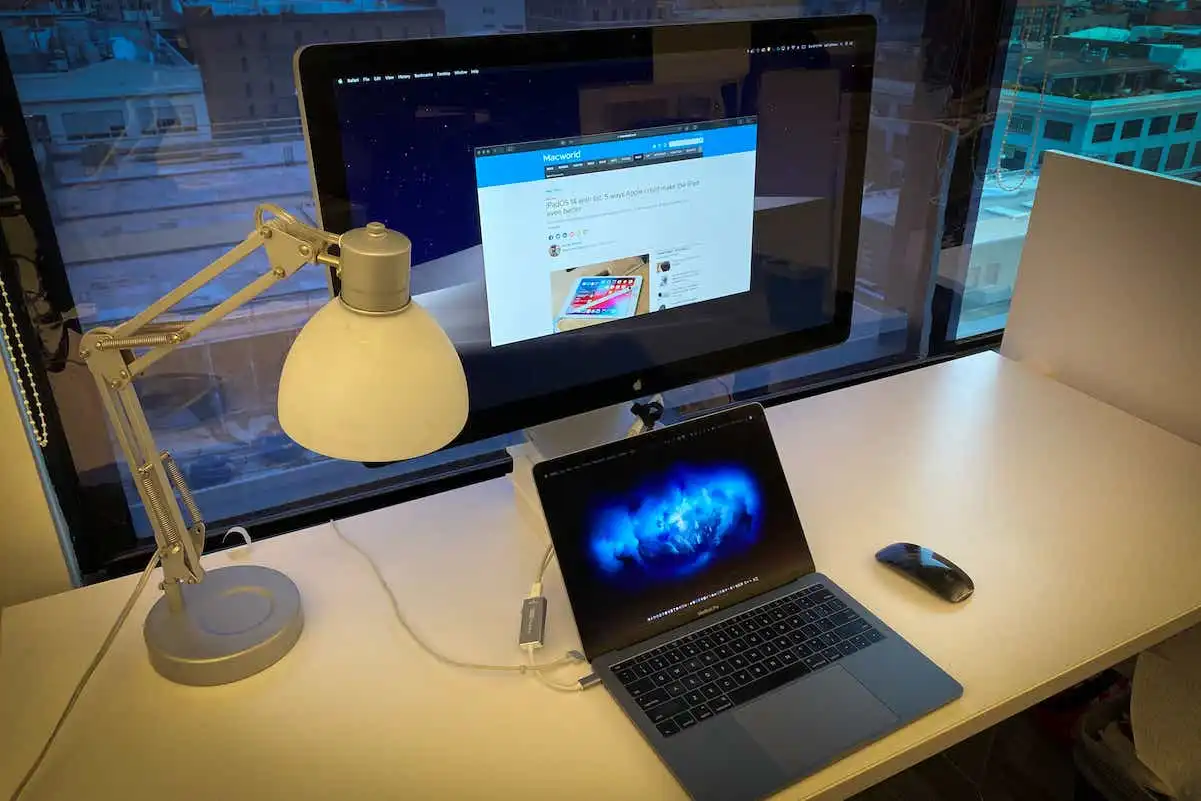
- Connect Your Macbook or Imac: Plug in your MacBook or iMac into the projector or TV using the HDMI cable.
- Configure Your Projection Settings: Go to System Preferences > Displays, select the correct display, and choose “Extend” or “Duplicate” to determine how you want to project your content.
How to Configure Your Projector
After connecting your MacBook or iMac to the projector, configure your settings by following these steps:
- Open System Preferences: Click on the Apple logo in the top left corner of your screen and select System Preferences.
- Select Displays: Choose Displays from the list of available preferences.
- Configure Your Projection Settings: Select the correct display, choose “Extend” or “Duplicate,” and adjust your resolution and brightness settings as needed.
Wireless Projection With Mac
If you prefer a wireless connection, Apple TV or Google Chromecast are excellent options.
Apple Tv
To project with Mac using Apple TV:
- Make Sure You Have The Correct Devices: Ensure your MacBook or iMac meets the minimum requirements for AirPlay (2011 models and later).
- Configure Your Apple TV: Set up your Apple TV according to the instructions provided.
- Project Your Content: Click on the Apple logo in the top left corner of your screen, select System Preferences > Displays, choose “Duplicate” or “Extend,” and select your Apple TV from the list.
Google Chromecast
To project with Mac using Google Chromecast:
- Configure Your Chromecast Device: Set up your Chromecast device according to the instructions provided.
- Open Google Chrome: Launch Google Chrome on your MacBook or iMac.
- Cast Your Content: Click on the three vertical dots in the top right corner of Google Chrome, select “More tools” > “Broadcast,” and choose your Chromecast device from the list.
Conclusion
Projecting with Mac has never been easier! Whether you prefer a wired connection or wireless methods like Apple TV or Google Chromecast, this guide has walked you through each step. Remember to configure your settings correctly and adjust your resolution and brightness as needed for optimal results.
Frequently Asked Questions (FAQs)
Q: What are the necessary materials for wired projection?
A: An HDMI cable and adapters (if required) are essential for a stable connection.
Q: How do I configure my projector settings?
A: Go to System Preferences > Displays, select the correct display, and choose “Extend” or “Duplicate.”
Q: Can I project with Mac wirelessly?
A: Yes! Apple TV and Google Chromecast offer wireless projection options.
Q: What are the minimum requirements for using AirPlay with Apple TV?
A: Ensure your MacBook or iMac meets the 2011 model requirements and is running macOS Mountain Lion or later.
Q: How do I configure my Google Chromecast device?
A: Set up your Chromecast device according to the instructions provided.
Q: What are the benefits of using a wireless connection for projection with Mac?
A: Wireless connections offer greater flexibility and convenience, especially in settings where cables may be cumbersome or difficult to manage.
Q: Can I project individual files or windows with Apple TV?
A: Yes! You can project individual files or windows by selecting them within your MacBook or iMac and clicking the AirPlay icon in the top right corner of your screen.


