
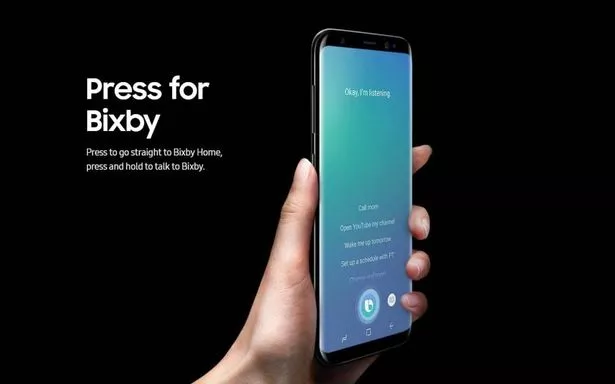
How to Disable Bixby on Samsung Android
Are you tired of Bixby’s constant interruptions on your Samsung Android device? Do you want to get rid of the virtual assistant but don’t know how? Look no further! In this article, we will guide you through the simple process of disabling Bixby on your Samsung smartphone.
What is Bixby?
Bixby is a virtual assistant developed by Samsung that comes pre-installed on many of its devices. It’s designed to help users with tasks such as sending messages, making calls, and setting reminders, among other things. However, some users have reported feeling annoyed by the constant interruptions from Bixby.
Why Disable Bixby?
If you’re not a fan of virtual assistants or find that Bixby is interfering with your daily activities, it’s perfectly fine to disable it. Here are some reasons why you might want to consider disabling Bixby:
- You don’t use Bixby frequently and would rather have more space on your device for other apps.
- You’re trying to get rid of distractions and focus on specific tasks.
- You simply prefer not to have a virtual assistant on your phone.
How to Disable Bixby on Samsung Android
Disabling Bixby is a relatively simple process that requires only a few steps. Here’s how you can do it:
- Open The Bixby App: First, locate the Bixby app icon on your device and tap on it.
- Access Settings: Within the app, navigate to the settings section by tapping on the menu icon (usually three horizontal lines or a gear icon).
- Disable Bixby: In this menu, look for an option called “Voice Wake-Up” or similar, and toggle the switch off. This will disable Bixby’s ability to wake up when you say the magic words.
- Uninstall Updates (optional): If you want to completely get rid of Bixby, you can also uninstall any updates that have been applied to the app.
How to Disable Google Assistant on Samsung Android
If you’re looking for an alternative to Bixby, you might consider using Google Assistant instead. Here’s how you can disable it:
- Open The Google App: Locate the Google app icon on your device and tap on it.
- Access Settings: Within the app, navigate to the settings section by tapping on the menu icon (usually three horizontal lines or a gear icon).
- Disable Google Assistant: Look for an option called “Voice Match” and toggle the switch off.
How to Disable Amazon Alexa on Samsung Android
If you’ve installed Amazon Alexa on your device, here’s how you can disable it:
- Open The Alexa App: Locate the Alexa app icon on your device and tap on it.
- Access Settings: Within the app, navigate to the settings section by tapping on the menu icon (usually three horizontal lines or a gear icon).
- Disable Amazon Alexa: Look for an option called “Active Voice” and toggle the switch off.
Conclusion
Disabling Bixby, Google Assistant, or Amazon Alexa is a straightforward process that requires only a few taps on your device. If you’re tired of these virtual assistants interrupting your daily activities or simply prefer not to have them on your phone, follow the steps outlined above to get rid of them.
Faqs
- Q: How do I Disable Bixby if I’ve Already Installed Updates?
A: You can uninstall any applied updates by going to Settings > Apps > Bixby > Uninstall updates. - Q: Can I Still Use Other Google Apps Like Maps or Photos Even Though I’ve Disabled Google Assistant?
A: Yes, the other Google apps will continue to work normally even if you’ve disabled Google Assistant. - Q: Will Disabling Amazon Alexa Affect my Ability to Control Smart Home Devices?
A: Disabling Amazon Alexa may limit your ability to control certain smart home devices that integrate with the app.


