
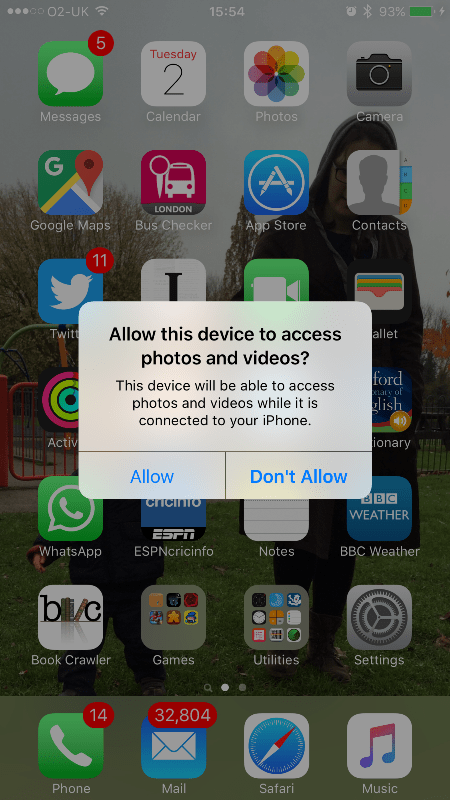
How to Transfer Photos From Iphone to PC Without Itunes
Are you tired of using iTunes to transfer photos from your iPhone to your computer? Look no further! In this article, we will explore the various ways to transfer photos from your iPhone to your PC without using iTunes.
Why Use Alternative Methods?
While iTunes is a great software for managing your media files, it can be cumbersome and restrictive at times. Using alternative methods to transfer photos from your iPhone to your PC can save you time and effort. Plus, who doesn’t love exploring new ways to get things done?
Method 1: Using Icloud
The first method we will discuss is using iCloud. If you have already set up iCloud on your iPhone, transferring photos to your computer is a breeze.
Step-by-step Guide to Transferring Photos From Iphone to PC Via Icloud
- Open the Settings app on your iPhone and tap on your name.
- Tap on “iCloud” and select “Photo.”
- Enable the switch next to “Synchronise this iPhone in position ON.”
- Wait for the images to be uploaded to iCloud.
- Go to the iCloud website or download the official client software for Windows.
- Sign in with your Apple ID and password.
- Click on the “Photo” tab and select the photos you want to transfer.
Method 2: Using Imazing
IMazing is a popular alternative to iTunes that allows you to manage your iPhone’s files, including photos. Here’s how to use it:
Step-by-step Guide to Transferring Photos From Iphone to PC Via Imazing
- Download and install the free version of iMazing on your computer.
- Connect your iPhone to your computer using a USB cable.
- Open iMazing and click on the “Export” button.
- Select the photos you want to transfer and choose the export settings.
- Choose the folder where you want to save the exported files.
Method 3: Using Snapdrop
Snapdrop is a web-based service that allows you to share files between devices wirelessly. Here’s how to use it:
Step-by-step Guide to Transferring Photos From Iphone to PC Via Snapdrop
- Open the browser on your computer and go to the Snapdrop website.
- Sign in with your Apple ID and password.
- Select the photos you want to transfer by tapping on them in the app.
- Click on the “Share” button and choose “Save to computer.”
- Choose the folder where you want to save the exported files.
Other Methods
There are other methods to transfer photos from your iPhone to your PC without using iTunes, such as using Google Photos or OneDrive. You can also use the built-in Photos app on your Mac to transfer photos directly from your iPhone.
Conclusion
Transferring photos from your iPhone to your PC doesn’t have to be a complicated process. Using alternative methods like iCloud, iMazing, and Snapdrop can save you time and effort. Remember to always back up your files to prevent any losses!
Frequently Asked Questions (FAQs)
- What is The Best Method For Transferring Photos From Iphone to Pc?
The best method depends on your personal preferences and needs. If you already have iCloud set up, using it might be the most convenient option.
- Can I Use Itunes to Transfer Photos From my Iphone to my Mac?
Yes, you can still use iTunes to transfer photos from your iPhone to your Mac.
- How do I Access The Photos App on my Mac to Transfer Photos Directly From my Iphone?
To access the Photos app on your Mac and transfer photos directly from your iPhone, follow these steps:
A. Connect your iPhone to your Mac using a USB cable.
B. Open the Photos app on your Mac.
C. Select the photos you want to transfer by clicking on them in the app.
D. Click on the “Import” button.
- What is Imazing?
IMazing is a software that allows you to manage your iPhone’s files, including photos.
- How do I Download And Install Snapdrop?
To download and install Snapdrop, follow these steps:
A. Open your browser on your computer.
B. Go to the Snapdrop website.
C. Click on the “Download” button.
D. Follow the installation instructions.
- Can I Use Google Photos or Onedrive to Transfer Photos From my Iphone to my Pc?
Yes, you can use Google Photos or OneDrive as alternatives to iCloud for transferring photos from your iPhone to your computer.
- What Should I do if I Encounter Any Issues While Trying to Transfer Photos Using One of These Methods?
If you encounter any issues while trying to transfer photos using one of the methods mentioned in this article, try restarting your devices and re-attempting the process. If the issue persists, consider seeking help from a professional or checking online resources for solutions.
- Is There a Cost Associated With Using Imazing?
Yes, there is a fee associated with using the full version of iMazing. However, you can still use the free version to transfer photos.


