
How to Convert a Pdf File to Word: A Step-by-step Guide
Are you tired of dealing with PDF files that are difficult to edit? Do you wish there was an easy way to convert them into editable Word documents? Well, you’re in luck! In this article, we’ll show you how to convert a PDF file to Word using various methods.
Why Convert a Pdf File to Word?
PDF files are great for sharing and viewing documents, but they can be a nightmare to edit. When you try to make changes to a PDF, it often looks like the original document has been scanned again, with formatting issues and poor readability. Converting a PDF file to Word solves this problem by allowing you to edit and modify the document as you would any other Word file.
Method 1: Using Microsoft Word
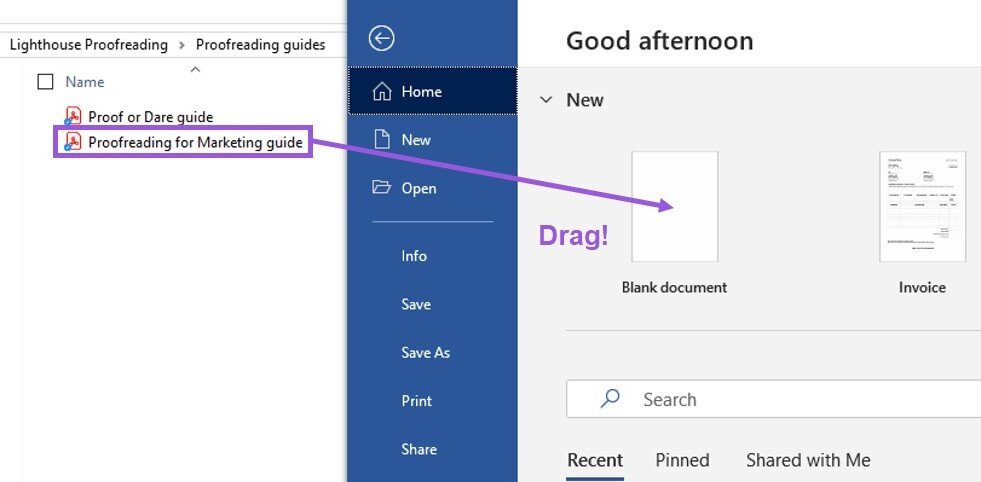
The first method is using Microsoft Word itself. Yes, you read that right! Microsoft Word can convert PDF files into editable documents. Here’s how:
- Open Microsoft Word on your computer.
- Click on the “File” tab and select “Open”.
- Navigate to the location of your PDF file and select it.
- Word will automatically detect the PDF file and allow you to edit it as if it were a native Word document.
Method 2: Using Libreoffice
LibreOffice is another popular productivity suite that can convert PDF files into editable documents. Here’s how:
- Download and install LibreOffice on your computer.
- Open LibreOffice and select “File” > “Open”.
- Navigate to the location of your PDF file and select it.
- LibreOffice will automatically detect the PDF file and allow you to edit it as if it were a native Word document.
Method 3: Using Online Tools
If you don’t want to download any software, there are online tools that can convert PDF files into editable documents. Here’s how:
- Go to CloudConvert.Com or Docspal.Com.
- Select the “PDF” file type and upload your PDF file.
- Choose the output format as Word (.Docx).
- Click on the “Convert” button and wait for the conversion process to complete.
Method 4: Using Google Docs
If you have a Google account, you can use Google Docs to convert PDF files into editable documents. Here’s how:
- Open Google Docs on your computer or mobile device.
- Select the “File” tab and click on “Upload”.
- Choose the PDF file you want to convert and upload it.
- Once uploaded, select the document and choose the output format as Word (.Docx).
Method 5: Using Mobile Apps
If you’re using a mobile device, there are several apps available that can convert PDF files into editable documents. Here’s how:
- Download and install the Row Converter app on your Android or iOS device.
- Select the “PDF” file type and upload your PDF file.
- Choose the output format as Word (.Docx).
- Click on the “Convert” button and wait for the conversion process to complete.
Conclusion
Converting a PDF file to Word is a simple process that can be achieved using various methods. Whether you use Microsoft Word, LibreOffice, online tools, or mobile apps, you’ll be able to edit and modify your PDF files with ease. So next time you’re stuck with a PDF file, don’t worry – just follow these steps and get on with editing!
Frequently Asked Questions
Q: What is the best method for converting PDF files to Word?
A: The best method depends on your personal preference and needs. Microsoft Word, LibreOffice, and online tools are popular choices.
Q: Can I convert multiple PDF files at once?
A: Yes, many of the methods mentioned above allow you to convert multiple PDF files simultaneously.
Q: Will the formatting be preserved when converting a PDF file to Word?
A: The formatting may not be perfectly preserved, but most of the methods mentioned above will try to maintain the original layout and design.
Q: Can I use these methods for commercial purposes?
A: Check the terms and conditions of each method before using them for commercial purposes.
Q: Are there any free alternatives to Microsoft Word or LibreOffice?
A: Yes, there are several free alternatives available that can convert PDF files into editable documents.
Q: Can I convert other file types besides PDF to Word?
A: Some of the methods mentioned above allow you to convert other file types besides PDF to Word.


