
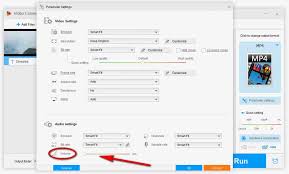
How to Remove Audio From a Video: A Step-by-step Guide
Are you tired of unwanted audio accompanying your videos? Removing audio from a video can be a useful skill, whether you’re editing personal videos or creating content for social media. In this article, we’ll show you how to remove audio from a video using various methods and tools.
Why Remove Audio From a Video?
There are several reasons why you might want to remove audio from a video:
- To create silent videos for use in presentations or other applications
- To edit out unwanted sound effects or background noise
- To make videos more accessible for viewers who prefer silence
Method 1: Removing Audio Using Vlc Media Player
VLC (VideoLAN) is a free and open-source media player that can be used to remove audio from a video. Here’s how:
- Open Vlc: Double-click on the VLC icon to open the program.
- Drag The Video File Into Vlc: Drag the video file you want to edit into the VLC window.
- Go to Audio: Click on “Media” > “Audio” in the top menu bar.
- Disable Audio: Select “Disable audio” from the dropdown menu.
- Save Changes: Click on “Save changes” to apply the changes.
Method 2: Removing Audio Using Avidemux
Avidemux is a free and open-source video editor that can be used to remove audio from a video. Here’s how:
- Open Avidemux: Double-click on the Avidemux icon to open the program.
- Load The Video File: Select “File” > “Open” and choose the video file you want to edit.
- Go to Audio: Click on “Audio” in the top menu bar.
- Disable Audio: Select “Disable audio” from the dropdown menu.
- Save Changes: Click on “Save changes” to apply the changes.
Method 3: Removing Audio Using Imovie
IMovie is a free video editing software that comes pre-installed with Macs. Here’s how to remove audio from a video using iMovie:
- Open Imovie: Double-click on the iMovie icon to open the program.
- Load The Video File: Select “File” > “Import media” and choose the video file you want to edit.
- Go to Audio: Click on the audio tab in the top menu bar.
- Disable Audio: Select “Disable audio” from the dropdown menu.
- Save Changes: Click on “Save changes” to apply the changes.
Method 4: Removing Audio Online Using Youtube
If you’re watching a video on YouTube, you can easily remove the audio by following these steps:
- Watch The Video: Play the video and click on the speaker icon in the bottom right corner.
- Disable Audio: Select “Mute” to disable the audio.
Removing Audio From Videos on Other Platforms
If you’re watching a video on other platforms, such as Instagram or Facebook, you can remove the audio by following these steps:
- Watch The Video: Play the video and click on the speaker icon.
- Disable Audio: Select “Mute” to disable the audio.
How to Remove Audio From Videos on Android
If you’re watching a video on your Android device, you can easily remove the audio by following these steps:
- Watch The Video: Play the video and click on the speaker icon.
- Disable Audio: Select “Mute” to disable the audio.
How to Remove Audio From Videos on Ios
If you’re watching a video on your iOS device, you can easily remove the audio by following these steps:
- Watch The Video: Play the video and click on the speaker icon.
- Disable Audio: Select “Mute” to disable the audio.
Conclusion
Removing audio from a video is a simple process that can be accomplished using various methods and tools. Whether you’re editing personal videos or creating content for social media, removing unwanted audio can make your content more engaging and accessible for viewers.


