
How to Turn Off The Torch on Your Smartphone: A Step-by-step Guide
Are you tired of accidentally leaving your phone’s torch on? Do you find yourself wondering how to turn it off quickly and easily? Look no further! In this article, we will guide you through the process of turning off the torch on various smartphone operating systems, including Android, iPhone, Huawei, Samsung, and Brondi.
Understanding The Torch
Before we dive into the step-by-step instructions, let’s understand what the torch is and why it might be stuck on. The torch, also known as the flashlight, is a feature on smartphones that allows you to light up your surroundings with a bright beam of light. It can be activated accidentally if you tap on the screen or use a gesture that resembles the torch.
Turning Off The Torch on Android
To turn off the torch on an Android device:
- Swipe Down From The Top of The Screen: This will open the fast settings menu, where you can quickly toggle various features on and off.
- Tap on The Torch Icon: This will disable the torch and stop it from lighting up your surroundings.
Alternatively, you can use voice commands to turn off the torch on Android. To do this:
- Activate Google Assistant: You can do this by saying “Ok Google” or pressing and holding the Home button.
- Say “Turn Off The Torch”: This will disable the torch and stop it from lighting up your surroundings.
Turning Off The Torch on Iphone
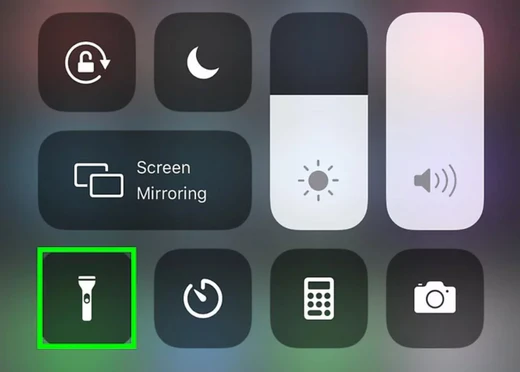
To turn off the torch on an iPhone:
- Go to The Control Center: You can do this by swiping down from the top-right corner of the screen (or swiping up if you have an iPhone X or later).
- Tap on The Torch Icon: This will disable the torch and stop it from lighting up your surroundings.
Alternatively, you can use Siri to turn off the torch on an iPhone. To do this:
- Activate Siri: You can do this by saying “Hey Siri” or pressing and holding the Home button.
- Say “Turn Off The Torch”: This will disable the torch and stop it from lighting up your surroundings.
Turning Off The Torch on Huawei
To turn off the torch on a Huawei device:
- Swipe Down From The Top of The Screen: This will open the fast settings menu, where you can quickly toggle various features on and off.
- Tap on The Torch Icon: This will disable the torch and stop it from lighting up your surroundings.
Alternatively, you can use the built-in flashlight app to turn off the torch on Huawei. To do this:
- Open The Flashlight App: You can find this in the App Drawer or on the home screen.
- Tap on The Toggle Button: This will disable the torch and stop it from lighting up your surroundings.
Turning Off The Torch on Samsung
To turn off the torch on a Samsung device:
- Swipe Down From The Top of The Screen: This will open the fast settings menu, where you can quickly toggle various features on and off.
- Tap on The Torch Icon: This will disable the torch and stop it from lighting up your surroundings.
Alternatively, you can use the Bixby assistant to turn off the torch on Samsung. To do this:
- Activate Bixby: You can do this by saying “Hi Bixby” or pressing and holding the Home button.
- Say “Turn Off The Torch”: This will disable the torch and stop it from lighting up your surroundings.
Turning Off The Torch on Brondi
To turn off the torch on a Brondi device:
- Look For The Physical Toggle Switch: You can find this on the top-left side of the device (opposite to the power button).
- Slide The Switch to The Left: This will disable the torch and stop it from lighting up your surroundings.
Alternatively, you can use the fast settings menu to turn off the torch on Brondi. To do this:
- Swipe Down From The Top of The Screen: This will open the fast settings menu.
- Tap on The Torch Icon: This will disable the torch and stop it from lighting up your surroundings.
Conclusion
Turning off the torch on your smartphone is a simple process that can be done in just a few steps. Whether you’re using an Android, iPhone, Huawei, Samsung, or Brondi device, we’ve got you covered. By following these step-by-step instructions, you’ll be able to turn off the torch quickly and easily, saving battery life and reducing eye strain.
Frequently Asked Questions
Q: Why is my phone’s torch stuck on?
A: The torch might be stuck on due to a software glitch or accidental activation.
Q: How can I prevent the torch from turning on accidentally?
A: You can try disabling the torch in the fast settings menu or using a gesture to activate it instead of tapping on the screen.
Q: Can I use voice commands to turn off the torch?
A: Yes, you can use Google Assistant (on Android) or Siri (on iPhone) to turn off the torch using voice commands.


