
How to Reactivate Facebook History: A Step-by-step Guide
Are you tired of not seeing your friends’ updates on Facebook? Do you want to reactivate the history feature that was previously disabled? Look no further! In this article, we’ll guide you through a step-by-step process on how to reactivate Facebook history on both Android and iOS devices, as well as on PC.
Understanding The History Feature
Before we dive into the tutorial, let’s understand what the history feature is. The history feature allows you to see all the updates from your friends, including photos and videos, in a single feed. This feature was previously disabled for some users, but we’re here to help you reactivate it.
Reactivating Facebook History on Android And Ios
To reactivate Facebook history on your smartphone or tablet, follow these steps:
- Open The Facebook App: Launch the Facebook app on your device.
- Log In: If you’re not already logged in, log in to your account.
- Go to Settings: Tap on the three horizontal lines (Menu) at the top right corner of the screen and select “Settings.”
- Select Privacy Settings: Scroll down and tap on “Privacy settings” > “Settings” > “History” > “History that have been disabled”.
- Find The User: Find the user whose history you want to reactivate and tap on their name.
- Reactivate History: Tap on the “Reactivate” button next to their name.
Reactivating Facebook History on PC
To reactivate Facebook history on your PC, follow these steps:
- Log In to Facebook: Log in to your Facebook account using a web browser.
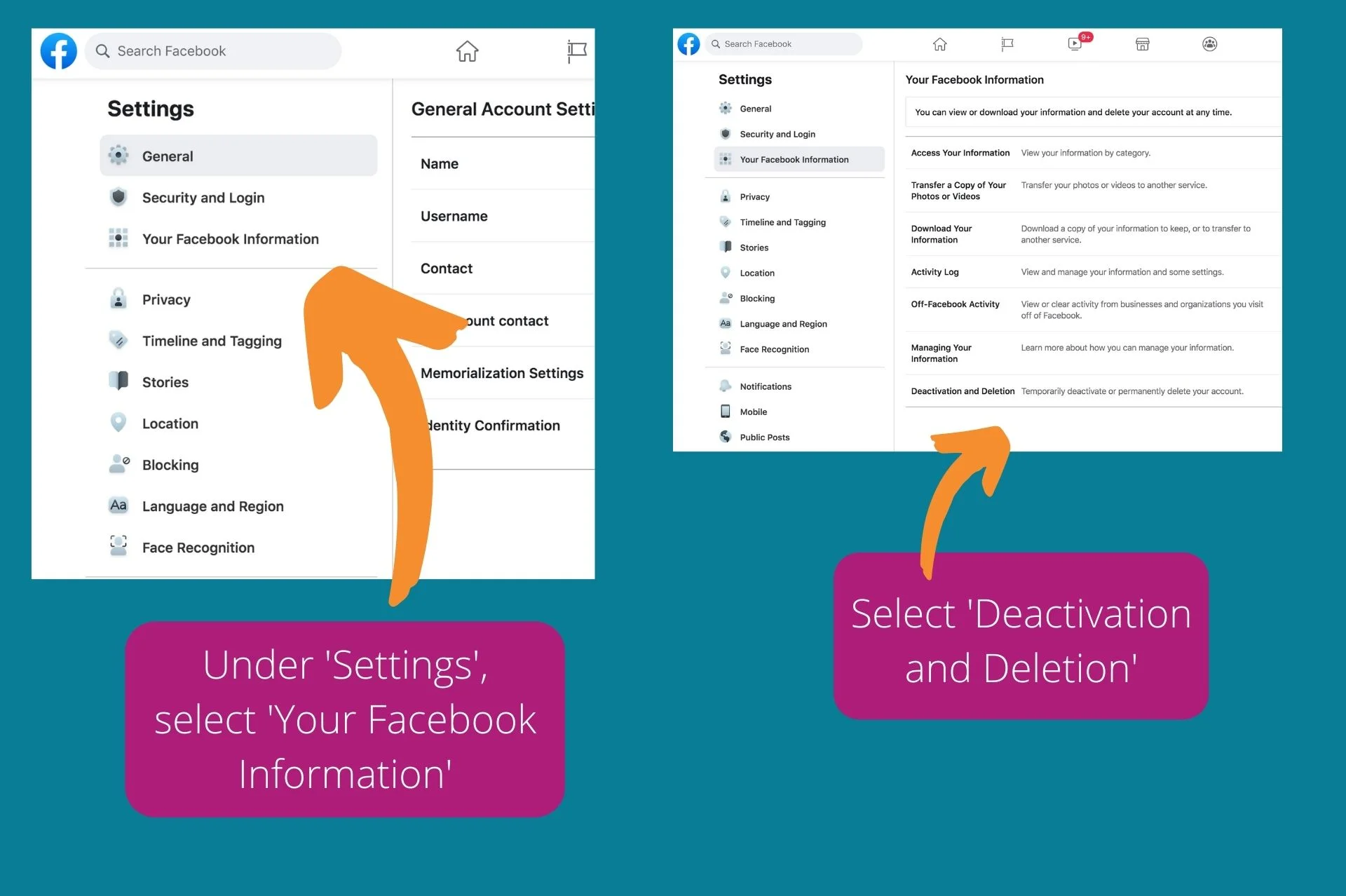
- Go to Settings: Click on the small arrow at the top right corner of the screen and select “Settings.”
- Select History Settings: Click on “History” > “History that have been disabled”.
- Find The User: Find the user whose history you want to reactivate and click on their name.
- Reactivate History: Click on the “Reactivate” button next to their name.
Activating Notifications For Facebook History
While it’s not possible to receive notifications directly for Facebook history updates, you can activate notifications for friend updates. To do this:
- Go to Settings: Log in to your Facebook account and go to settings.
- Select Notification Settings: Click on “Notification settings” > “Facebook” > “Updates”.
- Activate Friend Updates: Toggle the switch next to “Friend updates” to turn it ON.
Saving File History on Facebook
The file history feature allows you to save photos and videos from your friends’ updates after they’re no longer visible publicly (i.E., 24 Hours). To activate this feature:
- Go to Settings: Log in to your Facebook account and go to settings.
- Select Privacy Settings: Click on “Privacy settings” > “Settings” > “History” > “File history”.
- Activate File History: Toggle the switch next to “Save in file” to turn it ON.
Conclusion
Reactivating Facebook history is a simple process that can be completed on both Android and iOS devices, as well as on PC. By following these steps, you’ll be able to see your friends’ updates again and enjoy a more comprehensive Facebook experience.


