
Concealing Photos And Videos: A Guide to Protecting Your Digital Memories
In today’s digital age, it’s more important than ever to protect our personal memories and experiences from prying eyes. With the rise of social media and online sharing, it’s easy to get carried away with sharing every moment of our lives. However, this can leave us vulnerable to data breaches, cyber attacks, and other forms of digital threats.
In this guide, we’ll show you how to conceal your photos and videos on various devices, including Android smartphones, iPhones, PCs, Macs, and online platforms. We’ll also provide tips on how to protect your digital memories from unwanted access.
Why Conceal Your Photos And Videos?
Before we dive into the nitty-gritty of concealing your photos and videos, let’s quickly explore why you might want to do so:
- Protect Sensitive Information: If you’ve shared private moments or sensitive information through photos or videos, concealing them can help prevent unwanted access.
- Prevent Data Breaches: By hiding your digital memories, you can reduce the risk of data breaches and cyber attacks that could compromise your personal data.
- Maintain Online Anonymity: Concealing your photos and videos can also help maintain your online anonymity, especially if you’re concerned about privacy or online safety.
Concealing Photos And Videos on Android Devices
If you’re using an Android smartphone, concealing your photos and videos is relatively straightforward. Here’s a step-by-step guide:
- Open The Gallery App: Find the photo or video you want to conceal and hold down on it until options appear.
- Select “Move to Personal Album”: Choose this option to move the selected item into a hidden album.
- Set a Pin or Password: Enter a PIN or password to lock the Personal Album and prevent unauthorized access.
Concealing Photos And Videos on Ios Devices
If you’re using an iPhone, concealing your photos and videos is just as easy:
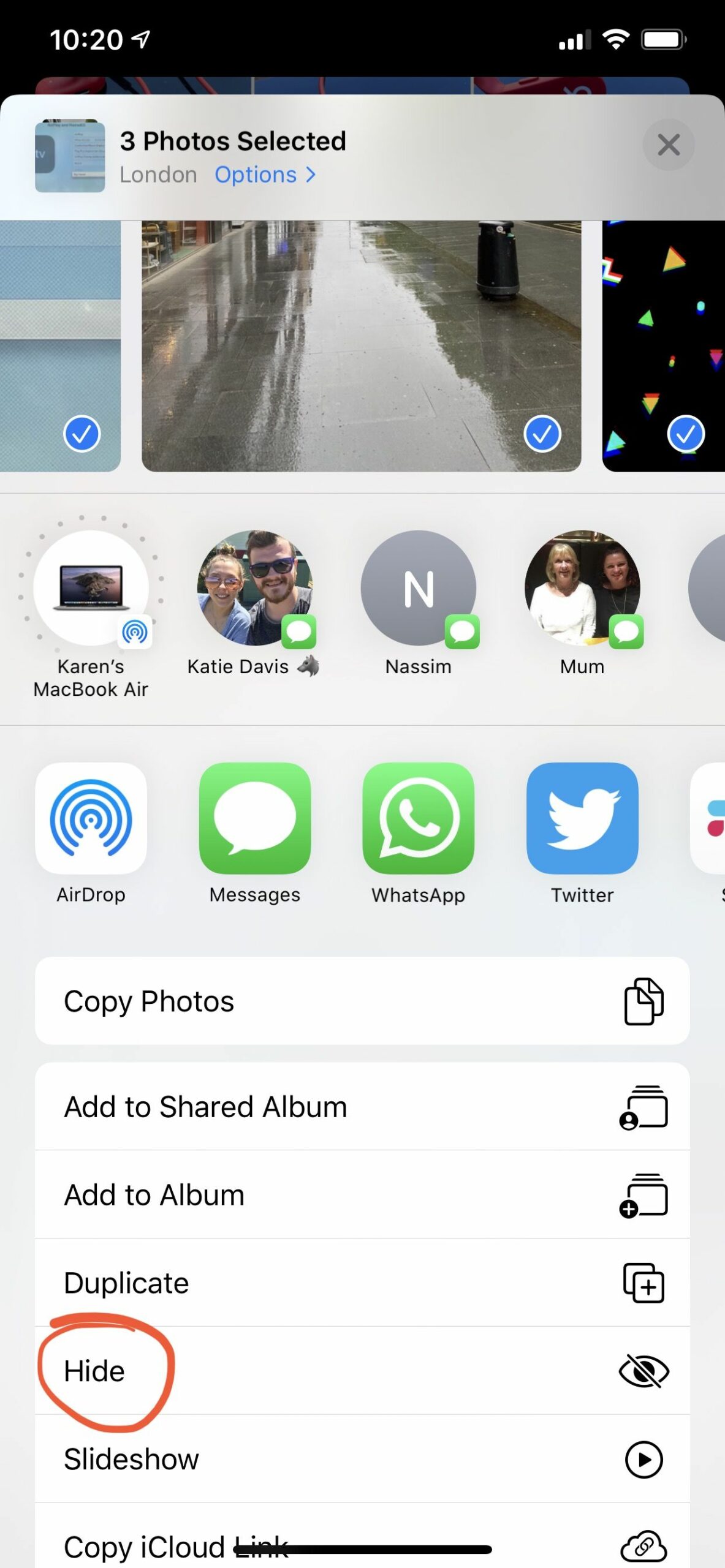
- Open The Photos App: Select the photo or video you want to conceal.
- Tap The “Share” Icon: Choose this option to reveal more options.
- Select ” Conceal Photo”: This will move the selected item into a hidden album.
- Set Face ID or Touch ID: Enter your biometric credentials to lock the Concealed album and prevent unauthorized access.
Concealing Photos And Videos on Pcs
On Windows PCs, concealing photos and videos requires a bit more effort:
- Create a New Folder: Open File Explorer and create a new folder.
- Move Files Into The Folder: Select the photo or video you want to conceal and move it into this new folder.
- Disable Indexing on The Folder: Right-click on the folder, select Properties, and disable indexing.
- Set File Permissions: Change the file permissions to prevent unauthorized access.
Concealing Photos And Videos on Macs
On Macs, concealing photos and videos is a straightforward process:
- Open The Photos App: Select the photo or video you want to conceal.
- Right-click (or Control-click): Choose the option to move the selected item into a hidden album.
- Set a Password: Enter a password to lock the Concealed album and prevent unauthorized access.
Concealing Photos And Videos Online
When it comes to concealing photos and videos online, the process varies depending on the platform you’re using:
- Facebook: Follow our guide to conceal photos on Facebook.
- Instagram: Follow our guide to conceal photos on Instagram.
- Whatsapp: Concealing photos and videos in WhatsApp is a relatively simple process. Just tap and hold on the photo or video, then select “Conceal Photo” from the menu.
Conclusion
Concealing your photos and videos is an important step in protecting your digital memories and maintaining online anonymity. By following these guides, you can conceal your photos and videos on various devices and platforms, reducing the risk of data breaches and cyber attacks.
Frequently Asked Questions (FAQs)
Here are some frequently asked questions and answers to help you better understand concealing photos and videos:
Q: What is Concealing Photos And Videos?
A: Concealing photos and videos involves moving them into a hidden or locked album, making them inaccessible to unauthorized users.
Q: Why do I Need to Conceal my Photos And Videos?
A: You may want to conceal your photos and videos for various reasons, such as protecting sensitive information, preventing data breaches, or maintaining online anonymity.
Q: How do I Conceal Photos on an Android Device?
A: To conceal a photo on an Android device, open the Gallery app, select the photo you want to conceal, hold down on it until options appear, and choose “Move to Personal Album.”
Q: Can I Still Access my Concealed Photos?
A: Yes, you can always access your concealed photos by opening the Concealed album, entering the correct PIN or password, and selecting the desired item.
Q: How do I Conceal Photos on a Pc?
A: To conceal a photo on a Windows PC, create a new folder, move the file into it, disable indexing on the folder, set file permissions to prevent unauthorized access, and right-click (or control-click) on the file to move it into the hidden album.
Q: How do I Conceal Photos on a Mac?
A: To conceal a photo on a Mac, open the Photos app, select the photo you want to conceal, right-click (or control-click), choose the option to move the selected item into a hidden album, and set a password to lock the Concealed album.
Q: Can I Conceal Videos Online?
A: Yes, you can conceal videos on various platforms by following specific guides for each platform.


