
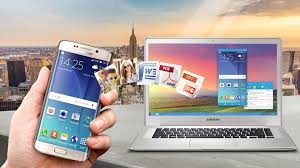
Conveying The Monitor of Your Phone on Your Pc: A Step-by-step Guide
Are you tired of dealing with a small phone screen? Do you want to display your favorite photos or videos on a larger monitor? Look no further! In this article, we will guide you through the process of conveying the monitor of your phone onto your PC, using various methods and solutions.
Why Convey The Monitor of Your Phone?
Conveying the monitor of your phone onto your PC can be useful in several situations:
- You want to display a photo or video on a larger screen.
- You need to demonstrate something on a bigger monitor.
- You want to record gameplay or streaming content.
Method 1: Using Monitor Wireless (Windows And Macos)
If you have an Android phone and a Windows PC, or an iPhone and a Mac, you can use the built-in function called Monitor Wireless. This feature allows you to project your phone’s screen onto your computer’s monitor.
- On your Windows PC, go to Settings > System > Projection on this PC.
- Select the “Connect” button to initiate the connection.
- On your Android phone, go to Settings > Connections > Connection and sharing.
- Select the “Projection” option and choose your PC from the list of available devices.
- Follow the prompts to complete the setup process.
Method 2: Using Airplay (macOS And Iphone)
If you have a Mac and an iPhone, you can use AirPlay to project your phone’s screen onto your computer’s monitor.
- On your Mac, go to Settings > System > AirDrop and Handoff.
- Select the “Receiver” option and make sure that the toggle switch is turned on.
- On your iPhone, go to Control Center > AirPlay.
- Select your Mac from the list of available devices.
- Follow the prompts to complete the setup process.
Method 3: Using Teamviewer
TeamViewer is a popular remote desktop software that allows you to control and view another device’s screen. You can use TeamViewer to convey the monitor of your phone onto your PC.
- Download and install TeamViewer on both devices.
- Open TeamViewer on your Android phone or iPhone and select the “Remote Control” option.
- Enter the ID number displayed on your Windows PC or Mac.
- Follow the prompts to complete the setup process.
Method 4: Using Reflector, Airserver, or Apowermirror
There are several third-party apps available that can help you convey the monitor of your phone onto your PC. Some popular options include:
- Reflector
- AirServer
- APowerMirror
These apps allow you to stream your phone’s screen directly to your computer’s monitor.
Conveying The Monitor With a Cable
If you prefer to use a cable instead of wireless methods, you can use an HDMI cable to connect your phone’s video output to your PC’s input. You will also need a USB-C to HDMI adapter for Android phones and an Apple Lightning Digital AV Adapter for iPhones.
- Connect the cable to your phone and PC.
- Open OBS (Open Broadcasting Software) on your Windows PC or Mac.
- Select the correct video capture device and configure the settings.
- Start streaming or recording your phone’s screen onto your computer’s monitor.
Conclusion
Conveying the monitor of your phone onto your PC can be a useful feature in various situations. By using one of the methods outlined above, you can easily display your favorite photos or videos on a larger screen. Whether you choose to use wireless methods like Monitor Wireless, AirPlay, or TeamViewer, or prefer to use a cable with Reflector, AirServer, APowerMirror, or OBS, there are plenty of options available.
Frequently Asked Questions (FAQs)
-
What is the difference between conveying the monitor of my phone onto my PC and casting it?
Conveying the monitor of your phone onto your PC allows you to project your phone’s screen directly onto your computer’s monitor, whereas casting involves streaming video content from your phone to your PC.
2. Can I use conveying the monitor with a cable on any device?Yes, you can use an HDMI cable to connect your phone’s video output to your PC’s input. However, you will need specific adapters for Android and iPhone devices.
-
What is the best method for conveying the monitor of my phone onto my PC?
The best method depends on your personal preferences and the type of device you have. You can choose between wireless methods like Monitor Wireless, AirPlay, TeamViewer, Reflector, AirServer, or APowerMirror, or use a cable with OBS.
-
Is conveying the monitor of my phone onto my PC safe?
Yes, conveying the monitor of your phone onto your PC is generally safe and secure. However, you should be cautious when sharing sensitive information on your phone’s screen.
-
Can I record gameplay or streaming content using conveying the monitor?
Yes, you can use conveying the monitor to record gameplay or streaming content from your phone onto your computer’s monitor.
-
What is TeamViewer and how does it work?
TeamViewer is a remote desktop software that allows you to control and view another device’s screen. You can use TeamViewer to convey the monitor of your phone onto your PC.
-
Can I use conveying the monitor on any type of device?
Yes, you can use conveying the monitor on various devices, including Android phones, iPhones, Windows PCs, and Macs.


