
How to Update Ubuntu: A Step-by-step Guide
Are you an Ubuntu user looking to update your operating system? Look no further! In this article, we will guide you through the process of updating Ubuntu, including updating individual packages, upgrading to a new version, and troubleshooting common issues.
Understanding Ubuntu Releases
Before we dive into the update process, it’s essential to understand the different types of Ubuntu releases. There are two main categories: Intermediate Release and Lts (Long-Term Support).
- Intermediate Releases are updated frequently but receive only nine months of support.
- LTS Releases receive five years of support and are recommended for production environments.
Updating Individual Packages
To update individual packages, follow these steps:
- Open the Terminal application.
- Type
sudo apt updateto update the package list. - Type
sudo apt upgradeto upgrade any outdated packages. - If you want to perform a complete update, including removing obsolete packages, type
sudo apt full-upgrade.
Updating Ubuntu to a New Version
To update Ubuntu to a new version, follow these steps:
- Update All Packages: Before updating Ubuntu, make sure to update all individual packages using the method described above.
- Copy Important Data: Back up your essential files and data to an external drive or cloud storage.
- Disable Ppa Repositories: If you have any additional PPA repositories enabled, disable them to prevent potential conflicts.
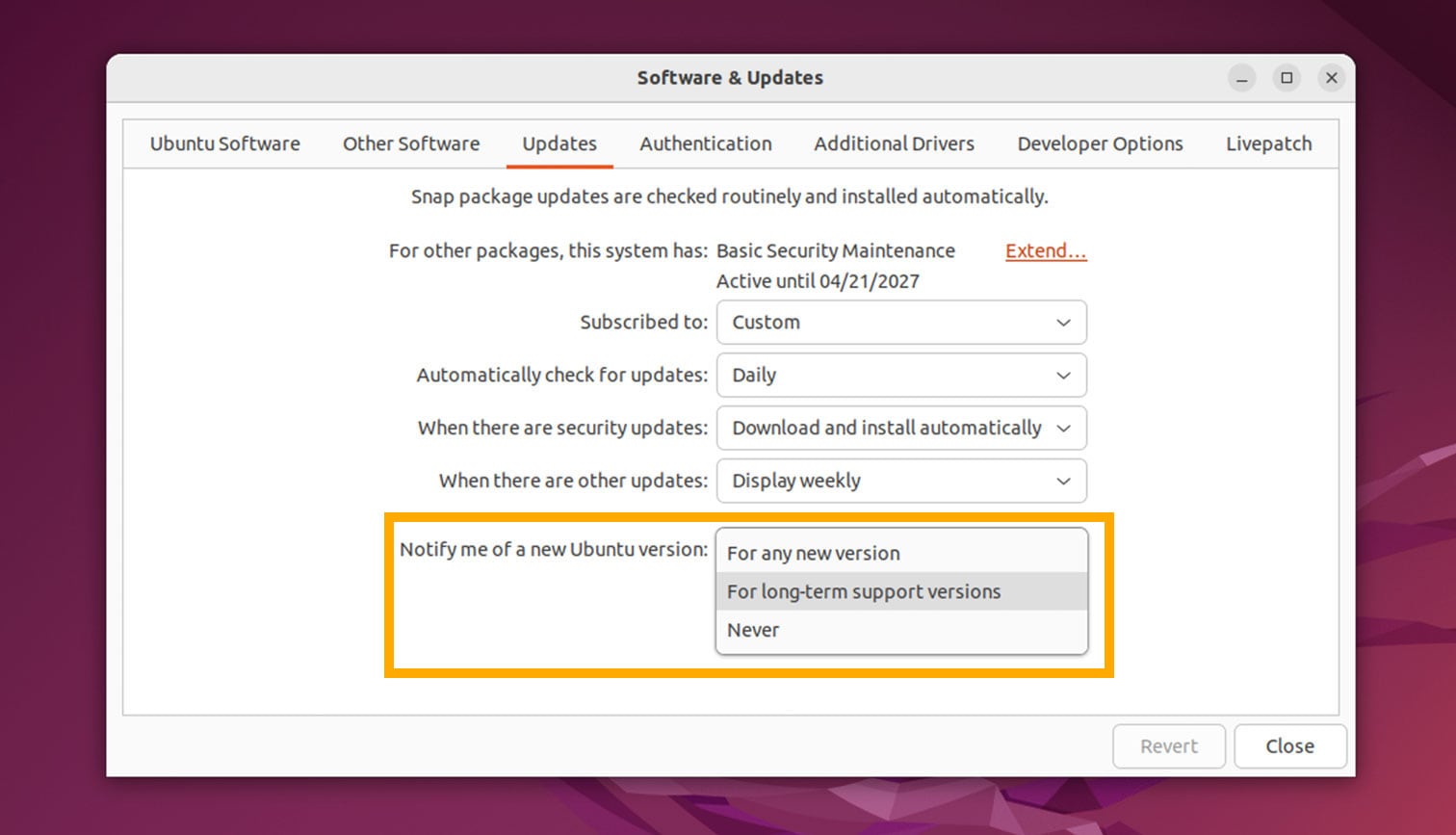
- Choose The New Version: Decide which version of Ubuntu you want to update to (LTS or intermediate release).
- Update Using The Update Manager: Open the Update Manager and select the option to update to the new version.
- Confirm And Restart: Confirm your choice and restart your computer.
Updating Ubuntu Server
To update Ubuntu server, follow these steps:
- Execute a Complete Update: Run the command
sudo apt update && sudo apt upgradeto ensure all packages are updated. - Disable Ppa Repositories: Disable any additional PPA repositories using the command
sudo rm -rf /etc/apt/sources.List.D/*. - Choose The New Version: Decide which version of Ubuntu server you want to update to (LTS or intermediate release).
- Update Using The Update Manager: Open the Update Manager and select the option to update to the new version.
- Confirm And Restart: Confirm your choice and restart your computer.
Troubleshooting Common Issues
If you encounter any issues during the update process, don’t panic! Here are some troubleshooting tips:
- If the update process seems stuck or frozen, wait for a few minutes and try restarting the computer.
- If you receive errors regarding missing packages or dependencies, check the package list and ensure all required packages are installed.
- If you experience any issues with PPA repositories, disable them temporarily and continue with the update.
Conclusion
Updating Ubuntu can seem daunting, but by following these steps and understanding the different types of releases, you’ll be able to keep your operating system up-to-date and secure. Remember to always backup your essential files and data before making significant changes to your system.
Faqs
- What is The Difference Between Intermediate Release And Lts?
Intermediate Releases are updated frequently but receive only nine months of support. LTS Releases receive five years of support and are recommended for production environments. - How do I Update Individual Packages in Ubuntu?
To update individual packages, typesudo apt updateto update the package list and thensudo apt upgradeto upgrade any outdated packages. - What Should I do Before Updating Ubuntu Server?
Before updating Ubuntu server, ensure all individual packages are updated using the method described above. - How Can I Troubleshoot Common Issues During The Update Process?
If you encounter issues during the update process, try waiting for a few minutes and restarting your computer. If errors persist, check the package list and ensure all required packages are installed. - Can I Disable Ppa Repositories Temporarily While Updating Ubuntu?
Yes, you can disable PPA repositories temporarily by running the commandsudo rm -rf /etc/apt/sources.List.D/*. - What is The Best Way to Update Ubuntu Server Using The Update Manager?
To update Ubuntu server using the Update Manager, select the option to update to the new version and confirm your choice. - How Can I Ensure All Packages Are Updated Before Updating Ubuntu Server?
Run the commandsudo apt update && sudo apt upgradeto ensure all packages are updated. - What Should I do if The Update Process Seems Stuck or Frozen?
Wait for a few minutes and try restarting your computer.
I hope this article has provided you with a comprehensive guide on how to update Ubuntu. If you have any further questions, feel free to ask!


