
Protecting Your Child’s Online Experience: A Guide to Parental Controls on Chrome
As a parent, it’s natural to worry about your child’s online safety and exposure to inappropriate content while surfing the internet. With the proliferation of devices and digital platforms, it’s essential to have tools in place that can help you control their online experience. In this article, we’ll explore the world of parental controls on Chrome, providing you with a comprehensive guide on how to safeguard your child’s online presence.
Understanding Parental Controls
Parental controls are features designed to restrict access to certain websites, apps, or content based on age restrictions, keywords, or categories. These tools allow parents to set limits on their children’s internet usage, ensuring they don’t stumble upon mature themes, explicit content, or other hazards that might be detrimental to their well-being.
Why Use Parental Controls on Chrome?
Using parental controls on Chrome can help you:
- Block Access to Mature Websites: Prevent your child from accessing websites with explicit content, adult themes, or other mature topics.
- Set Time Limits: Restrict the amount of time your child spends online, helping them develop healthy browsing habits and reducing screen time.
- Monitor Activity: Keep track of your child’s online activities, including visited websites, downloaded files, and app usage.
Methods to Apply Parental Controls on Chrome
There are several ways to implement parental controls on Chrome:
- Safesearch: Activate the SafeSearch feature, which filters out explicit content from search results.
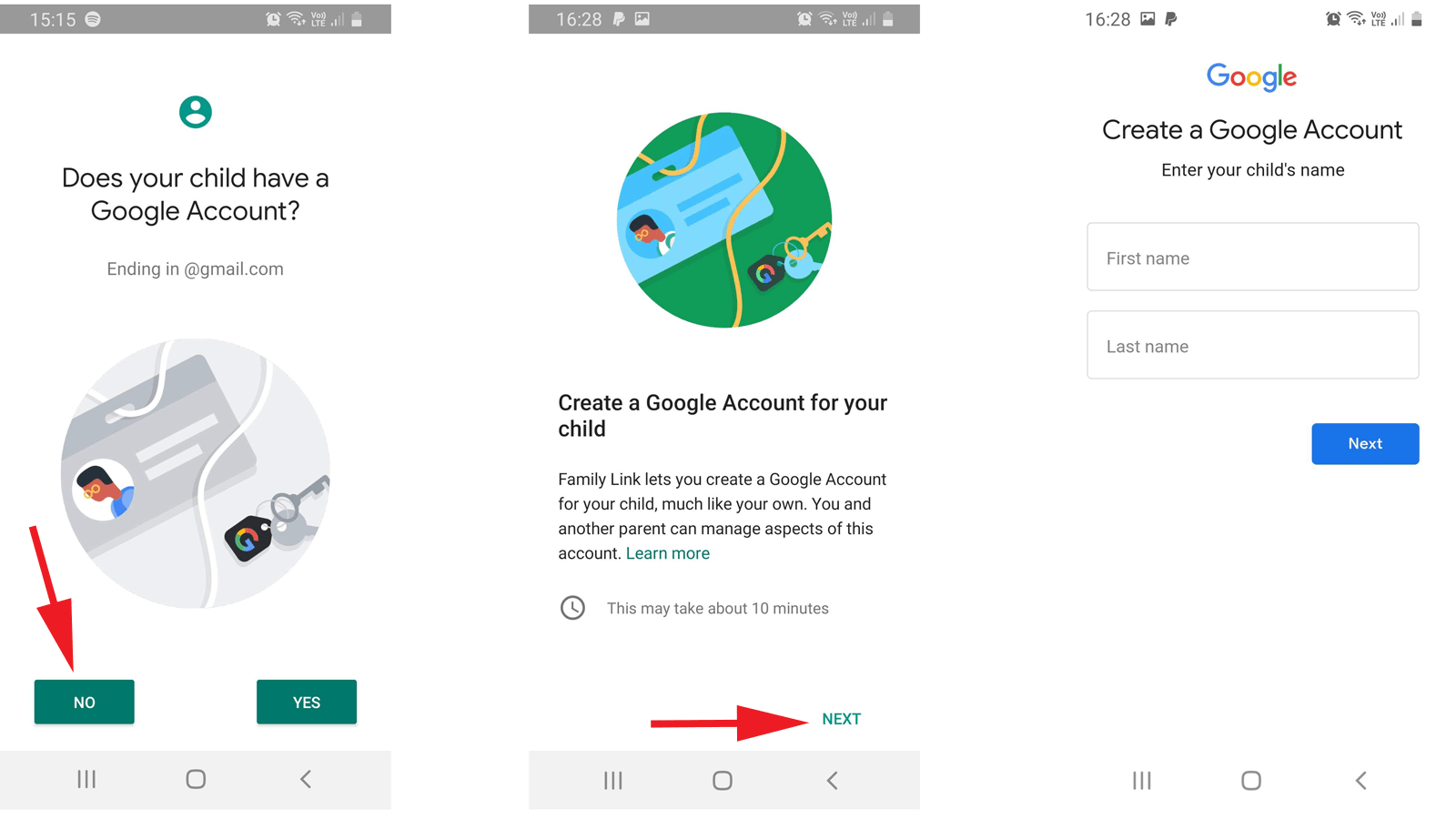
- Family Link: Use Family Link, a free service that allows parents to set limits on their child’s Google account activity, including website access and app usage.
- Blocksite Extension: Install the BlockSite extension, which enables you to block specific websites or keywords across all devices.
Implementing Safesearch on Chrome
To activate SafeSearch on Chrome:
- Sign in: Sign in to your Google account.
- Access Safesearch Settings: Go to Chrome Settings > Advanced > Content settings.
- Enable Safesearch: Toggle the switch next to SafeSearch to enable it.
Using Family Link
To set up Family Link:
- Download And Install: Download and install the Family Link app on your device.
- Create a Child Account: Create a new Google account for your child or link an existing one to Family Link.
- Set Limits: Set limits on website access, app usage, and time spent online.
Installing The Blocksite Extension
To block specific websites using the BlockSite extension:
- Install The Extension: Install the BlockSite extension from the Chrome Web Store.
- Configure Settings: Configure the extension to block specific websites or keywords.
- Apply Filters: Apply filters to restrict access to blocked content.
Additional Tools For Parental Control
Consider exploring additional tools, such as:
- Qustodio: A comprehensive parental control solution that offers features like app blocking, time management, and content filtering.
- Mobile Fence: An app that allows you to set limits on your child’s mobile device activity, including website access, app usage, and screen time.
Conclusion
Parental controls on Chrome are a vital tool for protecting your child’s online experience. By implementing SafeSearch, Family Link, or the BlockSite extension, you can ensure their safe browsing habits and prevent exposure to mature content. Don’t hesitate to explore additional tools that cater to your specific needs.
Frequently Asked Questions (FAQs)
-
Q: Can I Block Specific Websites on Chrome?
A: Yes, using the BlockSite extension or Family Link, you can block specific websites or keywords across all devices.
2. Q: How do I Activate Safesearch on Chrome?A: To enable SafeSearch, sign in to your Google account and access the SafeSearch settings within Chrome.
3. Q: What Are The Benefits of Using Family Link?A: Family Link allows you to set limits on website access, app usage, and time spent online, helping you monitor your child’s activity.
4. Q: Can I Use Multiple Parental Control Methods at Once?A: Yes, you can combine different parental control methods to create a comprehensive approach tailored to your child’s needs.
5.


