
How to Test Your Internet Connection: A Comprehensive Guide
Are you tired of wondering how fast your internet connection is? Do you want to know if it’s up to par with the rest of the world? Look no further! In this article, we’ll guide you through the process of testing your internet connection using various tools and methods.
What is Ping?
Before we dive into the nitty-gritty, let’s talk about what ping is. Ping, short for Packet Internet Groper, is a tool used to measure the time it takes for data packets to travel from your device to a server and back again. Think of it like sending a letter to a friend: You write the letter (data packet), send it (ping), and wait for the response (pong). The faster the ping, the better!
Understanding Ping Times
Ping times are usually measured in milliseconds (ms). Here’s a rough guide to help you understand what your ping time means:
- 0-30 Ms: Excellent! You’re getting top-notch speeds!
- 30-50 Ms: Very good. You’re still getting great speeds, but might experience some minor delays.
- 50-60 Ms: Good. You’re still within the acceptable range, but might notice slight delays.
- 60-80 Ms: Sufficient. You’re still online, but might experience more noticeable delays.
- 80+ Ms: Insufficient. You might experience significant delays or even dropped connections.
Testing Your Ping Online
There are several tools you can use to test your ping online. Here are a few popular options:
- Speedtest by Ookla: This is one of the most widely used speed testing tools. Simply visit their website, click the “Go” button, and wait for the results.
- Sos Charges: This tool not only tests your ping but also provides information on your internet speed and stability.
- Fast.Com: Developed by Netflix, this tool is designed to test your internet speed and ping.
Testing Your Ping IP
If you want to test the ping time for a specific website or device, you can use the following methods:
- Test Ping IP: Use the command prompt on Windows to test the ping time for a website or device.
- Terminal Test: On Mac or Linux, use the Terminal app to test the ping time.
Testing Your Ping Command
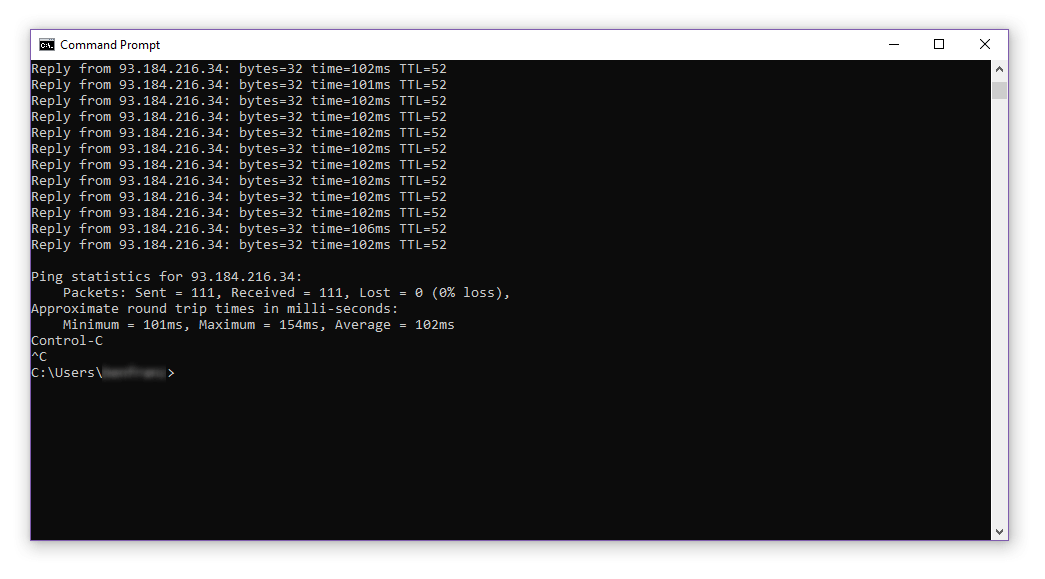
If you’re comfortable with using commands, here’s how to test your ping using the command line:
- Open the command prompt on Windows (Win+R > cmd) or Terminal on Mac/Linux.
- Type
ping [website URL]and press Enter. - The tool will send four packets of data to the website and display the results.
Testing Your Ping Game
If you’re an avid gamer, you might be interested in testing your ping for gaming purposes. Here’s how:
- Visit the Game Server Ping Test website.
- Select the game you want to test (e.G., LOL).
- Click the “Start Ping Test” button and wait for the results.
Conclusion
Testing your internet connection is a straightforward process that can help you identify potential issues with your connection. By using these tools and methods, you’ll be able to determine your ping time and optimize your connection for better speeds. Remember, a faster ping means a better online experience!
Frequently Asked Questions (FAQs)
- What is The Ideal Ping Time?
The ideal ping time varies depending on the activity, but generally, a ping time below 30 ms is considered excellent. - How Often Should I Test my Ping?
Test your ping periodically to ensure your connection remains stable and fast. - Can I Improve my Ping Time?
While you can’t directly adjust your ping time, optimizing your internet connection and using quality-of-service (QoS) settings can help minimize delays. - Why is my Ping Time High?
A high ping time could be due to various factors such as network congestion, distance from the server, or hardware limitations. - Can I Use These Tools For Other Purposes Besides Testing my Ping?
Yes! Many of these tools can also test your internet speed and stability. - What’s The Difference Between Download And Upload Speeds?
Download speeds measure how quickly you can receive data (e.G., Streaming videos), while upload speeds measure how quickly you can send data (e.G., Uploading files). - How do I Troubleshoot Ping Issues?
Try restarting your router, checking for software updates, or contacting your internet service provider (ISP) for assistance.
I hope this guide has been informative and helpful in understanding how to test your internet connection using various tools and methods. Happy testing!


