
The Ultimate Guide to Using Discord on Ps5
Are you a gamer looking to take your gaming experience to the next level? Do you want to stay connected with your friends while playing your favorite games? Look no further than Discord on PS5! In this article, we’ll guide you through the process of setting up and using Discord on your PlayStation 5 console.
What is Discord?
Discord is a popular communication platform designed specifically for gamers. It allows users to communicate with each other through text, voice, or video, making it easy to stay connected while playing games together. With over 150 million active users, Discord has become a staple in the gaming community.
Setting Up Discord on Ps5
To set up Discord on your PS5, follow these simple steps:
Step 1: Link Your Psn Account
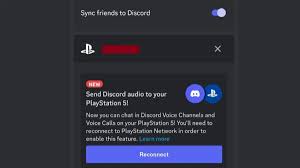
The first step is to link your PlayStation Network (PSN) account to your Discord account. To do this, navigate to the Settings menu on your PS5 and select “Account.” From there, choose “Linked Accounts” and then select “Discord.”
Step 2: Install The Discord App
Once you’ve linked your accounts, install the Discord app on your PS5 by going to the PlayStation Store and searching for “Discord.” Select the app and follow the installation prompts.
Step 3: Set Up Your Discord Account
After installing the Discord app, open it up and create a new account or log in to an existing one. Make sure to link your PSN account to your Discord account by following the prompts on the screen.
Using Discord on Ps5
Now that you’ve set up your Discord account, let’s dive into using it on your PS5:
Joining a Server
To join a server, navigate to the “Servers” tab in the Discord app and select the server you want to join. You can also join servers by clicking on the “Join Server” button on the main screen.
Chatting With Friends
Once you’re in a server, you can chat with your friends using the text or voice chat features. To do this, navigate to the “Voice Chat” tab and select the channel you want to join. You can also use the text chat feature to communicate with your friends.
Accessing Advanced Features
Discord on PS5 also offers advanced features such as screen sharing, video streaming, and more. To access these features, click on the “Settings” icon in the top right corner of the screen and select the “Advanced Features” tab.
Tips And Tricks
Here are some tips and tricks to help you get the most out of Discord on PS5:
- Use Voice Chat: Voice chat is a great way to communicate with your friends while playing games. You can also use it to coordinate strategies or discuss game-related topics.
- Screen Share: Screen sharing allows you to share your screen with other users, making it easy to show off your gaming skills or share tips and tricks.
- Video Streaming: Video streaming enables you to stream video content directly from your PS5 to Discord. You can use this feature to share gameplay footage or watch live streams.
Conclusion
Discord on PS5 is a powerful tool that allows gamers to communicate with each other while playing games. With its user-friendly interface and advanced features, it’s easy to see why Discord has become a staple in the gaming community. Whether you’re looking to join a server, chat with friends, or access advanced features, Discord on PS5 has got you covered.
Frequently Asked Questions
Here are some frequently asked questions about using Discord on PS5:
- Q: What is Discord?
A: Discord is a popular communication platform designed specifically for gamers. - Q: How do I Set up Discord on my Ps5?
A: To set up Discord on your PS5, link your PSN account to your Discord account and install the Discord app on your console. - Q: Can I Use Voice Chat on Ps5?
A: Yes, you can use voice chat on your PS5 by navigating to the “Voice Chat” tab in the Discord app. - Q: What Advanced Features Are Available on Discord on Ps5?
A: Advanced features such as screen sharing, video streaming, and more are available on Discord on PS5. To access these features, click on the “Settings” icon in the top right corner of the screen and select the “Advanced Features” tab. - Q: Can I Stream Video Content From my Ps5 to Discord?
A: Yes, you can stream video content directly from your PS5 to Discord using the video streaming feature. - Q: How do I Join a Server on Discord on Ps5?
A: To join a server, navigate to the “Servers” tab in the Discord app and select the server you want to join. You can also join servers by clicking on the “Join Server” button on the main screen. - Q: Can I Use Text Chat on Ps5?
A: Yes, you can use text chat on your PS5 by navigating to the “Text Chat” tab in the Discord app.
Conclusion
In conclusion, using Discord on PS5 is a great way to stay connected with your friends while playing games. With its user-friendly interface and advanced features, it’s easy to see why Discord has become a staple in the gaming community. Whether you’re looking to join a server, chat with friends, or access advanced features, Discord on PS5 has got you covered.


