
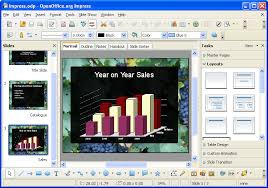
Creating Presentations With Openoffice: A Step-by-step Guide
Are you looking for a free alternative to Microsoft Office to create presentations? Look no further than OpenOffice! In this article, we will show you how to create stunning presentations using OpenOffice, as well as how to use it on your smartphone and tablet.
What is Openoffice?
OpenOffice is a free and open-source office suite that includes word processing, spreadsheet, presentation, and drawing tools. It is available for Windows, macOS, Linux, and Android devices. With OpenOffice, you can create professional-looking documents, spreadsheets, presentations, and more – all for free!
Why Choose Openoffice?
There are many reasons why you should choose OpenOffice over Microsoft Office:
- Cost-effective: OpenOffice is completely free to use, making it a cost-effective alternative to expensive office software.
- Feature-rich: OpenOffice offers a wide range of features, including text formatting, spreadsheet calculations, and presentation design.
- Platform-independent: OpenOffice is available for multiple platforms, including Windows, macOS, Linux, and Android devices.
Creating a Presentation With Openoffice
To create a presentation with OpenOffice, follow these steps:
- Install Openoffice: If you haven’t already installed OpenOffice on your device, download the software from the official website and install it.
- Launch Openoffice: Launch OpenOffice by double-clicking its icon or searching for it in your application menu.
- Choose a Template: Choose a template to use as the basis for your presentation. You can browse through the available templates or create a new one from scratch.
- Add Slides: Add slides to your presentation by clicking on the “Insert” tab and selecting “Slide.”
- Customize Your Presentation: Customize your presentation by adding text, images, charts, and other visual elements.
Using Openoffice on Smartphone And Tablet
OpenOffice is also available for smartphone and tablet devices. To use OpenOffice on your mobile device:
- Download The App: Download the OpenOffice app from the Google Play Store or Apple App Store.
- Launch The App: Launch the app by double-clicking its icon or searching for it in your app drawer.
- Create a New Presentation: Create a new presentation by selecting the “Presentation” option and choosing a template.
Tips And Tricks
Here are some tips and tricks to help you get the most out of OpenOffice:
- Use Templates: Use templates to save time and effort when creating presentations.
- Customize Your Design: Customize your design by adding images, charts, and other visual elements.
- Practice Makes Perfect: Practice using OpenOffice to become more familiar with its features and functionality.
Conclusion
OpenOffice is a powerful and versatile office suite that offers many benefits over Microsoft Office. With its cost-effective pricing, feature-rich tools, and platform-independent design, OpenOffice is an excellent choice for anyone looking for a reliable office software solution.
Frequently Asked Questions (FAQs)
Here are some frequently asked questions about OpenOffice:
- Q: Is Openoffice Free?
A: Yes, OpenOffice is completely free to use. - Q: What Platforms Does Openoffice Support?
A: OpenOffice supports Windows, macOS, Linux, and Android devices. - Q: Can I Create Presentations With Openoffice?
A: Yes, you can create stunning presentations using OpenOffice. - Q: How do I Use Openoffice on my Smartphone or Tablet?
A: To use OpenOffice on your mobile device, download the app from the Google Play Store or Apple App Store and follow the instructions.
Conclusion
OpenOffice is a powerful office suite that offers many benefits over Microsoft Office. With its cost-effective pricing, feature-rich tools, and platform-independent design, OpenOffice is an excellent choice for anyone looking for a reliable office software solution.
- What Are The System Requirements For Running Openoffice?
- Operating System: Windows XP, Windows Vista, Windows 7, Linux (various distributions), macOS
- CPU: Intel Pentium III, AMD Athlon or equivalent
- RAM: 256 MB
- Hard Drive Space: 1 GB
Using Openoffice on Smartphones And Tablets
OpenOffice is also available for smartphone and tablet devices. To use OpenOffice on your mobile device:
- Download The App: Download the OpenOffice app from the Google Play Store or Apple App Store.
- Launch The App: Launch the app by double-clicking its icon or searching for it in your app drawer.
- Create a New Presentation: Create a new presentation by selecting the “Presentation” option and choosing a template.
Tips And Tricks
Here are some tips and tricks to help you get the most out of OpenOffice:
- Use Templates: Use templates to save time and effort when creating presentations.
- Customize Your Design: Customize your design by adding images, charts, and other visual elements.
- Practice Makes Perfect: Practice using OpenOffice to become more familiar with its features and functionality.
Conclusion
OpenOffice is a powerful office suite that offers many benefits over Microsoft Office. With its cost-effective pricing, feature-rich tools, and platform-independent design, OpenOffice is an excellent choice for anyone looking for a reliable office software solution.
- What Are The System Requirements For Running Openoffice?
- Operating System: Windows XP, Windows Vista, Windows 7, Linux (various distributions), macOS
- CPU: Intel Pentium III, AMD Athlon or equivalent
- RAM: 256 MB
- Hard Drive Space: 1 GB
Conclusion
OpenOffice is a powerful office suite that offers many benefits over Microsoft Office. With its cost-effective pricing, feature-rich tools, and platform-independent design, OpenOffice is an excellent choice for anyone looking for a reliable office software solution.
Benefits of Using Openoffice
Using OpenOffice offers several benefits, including:
- Cost-effectiveness: OpenOffice is completely free to use.
- Feature-rich Tools: OpenOffice offers a wide range of features, including text formatting, spreadsheet calculations, and presentation design.
- Platform-independent Design: OpenOffice supports multiple platforms, making it accessible to users across different devices.
Frequently Asked Questions (FAQs)
Here are some frequently asked questions about OpenOffice:
- Q: Is Openoffice Free?
A: Yes, OpenOffice is completely free to use. - Q: What Platforms Does Openoffice Support?
A: OpenOffice supports Windows, macOS, Linux, and Android devices. - Q: Can I Create Presentations With Openoffice?
A: Yes, you can create stunning presentations using OpenOffice.
Tips And Tricks
Here are some tips and tricks to help you get the most out of OpenOffice:
- Use Templates: Use templates to save time and effort when creating presentations.
- Customize Your Design: Customize your design by adding images, charts, and other visual elements.
- Practice Makes Perfect: Practice using OpenOffice to become more familiar with its features and functionality.
Conclusion
OpenOffice is a powerful office suite that offers many benefits over Microsoft Office. With its cost-effective pricing, feature-rich tools, and platform-independent design, OpenOffice is an excellent choice for anyone looking for a reliable office software solution.
How to Create Presentations With Openoffice
To create presentations with OpenOffice:
- Launch Openoffice: Launch OpenOffice by double-clicking its icon or searching for it in your application menu.
- Choose a Template: Choose a template to use as the basis for your presentation. You can browse through the available templates or create a new one from scratch.
- Add Slides: Add slides to your presentation by clicking on the “Insert” tab and selecting “Slide.”
- Customize Your Presentation: Customize your presentation by adding text, images, charts, and other visual elements.
Tips And Tricks
Here are some tips and tricks to help you get the most out of OpenOffice:
- Use Templates: Use templates to save time and effort when creating presentations.
- Customize Your Design: Customize your design by adding images, charts, and other visual elements.
- Practice Makes Perfect: Practice using OpenOffice to become more familiar with its features and functionality.
Conclusion
OpenOffice is a powerful office suite that offers many benefits over Microsoft Office. With its cost-effective pricing, feature-rich tools, and platform-independent design, OpenOffice is an excellent choice for anyone looking for a reliable office software solution.
Using Openoffice on Smartphones And Tablets
OpenOffice is also available for smartphone and tablet devices. To use OpenOffice on your mobile device:
- Download The App: Download the OpenOffice app from the Google Play Store or Apple App Store.
- Launch The App: Launch the app by double-clicking its icon or searching for it in your app drawer.
- Create a New Presentation: Create a new presentation by selecting the “Presentation” option and choosing a template.
Tips And Tricks
Here are some tips and tricks to help you get the most out of OpenOffice:
- Use Templates: Use templates to save time and effort when creating presentations.
- Customize Your Design: Customize your design by adding images, charts, and other visual elements.
- Practice Makes Perfect: Practice using OpenOffice to become more familiar with its features and functionality.
Conclusion
OpenOffice is a powerful office suite that offers many benefits over Microsoft Office. With its cost-effective pricing, feature-rich tools, and platform-independent design, OpenOffice is an excellent choice for anyone looking for a reliable office software solution.


