
How to Scan Documents With Your Smartphone
Are you tired of using a scanner or photocopier to digitize your important documents? Do you want to know how to scan documents with your smartphone? You’re in luck! With the advancements in technology, it’s now possible to scan documents using your mobile device. In this article, we’ll show you how to do just that.
Why Scan Documents With Your Smartphone?
Scanning documents with your smartphone is a convenient and efficient way to digitize your important papers. Whether you need to share documents with colleagues or family members, or simply want to free up space in your physical files, scanning documents with your smartphone is the way to go.
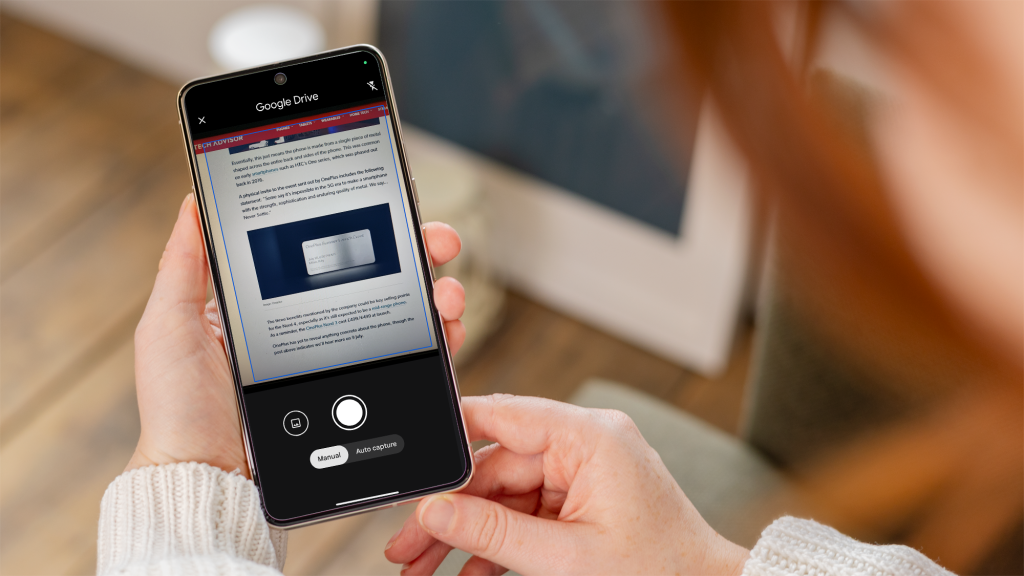
Method 1: Using Google Drive on Android
If you’re using an Android device, you can use the Google Drive app to scan documents. Here’s how:
- Open the Google Drive app on your device.
- Tap on the “+” icon in the top right corner of the screen.
- Select “Scan” from the menu.
- Use the camera to capture the document you want to scan.
- The app will automatically detect the edges of the document and trim any excess white space.
- You can then edit the scanned document by adjusting the brightness, contrast, and other settings as needed.
- Once you’re happy with the scan, tap on the “Save” button to save it to your Google Drive account.
Method 2: Using Grades on Ios/ipados
If you’re using an iOS or iPadOS device, you can use the Grades app to scan documents. Here’s how:
- Open the Grades app on your device.
- Tap on the “+” icon in the top right corner of the screen.
- Select “Scan” from the menu.
- Use the camera to capture the document you want to scan.
- The app will automatically detect the edges of the document and trim any excess white space.
- You can then edit the scanned document by adjusting the brightness, contrast, and other settings as needed.
- Once you’re happy with the scan, tap on the “Save” button to save it to your device.
Method 3: Using Genius Scan
Genius Scan is a popular app that allows you to scan documents using your smartphone. Here’s how:
- Download and install the Genius Scan app from the Google Play Store (Android) or App Store (iOS/iPadOS).
- Open the app and select “Scan” from the menu.
- Use the camera to capture the document you want to scan.
- The app will automatically detect the edges of the document and trim any excess white space.
- You can then edit the scanned document by adjusting the brightness, contrast, and other settings as needed.
- Once you’re happy with the scan, tap on the “Save” button to save it to your device.
Other Apps For Scanning Documents
There are many other apps available that allow you to scan documents using your smartphone. Some popular options include:
- PhotoScan of Google Photos (Android/iOS/iPadOS)
- SwiftScan (Android/iOS/iPadOS)
- Microsoft Lens (Android/iOS/iPadOS)
Tips And Tricks
Here are some additional tips and tricks to keep in mind when scanning documents with your smartphone:
- Make sure the document is flat and even before scanning.
- Use good lighting to ensure a clear scan.
- Adjust the settings as needed to optimize the quality of the scan.
- Save the scanned document to a cloud storage service like Google Drive or Dropbox.
Conclusion
Scanning documents with your smartphone is a convenient and efficient way to digitize your important papers. Whether you’re using an Android device, iOS/iPadOS device, or a third-party app, there are many options available to help you get the job done. By following the methods outlined in this article, you can start scanning documents like a pro!
Frequently Asked Questions
Q: What is the best way to scan documents with my smartphone?
A: The best way to scan documents with your smartphone depends on the type of device you’re using and the features you need. For Android devices, Google Drive is a great option. For iOS/iPadOS devices, Grades or Genius Scan are good choices.
Q: Can I use any app to scan documents with my smartphone?
A: Yes, there are many apps available that allow you to scan documents with your smartphone. Some popular options include PhotoScan of Google Photos, SwiftScan, and Microsoft Lens.
Q: How do I edit a scanned document on my smartphone?
A: Most scanning apps allow you to edit the scanned document by adjusting settings such as brightness, contrast, and resolution. You can also add text or other annotations to the document if needed.
Q: Can I save scanned documents to cloud storage services like Google Drive?
A: Yes, most scanning apps allow you to save the scanned document directly to a cloud storage service like Google Drive or Dropbox.
Q: Are there any specific settings I need to use when scanning documents with my smartphone?
A: Yes, it’s generally recommended to adjust the lighting and settings on your device to optimize the quality of the scan. You may also want to adjust the resolution and other settings as needed to ensure a clear and readable scan.
Q: Can I use a third-party app to scan documents with my smartphone?
A: Yes, there are many third-party apps available that allow you to scan documents using your smartphone. Some popular options include PhotoScan of Google Photos, SwiftScan, and Microsoft Lens.


