
Speed Test Telecom: A Comprehensive Guide
Are you experiencing slow internet speeds despite having a high-speed plan? You’re not alone. Many users face this issue, and it can be frustrating, especially when you need a stable connection for work or entertainment. In this article, we’ll guide you through the process of conducting a speed test on your Telecom Internet connection.
Understanding Your Internet Connection
Before we dive into the speed test process, let’s briefly discuss the types of internet connections offered by Telecom:
- Fibra Ftth: This is the fastest type of connection, which uses optical fiber to deliver speeds up to 10 Gbps.
- Fibra Fttc: This type of connection also uses optical fiber but only for part of the link, resulting in slower speeds (up to 200 Mbps).
- Adsl: This is an older technology that uses copper cables and offers much slower speeds (up to 20 Mbps).
- Fwa: This is a hybrid connection that combines optical fiber with wireless connectivity.
Preparation Before Conducting The Speed Test
To get accurate results, make sure you follow these steps:
- Close All Programs on Your Computer: Any running applications can interfere with the speed test.
- Disconnect Any Heavy Devices: If you have devices connected to your router, disconnect them temporarily to avoid interference.
- Check Your Modem And Router: Ensure they are properly configured and functioning correctly.
Conducting a Speed Test
There are several tools available for conducting a speed test on your Telecom Internet connection:
- Speed Test Telecom 187: This is an official tool provided by Telecom, which can be accessed through their website.
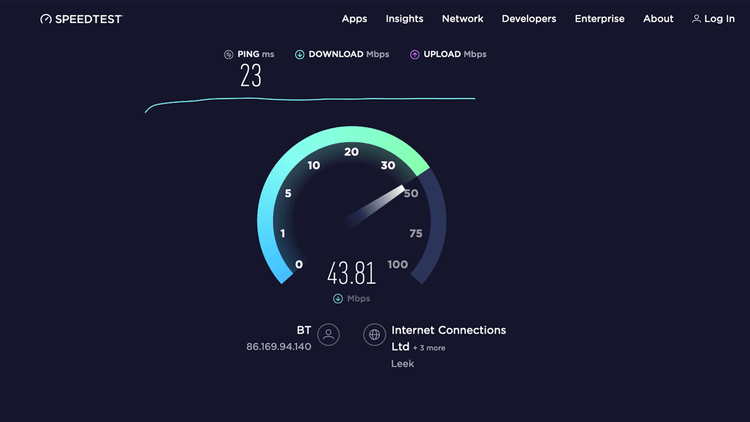
- Speedtest.Net: This is a popular third-party tool that offers detailed insights into your internet speeds.
- Sos Tariffe: This platform allows you to compare tariffs and conduct speed tests on different providers.
Let’s walk through each of these options:
Speed Test Telecom 187
To use this official tool, follow these steps:
- Visit the Telecom website and navigate to their speed test page.
- Select “Speed Test Telecom 187” from the menu.
- Enter your phone number and select the type of connection you’re using (FTTH, FTTC, or ADSL).
- Wait for the test to complete, which should take around 30 seconds.
Speedtest.net
To use this third-party tool:
- Visit speedtest.Net from any browser.
- Click on “Go” to initiate the test.
- The test will measure your download, upload, and ping speeds.
- You can also share your results on social media or save them for later reference.
Sos Tariffe
To use this platform:
- Visit sos.Tariffe.It from any browser.
- Select Telecom as your provider.
- Enter your city and select the type of connection you’re using (FTTH, FTTC, or ADSL).
- Choose the nominal speed of your connection.
- Wait for the test to complete, which should take around 30 seconds.
Interpreting Your Results
After conducting a speed test, analyze your results:
- Download Speed: This measures how quickly data can be downloaded from the internet.
- Upload Speed: This measures how quickly data can be uploaded to the internet.
- Ping Speed: This measures the time it takes for data to travel between your device and the server.
If you’re not satisfied with your results, consider contacting Telecom’s customer support or exploring alternative solutions.
Conclusion
Conducting a speed test on your Telecom Internet connection is a straightforward process that can help identify any issues with your connection. By following the steps outlined in this article, you’ll be able to determine if your speeds are meeting expectations and take corrective action if necessary.


