
How to Go Back in Time With Your Pc: A Step-by-step Guide
Are you tired of dealing with errors and issues on your computer? Do you wish you could go back in time and restore your system to a previous state? Well, you’re in luck! In this article, we’ll show you how to do just that using various methods and tools.
Recovering Your Pc’s Configuration
If you’ve installed new programs or drivers and your computer is no longer functioning properly, don’t worry. You can use the Recovery configuration of system feature in Windows to report your computer back to a previous state without deleting any personal files.
To do this, follow these steps:
- Open the Start menu and type “Recovery” in the search bar.
- Click on the first result, which should be called “Recovery configuration of system”.
- Follow the prompts to select the date you want to restore your computer to.
- Review the list of programs and drivers that will be deleted or restored to their previous state.
- If everything looks good, click on the “Finish” button to complete the process.
Reinstalling Windows
If the recovery configuration feature doesn’t work for you, or if you’re running into issues with your computer, you may need to reinstall Windows altogether. This will delete all programs and drivers installed after a certain point in time, but it will restore your system to its original state.
To do this, follow these steps:
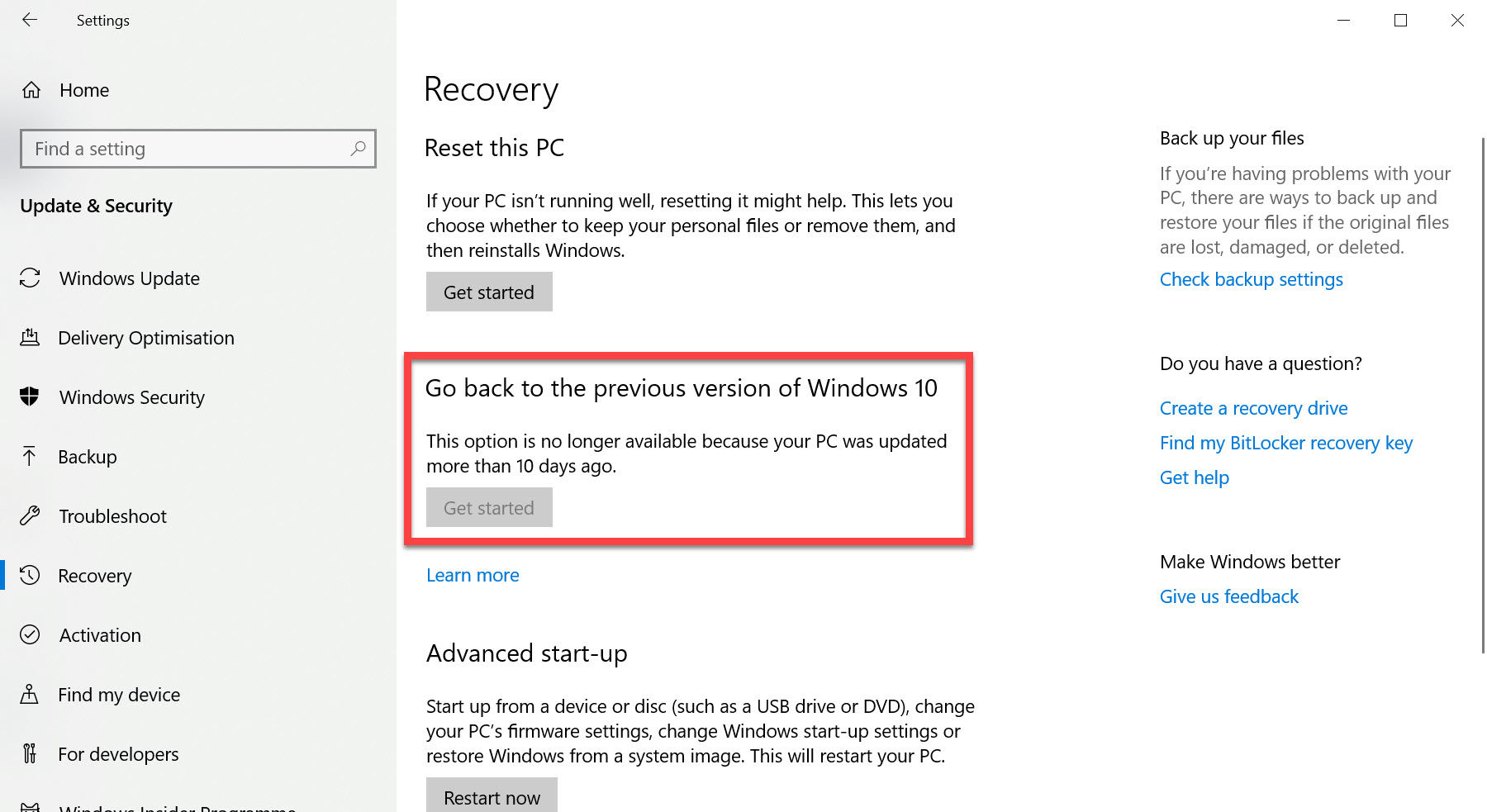
- Open the Settings app on your computer.
- Click on the “Update & Security” option.
- Select the “Recovery” tab.
- Click on the “Restart now” button and follow the prompts to begin the installation process.
- Choose whether you want to download the latest version of Windows from Microsoft or use a copy that’s already available on your computer.
Using Chronology Files
Another useful tool for recovering previous states is Chronology files, which are available in Windows.
To create a Chronology file, follow these steps:
- Right-click on any file or folder and select the “Properties” option.
- Click on the “Previous Versions” tab.
- Select the date you want to restore the file or folder to.
- If prompted, enter your administrator password to confirm.
Alternative Solutions
If none of these methods work for you, don’t worry! There are other ways to recover previous states with your PC.
- Use a System Restore Point: If you’ve created system restore points in the past, you can use one of those to roll back your computer to a previous state.
- Install a Backup Program: Consider installing a backup program like Acronis or Macrium Reflect to create automatic backups of your data and system settings.
- Use a Time Machine Alternative: If you’re using macOS, you may be able to use the built-in Time Machine feature to recover previous states.
Conclusion
Going back in time with your PC can seem daunting at first, but it’s actually quite straightforward once you know how. By following these steps and using various tools and features, you can restore your system to a previous state and get back up and running quickly.
Whether you’re dealing with errors, software issues, or simply want to create automatic backups, there are plenty of options available to help you recover previous states with ease.
Frequently Asked Questions
Q: How often should I use the recovery configuration feature?
A: It’s a good idea to use this feature regularly to ensure that your system is backed up and can be restored in case something goes wrong.
Q: Will reinstalling Windows delete all my personal files?
A: No, reinstalling Windows will only delete programs and drivers installed after a certain point in time. Your personal files will remain intact.
Q: How do I create a Chronology file?
A: To create a Chronology file, right-click on any file or folder and select the “Properties” option. Then, click on the “Previous Versions” tab to access the date you want to restore the file or folder to.
Q: Can I use this method on macOS?
A: Yes, you can use similar methods on macOS, such as using Time Machine or creating manual backups with a third-party program.
Q: What are some alternative solutions for recovering previous states?
A: Some alternative solutions include using system restore points, installing backup software, and using time machine alternatives like Acronis or Macrium Reflect.
Q: How long does the recovery process take?
A: The length of the recovery process will depend on several factors, including the size of your hard drive, the speed of your internet connection, and the complexity of the restore operation.
Q: Can I recover individual files instead of restoring my entire system?
A: Yes, you can recover individual files using methods like Chronology files or Time Machine backups.


