
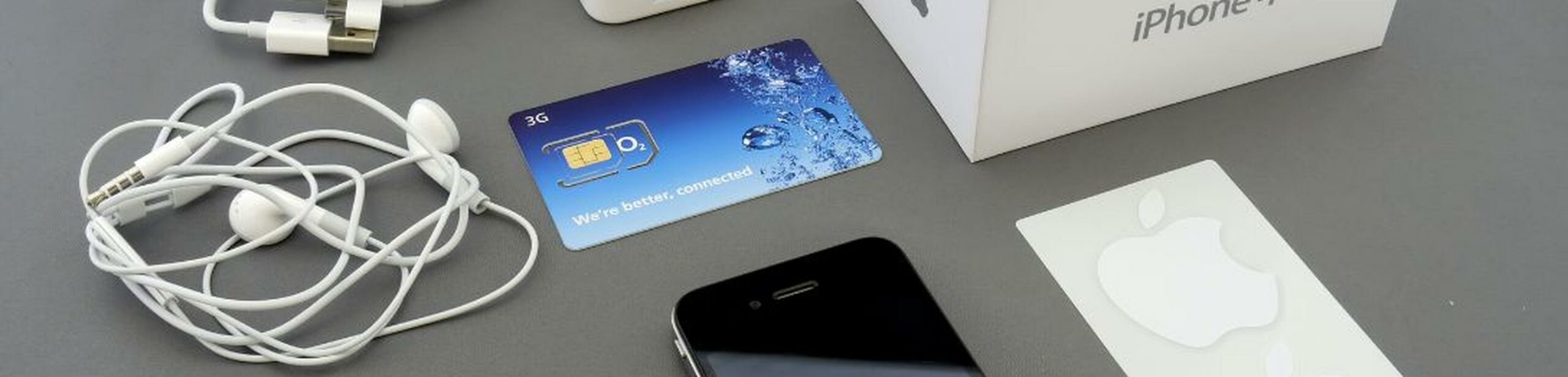
Actuating The Sim on Iphone: A Step-by-step Guide
As soon as you acquire your prime iPhone, you’re likely eager to start using it and exploring its features. However, before diving into the world of apps and settings, you need to actuate the SIM card on your device. If this is your first time handling an Apple smartphone, you might have some doubts about how to insert and configure your SIM. This article aims to guide you through the process, providing a clear and concise explanation of each step.
Preliminary Operations
Before proceeding with the tutorial, there are some preliminary operations that need to be accomplished to ensure everything runs smoothly. First and foremost, if you have a physical SIM card, you’ll need to insert it into your iPhone. If necessary, refer to the guide below for instructions on how to do so.
Types of Sim Cards in Iphones
The most recent patterns of iPhones use Nano-SIM cards (technically given 4FF), while Micro-SIM cards (technically given 3FF) were used exclusively for the iPhone 4 and 4s. Some newer iPhone models, such as the iPhone 13, also support eSIM, a digital SIM card that can contain a separate phone plan and be applied in conjunction with a physical SIM.
Actuating The Physical Sim
To actuate your physical SIM on an iPhone:
- Position yourself comfortably, take your iPhone, and open the Settings app.
- Locate the “Cellular” option and tap on it.
- Select the “Add eSIM or Configure cellular” option.
- Choose the “Use a code QR” option and point your camera at the QR code provided by your network provider.
- Wait for the system to acknowledge the code.
- If you don’t know where to find the PIN or agree with it, read the guide on how to recover the PIN of your SIM card.
- Once the system acknowledges the code, you’re done! You can now use all the services associated with your SIM card on your iPhone.
Actuating Esim
To actuate an eSIM on your iPhone:
- Select the “Cellular” option in Settings.
- Tap on the “Add eSIM or Configure cellular” option.
- Choose the “Use a code QR” option and point your camera at the QR code provided by your network provider.
- Wait for the system to acknowledge the code, or insert the data manually if you can’t scan it with your camera.
- Insert the activation code of your eSIM into your iPhone.
- If you have another SIM card already inserted in your iPhone, choose whether to make that new one the leading or secondary SIM.
Transferring an Esim From Another Iphone
If you want to transfer your eSIM from another iPhone:
- Select the “Add eSIM” option in Settings.
- Choose the “Transfer a SIM from another iPhone nearby” option.
- Ensure the other iPhone is unblocked, Bluetooth enabled, and running iOS 16 or later.
- Follow the instructions provided by Apple to complete the transfer process.
Troubleshooting
If you encounter any doubts or problems during this process:
- Consult the support pages on the Apple website dedicated to your iPhone model.
- If that doesn’t help, contact Apple’s customer service for direct assistance via phone, web, or in-person.
- For specific issues related to your network provider (e.G., TIM, Vodafone, WINDTRE, Iliad, Fastweb, Kena, PosteMobile), refer to the guides dedicated to those operators.
Conclusion
Actuating your SIM card on an iPhone is a straightforward process that requires some initial setup. By following this guide, you should be able to successfully insert and configure your physical or eSIM on your device. If you encounter any difficulties, don’t hesitate to seek help from Apple’s support resources or consult the guides dedicated to specific network providers.
Frequently Asked Questions (FAQs)
- Q: What type of SIM card does my iPhone use?
A: The most recent patterns of iPhones use Nano-SIM cards. - Q: Can I actuate an eSIM on my iPhone?
A: Yes, but you’ll need to follow the specific steps outlined in this guide. - Q: How do I transfer my eSIM from another iPhone?
A: Follow the instructions provided by Apple for transferring a SIM from another iPhone nearby. - Q: Where can I find help if I encounter problems with actuating my SIM?
A: Consult the support pages on the Apple website, contact Apple’s customer service, or refer to guides dedicated to specific network providers.


