
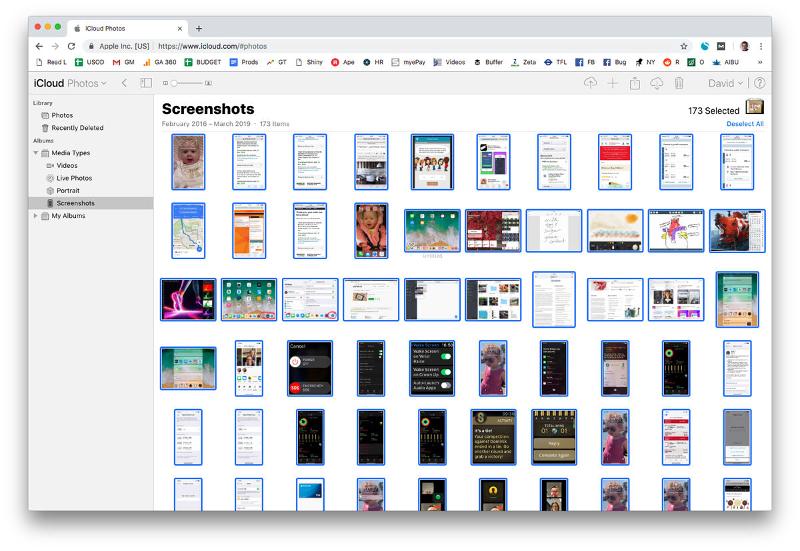
How to See Your Photos on Icloud: A Step-by-step Guide
Are you tired of cluttering your phone’s gallery with unnecessary photos? Do you want to free up space on your device without sacrificing access to your cherished memories? Look no further! In this article, we’ll guide you through the process of seeing your photos on iCloud, a seamless and user-friendly service provided by Apple.
What is Icloud?
ICloud is a cloud storage service that allows you to store and access your photos, videos, contacts, calendars, reminders, and more from any device connected to the internet. With iCloud, you can easily share files between devices, access your data on-the-go, and even recover deleted items.
Getting Started With Icloud
Before we dive into the process of seeing your photos on iCloud, let’s make sure you have an Apple ID and are familiar with the basic setup. If you don’t have an Apple ID, follow these steps:
- Open the App Store or iTunes on your device.
- Tap on “Create a New Account” to set up your Apple ID.
- Fill in the required information, including your name, email address, and password.
Configuring Your Device For Icloud
Now that you have an Apple ID, let’s configure your device to use iCloud:
- Go to Settings > [Your Name] > iCloud.
- Tap on “iCloud” to access the settings menu.
- Enable the switch next to “Photos” to allow iCloud to access and sync your photos.
Accessing Your Photos on Icloud
To see your photos on iCloud, follow these steps:
- Open the Photos app on your device.
- Tap on the album icon in the top-right corner of the screen.
- Select the album you want to view or create a new one by tapping the “+” icon.
Using The Icloud Website
You can also access your photos on iCloud using the website:
- Open a web browser on any device connected to the internet.
- Go to icloud.Com and sign in with your Apple ID.
- Click on the “Photos” tab to view your albums and shared folders.
Tips For Viewing Your Photos on Icloud
Here are some additional tips for viewing your photos on iCloud:
- To see a specific photo in full-screen mode, tap on it and swipe up or down to zoom in and out.
- To add new photos to iCloud, open the Photos app and select the album you want to add them to. Tap the “+” icon to upload new photos.
- To share photos with friends and family, click on the “Share” button next to each photo and enter their email address.
How to See Your Photos on Icloud on Different Devices
You can see your photos on iCloud from any device connected to the internet, including:
- Iphone: Open the Photos app and follow the steps above.
- Ipad: Tap on the album icon in the top-right corner of the screen.
- Mac: Click on the “Photos” tab in the iCloud website.
- PC: Visit icloud.Com and sign in with your Apple ID.
Troubleshooting Common Issues
If you’re experiencing issues with seeing your photos on iCloud, try these troubleshooting steps:
- Ensure that your device is connected to a stable internet connection.
- Check that the Photos app is updated to the latest version.
- Restart your device and relaunch the Photos app.
Conclusion
In this article, we’ve walked you through the process of seeing your photos on iCloud. Whether you’re using an iPhone, iPad, Mac, or PC, accessing your photos has never been easier. Remember to configure your device for iCloud and follow the steps outlined above to view your cherished memories from any device connected to the internet.
Faqs
- Q: What is The Purpose of Icloud?
A: ICloud is a cloud storage service that allows you to store and access your photos, videos, contacts, calendars, reminders, and more from any device connected to the internet. - Q: Do I Need an Apple ID to Use Icloud?
A: Yes, you’ll need an Apple ID to sign in to iCloud. - Q: Can I View my Photos on Icloud From Any Device?
A: Yes, as long as you’re connected to the internet, you can access your photos on iCloud from any device. - Q: How do I Add New Photos to Icloud?
A: Open the Photos app and select the album you want to add them to. Tap the “+” icon to upload new photos. - Q: Can I Share Photos With Friends And Family Using Icloud?
A: Yes, click on the “Share” button next to each photo and enter their email address.
Common Faqs
- Q: Why Can’t I See my Photos on Icloud?
A: Ensure that your device is connected to a stable internet connection, and check that the Photos app is updated to the latest version. - Q: How do I Troubleshoot Issues With Seeing my Photos on Icloud?
A: Try restarting your device and relaunching the Photos app.
Best Practices
- Regularly back up your data using iCloud to prevent loss in case of a hardware failure or other unforeseen circumstances.
- Ensure that all devices connected to your iCloud account are running the latest software to avoid compatibility issues.
- Take advantage of iCloud’s automatic photo syncing feature to keep all your devices updated with the latest photos.
Tips And Tricks
- Use the “Photos” tab in the iCloud website to view your albums and shared folders on any device connected to the internet.
- To see a specific photo in full-screen mode, tap on it and swipe up or down to zoom in and out.
How Can We Help?
If you’re experiencing issues with seeing your photos on iCloud or have questions about using this service, feel free to ask us in the comments section below!


