
Copy And Paste on Mobile: A Step-by-step Guide
Are you tired of typing out long texts or articles on your mobile device? Do you wish there was a way to quickly copy and paste content from one app to another? Look no further! In this article, we will guide you through the process of copying and pasting text and images on both Android and iOS devices.
Why Copy And Paste on Mobile Matters
In today’s digital age, communication is key. Whether it’s sharing a funny meme with friends or collaborating on a project with colleagues, being able to copy and paste content quickly and easily is essential. By mastering this skill, you can save time, increase productivity, and stay connected with others.
How to Copy And Paste on Android
If you’re an Android user, copying and pasting text is a breeze. Here’s how:
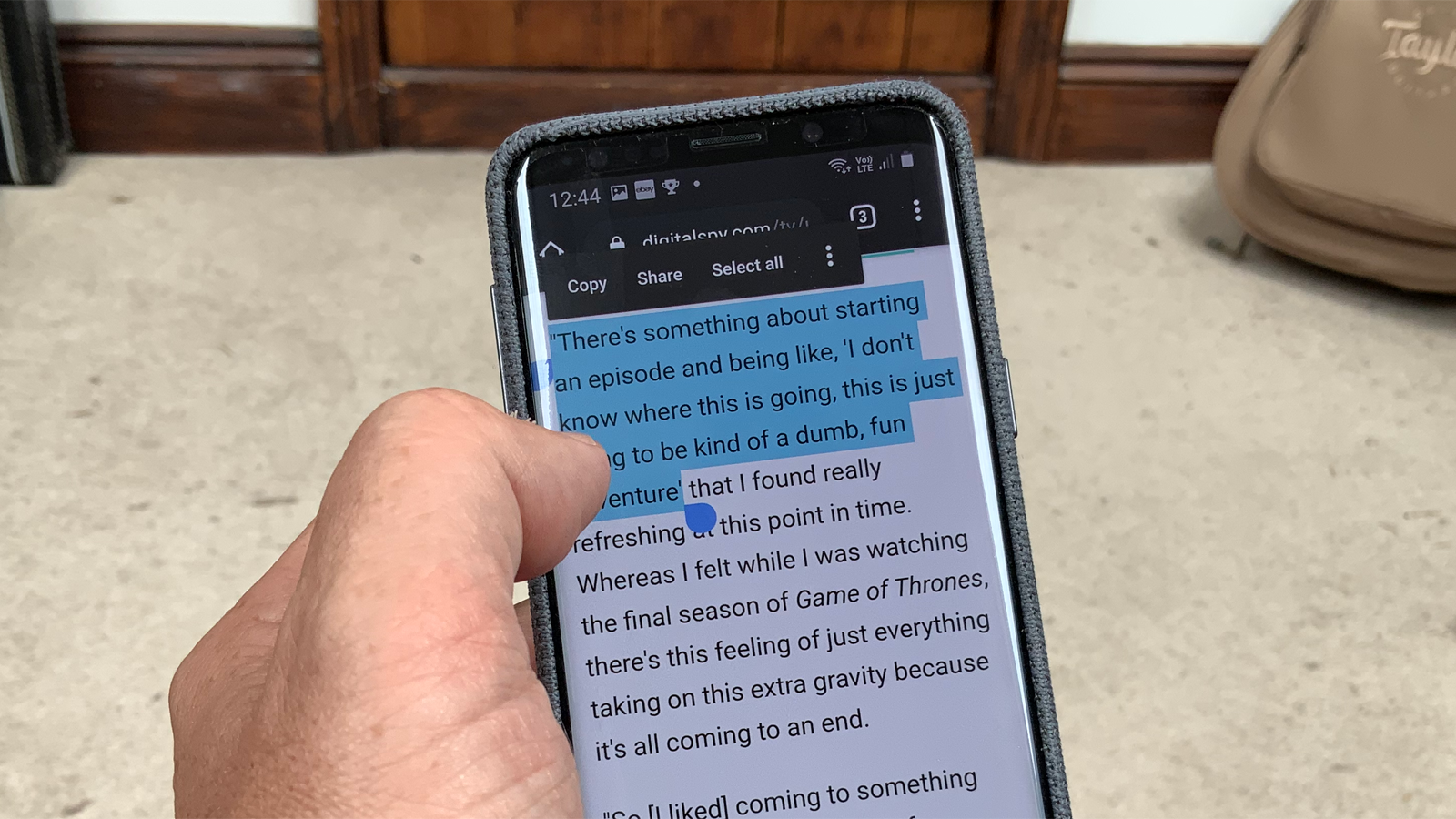
- Select The Text: Hold your finger on a word or phrase until it highlights.
- Drag The Cursors: Use the two blue cursors that appear to select the text you want to copy.
- Copy The Text: Tap on the “Copy” button in the menu that appears.
- Paste The Text: Open the app where you want to paste the text and tap on the “Paste” button.
How to Copy And Paste on Iphone
If you’re an iPhone user, copying and pasting text is just as easy. Here’s how:
- Select The Text: Hold your finger on a word or phrase until it highlights.
- Copy The Text: Tap on the “Copy” button in the menu that appears.
- Paste The Text: Open the app where you want to paste the text and tap on the “Paste” button.
Advanced Techniques For Iphone Users
If you have an iPhone with 3D Touch, you can copy and paste text using this feature:
- Select The Text: Tap on the text until the keyboard appears.
- Apply Pressure: Apply a stronger pressure on the keyboard to select the text.
- Release Pressure: Release the pressure and scroll through the text to select the desired portion.
- Copy The Text: Tap on the “Copy” button in the menu that appears.
Using Clipboard Apps
If you want to manage your clipboard contents, consider using a third-party app like Clipboard Actions & Manager (for Android) or Copied (for iOS). These apps allow you to save and organize your clipboard content, making it easy to access and share.
Copy And Paste on Facebook
Want to copy and paste text or images from Facebook? It’s just as easy:
- Select The Text: Tap on the text until it highlights.
- Copy The Text: Tap on the “Copy” button in the menu that appears.
- Paste The Text: Open the app where you want to paste the text and tap on the “Paste” button.
Conclusion
Copying and pasting content on your mobile device is a simple yet powerful skill to master. By following these step-by-step guides, you can save time, increase productivity, and stay connected with others. Remember to explore advanced techniques for iPhone users and consider using clipboard apps to manage your clipboard contents.
Frequently Asked Questions
- Q: Can I Copy And Paste Images on my Mobile Device?
A: Yes, you can copy and paste images on both Android and iOS devices. - Q: How do I Use 3D Touch to Copy And Paste Text on my Iphone?
A: To use 3D Touch, tap on the text until the keyboard appears, apply a stronger pressure on the keyboard, release the pressure, and scroll through the text to select the desired portion. - Q: What Are Clipboard Apps, And How do They Help Me?
A: Clipboard apps allow you to save and organize your clipboard content, making it easy to access and share. - Q: Can I Copy And Paste Text From Facebook on my Mobile Device?
A: Yes, you can copy and paste text or images from Facebook on both Android and iOS devices. - Q: How do I Use Copied App on my Iphone?
A: To use the Copied app, install it, tap on the “Enable Background” button to enable background operation, and follow the instructions to save and share your clipboard content. - Q: Can I Copy And Paste Text From a Link on Facebook?
A: Yes, you can copy and paste text from a link on Facebook by tapping on the “Copy” button in the menu that appears. - Q: How do I Use Clipboard Actions & Manager App on my Android Device?
A: To use the Clipboard Actions & Manager app, install it, tap on the “Enable Background” button to enable background operation, and follow the instructions to save and share your clipboard content.
By mastering these skills, you’ll be able to communicate more effectively, increase productivity, and stay connected with others. Happy copying and pasting!


