
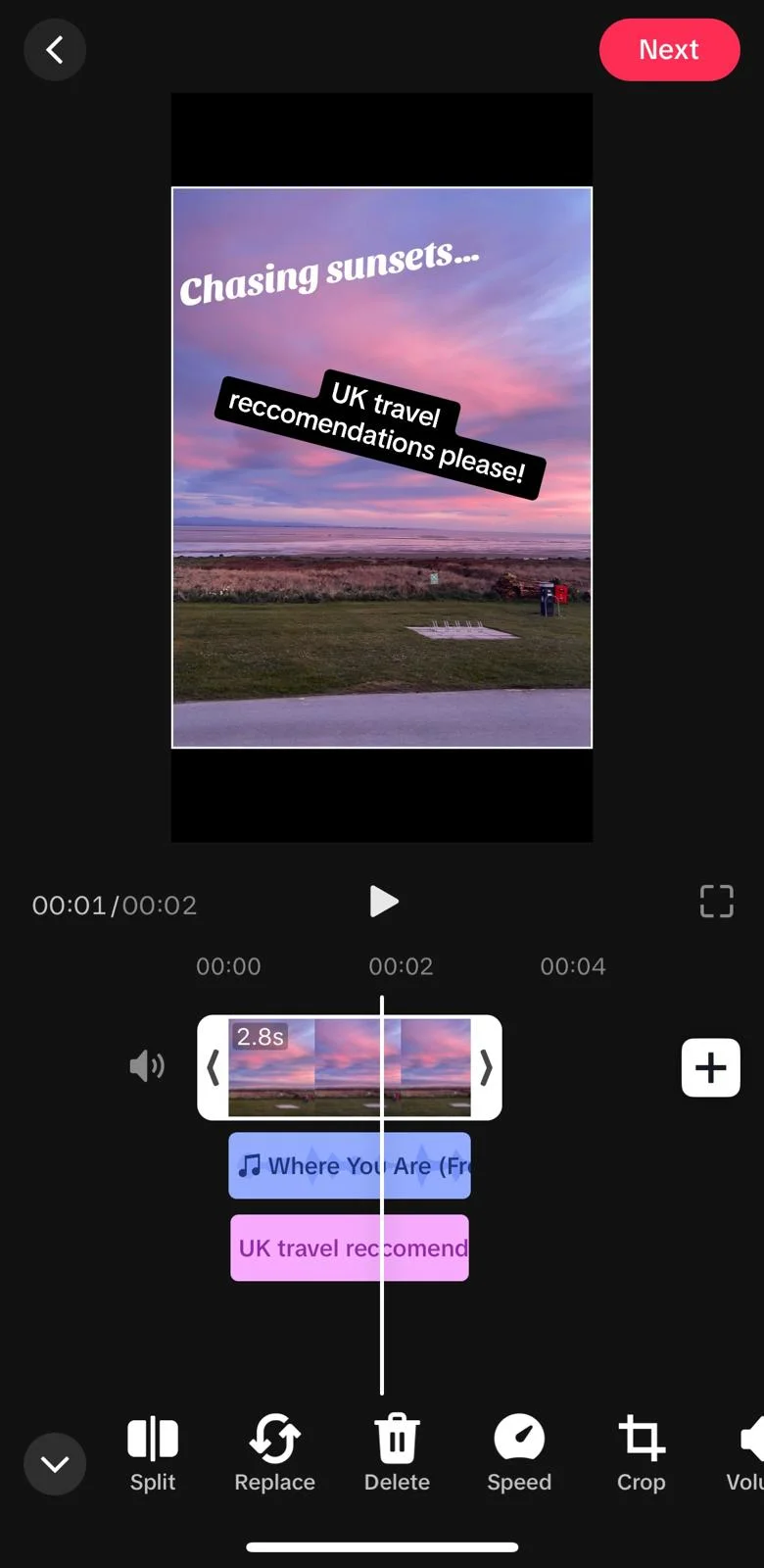
Cutting a Video on Tiktok: A Step-by-step Guide
Are you ready to create and share amazing videos on TikTok? As a seasoned content writer, I’ll guide you through the process of cutting a video on TikTok using various methods. From the built-in editing features to third-party apps, we’ll explore it all.
The Power of Cutting Videos on Tiktok
Before we dive into the nitty-gritty details, let’s talk about why cutting videos is an essential skill for any TikTok creator. With the ever-changing algorithm and increasing competition, being able to edit your videos efficiently can give you a significant edge over others. Whether you’re looking to trim unwanted parts, add transitions, or enhance visual effects, mastering video editing on TikTok will take your content to the next level.
Cutting Videos on Android Using The Built-in Function
If you’re an Android user, you can easily cut videos using the built-in function within the TikTok app. Here’s how:
- Download And Install Tiktok: First, make sure you have the latest version of TikTok installed on your device.
- Access The App: Open the TikTok app and tap on the “+” button at the bottom to initiate a new video recording.
- Choose Your Recording Options: Select the desired duration for your video (e.G., 60S, 15s) and then press the checkmark icon to start recording.
- Cut Your Video: Once you’ve recorded your video, tap on the “Rule Clip” button at the top-right corner of the screen. Then, drag the white cursors to select the desired part of the video you want to keep.
- Export And Share: Press the “Share” button to export and share your edited video on TikTok.
Alternative Methods: Third-party Apps
While the built-in function is convenient, some users might find it limiting or prefer a more feature-rich experience. That’s where third-party apps come in! Let’s take Vidtrim as an example:
- Download And Install Vidtrim: Get the app from the Google Play Store.
- Access The App: Launch VidTrim and grant access to your device’s storage.
- Select Your Video: Choose the video you want to edit by tapping on the “Get Access” button.
- Cut And Edit: Use the timeline feature to select the desired part of the video, then trim it using the scissors icon at the top-right corner.
- Export And Share: Press the “Share” button to export and share your edited video on TikTok.
Cutting Videos on Iphone Using The Built-in Function
If you’re an iPhone user, the process is similar:
- Download And Install Tiktok: Make sure you have the latest version of TikTok installed.
- Access The App: Open TikTok and tap on the “+” button at the bottom to initiate a new video recording.
- Choose Your Recording Options: Select the desired duration for your video (e.G., 60S, 15s) and then press the checkmark icon to start recording.
- Cut Your Video: Once you’ve recorded your video, tap on the “Rule Clip” button at the top-right corner of the screen. Then, drag the white cursors to select the desired part of the video you want to keep.
- Export And Share: Press the “Share” button to export and share your edited video on TikTok.
Alternative Methods: Imovie
If you’re not satisfied with the built-in function or third-party apps, you can always use iMovie:
- Download And Install Imovie: Get the app from the App Store.
- Launch Imovie: Open iMovie and select the “Filmed” option from the menu.
- Select Your Video: Choose the video you want to edit by tapping on it.
- Cut And Edit: Use the timeline feature to select the desired part of the video, then trim it using the scissors icon at the top-right corner.
- Export And Share: Press the “Share” button to export and share your edited video on TikTok.
Conclusion
Cutting videos on TikTok is an essential skill for any creator looking to elevate their content game. Whether you’re using the built-in function, third-party apps like VidTrim, or iMovie, mastering video editing will help you stand out in a crowded online space.


