
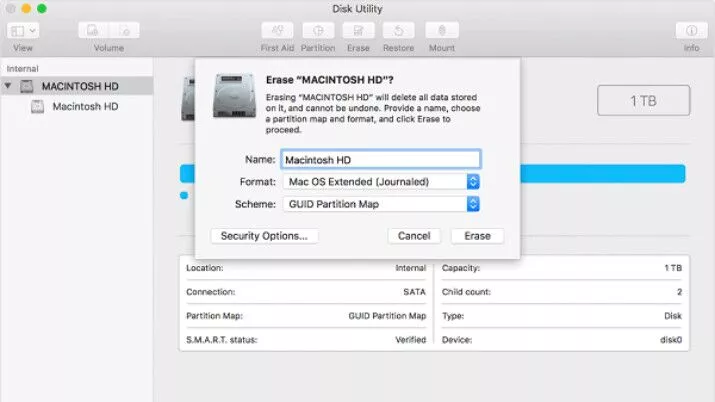
How to Reset a Macbook: A Step-by-step Guide
Are you looking to reset your MacBook to its factory settings? Look no further! In this article, we will guide you through the process of resetting your MacBook, covering everything from backing up your data to reinstalling macOS.
Why Reset Your Macbook?
Resetting your MacBook can be useful in a variety of situations. For example, if you’re selling your laptop or giving it away, you’ll want to wipe all of your personal data and settings. Similarly, if you’re experiencing issues with your MacBook that can’t be resolved through other means, resetting the device may help.
Before You Begin
Before you start the process of resetting your MacBook, make sure you have backed up any important files or data. This will ensure that you don’t lose anything during the reset process.
Backing Up Your Data
To back up your data, you can use Time Machine, a built-in feature in macOS that allows you to create automatic backups of your system and files. To do this:
- Open System Preferences and click on Time Machine.
- Select the disk or partition where you want to store your backup.
- Click on “Select Backup Disk” and follow the prompts.
Alternatively, you can use an external hard drive or cloud storage service like iCloud Drive or Google Drive to back up your files.
Resetting Your Macbook
Now that you have backed up your data, it’s time to reset your MacBook. Here are the steps:
- Turn Off Your Macbook: Click on the Apple menu and select “Shut Down.”
- Hold Down The Power Button: Press the power button and hold it down until the MacBook turns off.
- Boot Into Recovery Mode: Press the power button again to turn on your MacBook, then immediately hold down the Command (⌘) + R keys.
- Select Your Language: Select your language from the dropdown menu.
- Click on “Utilities”: Click on the Utilities option at the top of the screen.
- Choose The Option to Reinstall Macos: Select the option to reinstall macOS and follow the prompts.
Resetting Your Macbook Without Reinstalling Macos
If you don’t want to reinstall macOS, you can reset your MacBook without losing any data or settings. Here’s how:
- Open System Preferences: Click on the Apple menu and select “System Preferences.”
- Click on “Reset”: Select the option to reset your MacBook.
- Follow The Prompts: Follow the prompts to complete the reset process.
Resetting Your Macbook Without Formatting
If you want to reset your MacBook without formatting it, you can use a USB drive or external hard drive to store a copy of your system and files. Here’s how:
- Create a Bootable Usb Drive: Create a bootable USB drive with macOS installed on it.
- Boot Into Recovery Mode: Boot into recovery mode by pressing the power button and holding down the Command (⌘) + R keys.
- Select Your Language: Select your language from the dropdown menu.
- Click on “Utilities”: Click on the Utilities option at the top of the screen.
- Choose The Option to Reinstall Macos: Select the option to reinstall macOS and follow the prompts.
Tips For Resetting Your Macbook
Here are some additional tips to keep in mind when resetting your MacBook:
- Make sure you have backed up all of your important files and data before proceeding.
- If you’re experiencing issues with your MacBook, try restarting it or using a bootable USB drive to troubleshoot the problem.
- If you’re selling your MacBook, make sure to wipe all of your personal data and settings.
Conclusion
Resetting your MacBook can be a useful process for troubleshooting issues or preparing your laptop for sale. By following these steps, you can reset your MacBook without losing any important files or data.
Frequently Asked Questions (FAQs)
Here are some additional FAQs to keep in mind:
Q: Why do I need to back up my data before resetting my MacBook?
A: You should back up your data before resetting your MacBook to ensure that you don’t lose any important files or information.
Q: How long does it take to reset a MacBook?
A: The time it takes to reset a MacBook will depend on the method you use and the speed of your internet connection. In general, resetting a MacBook can take anywhere from 30 minutes to several hours.
Q: Will I lose any data or settings when I reset my MacBook?
A: If you follow these steps carefully, you should be able to reset your MacBook without losing any important files or information.
Q: Can I use a USB drive to reset my MacBook?
A: Yes, you can use a USB drive to reset your MacBook. This method is called “resetting with a bootable USB drive.”
Q: Will resetting my MacBook void the warranty?
A: Resetting your MacBook will not affect the warranty in any way.
Q: How do I know if I need to reset my MacBook?
A: If you’re experiencing issues with your MacBook, such as freezes or crashes, it may be worth trying a factory reset. However, if the problem persists after resetting your MacBook, you may want to consider seeking professional help from an Apple support specialist.
Q: Can I reset my MacBook remotely?
A: Unfortunately, no. You will need to physically access your MacBook and perform the steps outlined above in order to reset it.
Additional Resources
If you have any additional questions or concerns about resetting your MacBook, here are some additional resources that may be helpful:
- Apple Support: Apple’s official support website is a great resource for troubleshooting issues with your MacBook.
- Youtube Tutorials: There are many YouTube videos and tutorials available online that can help guide you through the process of resetting your MacBook.
Final Tips
Remember to always back up any important files or data before attempting to reset your MacBook. If you’re unsure about any part of the process, it’s always a good idea to consult with an Apple support specialist for additional guidance and assistance.


