
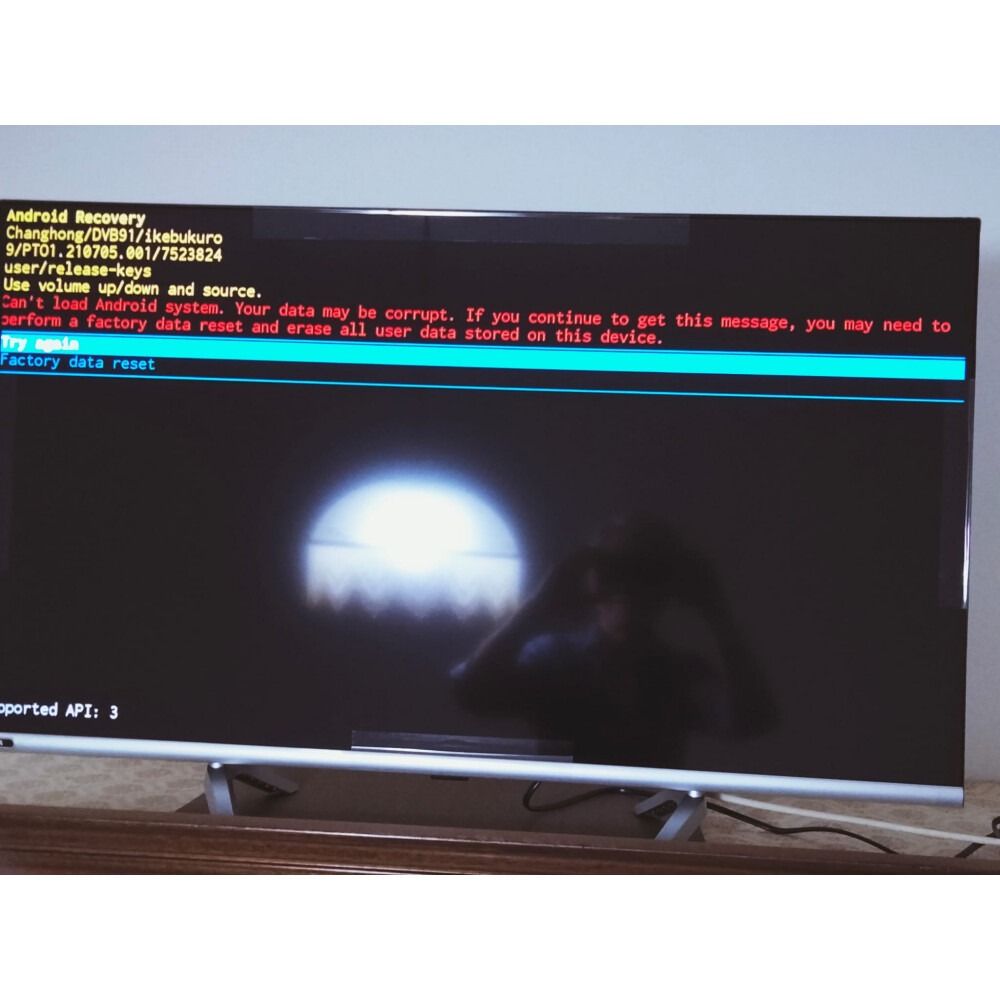
How to Reset Your Saba Smart Tv: A Step-by-step Guide
Are you experiencing issues with your Saba Smart TV, such as frozen screens or problems navigating the menu? In this article, we’ll show you how to reset your Saba Smart TV using different methods, including with and without a remote control.
Why Reset Your Saba Smart Tv?
Resetting your Saba Smart TV can help resolve various issues, such as:
- Frozen screens
- Problems navigating the menu
- Issues with channel reception
- Malfunctioning apps
By resetting your TV, you’ll be able to start fresh and ensure that all settings are restored to their default values.
Method 1: Resetting Your Saba Smart TV With a Remote Control
To reset your Saba Smart TV using a remote control, follow these steps:
Step 1: Access The Settings Menu
Press the “Menu” button on your remote control and navigate to the “Settings” option. Select it by pressing the “OK” button.
Step 2: Scroll Down to System Settings
Use the arrow buttons on your remote control to scroll down to the “System” settings.
Step 3: Select Reset Factory Settings
Once you’re in the system settings, select the “Reset factory settings” option. You’ll be prompted to enter a PIN code (default is 0000). Enter it and press “OK”.
Step 4: Wait For The Reset Process to Complete
The reset process may take several minutes. Once it’s complete, your TV will restart and display the initial setup screen.
Method 2: Resetting Your Saba Smart TV Without a Remote Control
If you don’t have access to a remote control or if yours is not functioning properly, you can reset your Saba Smart TV using the following steps:
Step 1: Press And Hold The Power Button
Press and hold the power button on your TV for about 30 seconds. This will shut down your TV.
Step 2: Unplug Your TV From Power
Unplug your TV from the power source.
Step 3: Wait For 30 Seconds
Wait for 30 seconds to ensure that all power is drained from your TV.
Step 4: Plug in Your TV And Press The Power Button
Plug your TV back into the power source and press the power button. If it doesn’t turn on, try pressing the button again.
Method 3: Resetting Your Saba Smart TV Pin
If you need to reset the parental control PIN on your Saba Smart TV, follow these steps:
Step 1: Access The Settings Menu
Press the “Menu” button and navigate to the “Settings” option.
Step 2: Scroll Down to Parental Control
Use the arrow buttons to scroll down to the “Parental control” section.
Step 3: Select Reset Pin
Select the “Reset PIN” option. Enter the old PIN (default is 0000) and confirm by pressing “OK”.
Step 4: Set a New Pin
Enter your new PIN and confirm it.
Troubleshooting Tips
If you’re experiencing problems with resetting your Saba Smart TV, try these troubleshooting tips:
- Check for any updates on the official website.
- Visit the customer support center or contact their helpline for assistance.
- Try using the app Google TV to control your TV if it’s not responding.
Conclusion
Resetting your Saba Smart TV can help resolve various issues and ensure that all settings are restored to their default values. By following these step-by-step guides, you’ll be able to reset your TV using different methods, including with and without a remote control.
Frequently Asked Questions (FAQs)
- Q: What happens when I reset my Saba Smart TV?
A: When you reset your Saba Smart TV, all settings are restored to their default values. - Q: How do I prevent the need for a reset?
A: Regularly updating your TV software and clearing cache can help prevent issues that require a reset.


