
How to Turn Off a Mac: A Step-by-step Guide
Are you new to the world of Apple devices? Have you just purchased your first Mac and want to know how to turn it off? Look no further! In this article, we will walk you through the simple steps to shut down your Mac, as well as some additional tips and tricks for managing your device.
Why Turn Off Your Mac?
Before we dive into the instructions, let’s quickly discuss why turning off your Mac is important. Just like any other electronic device, your Mac needs a break from time to time. Turning it off helps to:
- Reduce energy consumption
- Prevent overheating
- Extend the lifespan of your device
Step 1: Shut Down Your Mac
To turn off your Mac, follow these simple steps:
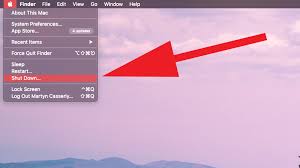
- Click on the Apple logo in the top left corner of the screen.
- Select “Shut Down” from the dropdown menu.
- Confirm that you want to shut down your Mac by clicking “Turn Off.”
Step 2: Use Keyboard Shortcuts
If you’re looking for a quicker way to turn off your Mac, you can use keyboard shortcuts:
- Press Ctrl+alt+cmd+eject (or Cmd+eject) to immediately turn off your Mac.
- Press Ctrl+cmd+shift+eject (or Cmd+shift+eject) to shut down your Mac and put it in sleep mode.
Step 3: Force Shut Down
If your Mac is frozen or unresponsive, you may need to force shut it down. To do this:
- Press the power button on your Mac until it turns off.
- Wait a few seconds and then press the power button again to turn it back on.
Step 4: Use Terminal Commands
If you’re comfortable using Terminal commands, you can use the following codes to shut down or restart your Mac:
- Shutdown -h Now: Immediately shuts down your Mac.
- Shutdown -r Now: Reboots your Mac.
- Shutdown -s Now: Puts your Mac in sleep mode.
Step 5: Program Your Mac to Shut Down
If you want to automate the shutdown process, you can set up a scheduled task using the following steps:
- Click on the Apple logo and select “System Preferences.”
- Go to “Battery” or “Energy Saver” (depending on your macOS version).
- Select the option to shut down your Mac after a specified period of inactivity.
Turning Off Your Mac Remotely
If you want to turn off your Mac remotely, you can use an app like TeamViewer. This will allow you to access and control your Mac from another device.
Conclusion
Turning off your Mac is a simple process that can help prolong the life of your device. By following these steps, you’ll be able to shut down your Mac with ease. Remember to always shut down your Mac when it’s not in use to reduce energy consumption and prevent overheating.
Faqs
- Q: How do I turn off my Mac?
A: To turn off your Mac, click on the Apple logo, select “Shut Down,” and confirm that you want to shut down. - Q: What are some keyboard shortcuts for shutting down my Mac?
A: You can use Ctrl+alt+cmd+eject (or Cmd+eject) to immediately turn off your Mac, or Ctrl+cmd+shift+eject (or Cmd+shift+eject) to shut down and put it in sleep mode. - Q: How do I force shut down my Mac?
A: Press the power button on your Mac until it turns off, then wait a few seconds and press the power button again to turn it back on. - Q: Can I program my Mac to shut down automatically?
A: Yes, you can set up a scheduled task using System Preferences > Battery or Energy Saver. - Q: How do I turn off my Mac remotely?
A: You can use an app like TeamViewer to access and control your Mac from another device.


