
How to Insert Your Activity on Google: A Step-by-step Guide
Are you excited to finally open your physical shop and showcase it to the world? Congratulations! You’re one step closer to achieving your dream. But, have you thought about making your presence online as well? That’s where Google comes in. In this article, we’ll guide you through the process of inserting your activity on Google, so you can reach a vast audience and attract potential customers.
What is Profile of The Activity on Google?
Profile of the Activity on Google, previously known as Google My Business, is a free service that helps small businesses like yours to manage their online presence. It’s a simple way to create a banner-like profile that appears in Google search results, Google Maps, and other Google services.
Why is it Important to Have an Online Presence?
Having an online presence is crucial for any business today. It allows potential customers to find you easily through search engines like Google, and it also provides them with essential information about your shop, such as schedules, address, and contact details.
How to Insert Your Activity on Profile of The Activity on Google
To insert your activity on Profile of the Activity on Google, follow these steps:
- Sign in to Your Google Account: If you don’t have a Google account, create one now.
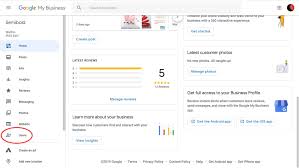
- Go to The Google My Business Page: Sign in to your Google account and navigate to the Google My Business page.
- Click on “Create”: Click on the “Create” button to start creating your profile.
- Enter Your Business Information: Fill out the required fields, including your business name, address, phone number, and website.
- Choose a Category: Select a category that best describes your business.
- Add Photos And Descriptions: Upload high-quality photos of your shop and add a description to give potential customers an idea of what you offer.
- Verify Your Business: Verify your business through Google’s verification process, which may involve receiving a postcard or phone call.
How to Insert Your Activity on Google Maps
Another way to create and manage your online presence is by using the Google Maps app for Android and iOS devices. Here’s how:
- Download And Install The Google Maps App: Download and install the Google Maps app on your device.
- Sign in to Your Google Account: Sign in to your Google account within the app.
- Tap on “Add”: Tap on the “Add” button to create a new listing for your business.
- Fill Out The Required Fields: Fill out the required fields, including your business name, address, phone number, and website.
- Choose a Category: Select a category that best describes your business.
- Verify Your Business: Verify your business through Google’s verification process.
Tips And Tricks
- Make sure to fill out all the required fields accurately to avoid any errors or delays in the verification process.
- Use high-quality photos that showcase your shop and products.
- Respond promptly to reviews and comments on your profile.
- Keep your profile up-to-date by making changes as needed.
Conclusion
Inserting your activity on Google is a straightforward process that can help you reach a vast audience and attract potential customers. By following the steps outlined in this article, you’ll be able to create a profile that showcases your business and provides essential information to potential customers.
Frequently Asked Questions (FAQs)
- What is Profile of The Activity on Google?
Profile of the Activity on Google is a free service that helps small businesses manage their online presence. - Why is it Important to Have an Online Presence?
Having an online presence allows potential customers to find you easily and provides them with essential information about your shop. - How do I Insert my Activity on Profile of The Activity on Google?
To insert your activity on Profile of the Activity on Google, follow the steps outlined in this article. - Can I Use Google Maps to Create a Profile For my Business?
Yes, you can use the Google Maps app for Android and iOS devices to create a profile for your business. - How Long Does it Take to Verify my Business?
Verification times may vary, but it usually takes around 7-14 days. - Can I Make Changes to my Profile After It’s Been Verified?
Yes, you can make changes to your profile at any time by logging in to your Google account and navigating to the Google My Business page. - How do I Respond to Reviews on my Profile?
You can respond to reviews by logging in to your Google account and navigating to the Google My Business page.
Recommended Readings
- Google My Business: A Guide for Small Businesses
- How to Create a Profile on Google Maps
- The Importance of Online Presence for Small Businesses


