
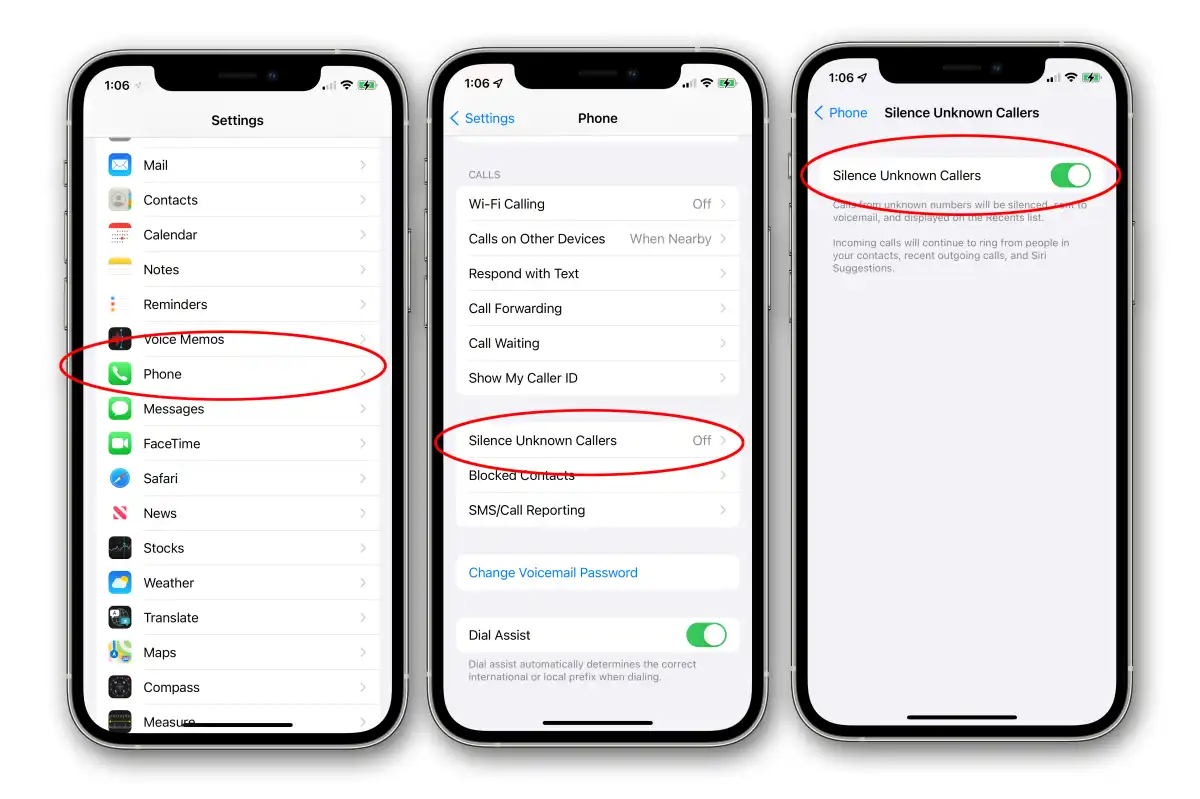
How to Silence Your Iphone: A Step-by-step Guide
Are you tired of your iPhone ringing or buzzing in public? Do you want to silence it without having to resort to using a physical switch? Look no further! In this article, we will show you how to silence your iPhone in various ways, including using the silent mode, full immersion mode, and blocking specific contacts.
Understanding The Silent Mode
The silent mode is a feature on iOS that allows you to silence your phone without having to use a physical switch. To enable it, follow these steps:
- Open the Settings app on your iPhone.
- Tap on “Sounds and Haptics.”
- Toggle the switch next to “Ringtone/Silent” to the right.
- You will see a notification saying that the volume of the ringtone is now off.
Using Full Immersion Mode
Full immersion mode is another way to silence your iPhone without using a physical switch. To enable it, follow these steps:
- Open the Settings app on your iPhone.
- Tap on “Focus.”
- Tap on “Full Immersion.”
- Choose the type of focus you want (e.G., Work, rest).
- Select which notifications you want to allow and block.
Silencing Specific Contacts
If you want to silence specific contacts, such as a contact who keeps sending you messages or calls, follow these steps:
- Open the Phone app on your iPhone.
- Tap on the contact you want to block.
- Scroll down to the bottom of the screen and tap on “Block this Caller.”
- Confirm that you want to block the contact.
Silencing Whatsapp Notifications
If you want to silence WhatsApp notifications, follow these steps:
- Open the Settings app on your iPhone.
- Tap on “Notifications.”
- Tap on “WhatsApp.”
- Toggle the switch next to “Sounds” to the off position.
Silencing Keyboard Sounds
If you want to silence keyboard sounds, follow these steps:
- Open the Settings app on your iPhone.
- Tap on “Sounds and Haptics.”
- Tap on “Keyboard Feedback.”
- Toggle the switch next to “Sounds” to the off position.
Silencing Camera Shutter Sound
If you want to silence the camera shutter sound, follow these steps:
- Open the Settings app on your iPhone.
- Tap on “Sounds and Haptics.”
- Tap on “Camera Shutter.”
- Toggle the switch next to “Sounds” to the off position.
Faqs
Q: How do I enable silent mode on my iPhone?
A: To enable silent mode, go to Settings > Sounds and Haptics and toggle the switch next to Ringtone/Silent to the right.
Q: What is full immersion mode and how do I use it?
A: Full immersion mode is a feature that allows you to block notifications, sounds, and vibrations from specific contacts or apps. To use it, go to Settings > Focus and tap on Full Immersion.
Q: How do I block a contact on my iPhone?
A: To block a contact, open the Phone app, tap on the contact’s name, scroll down to the bottom of the screen, and tap on Block this Caller.
Q: Can I silence specific contacts in WhatsApp?
A: Yes, you can silence specific contacts in WhatsApp by going to Settings > Notifications > WhatsApp, tapping on the contact’s name, and toggling the switch next to Sounds to the off position.
Q: How do I silence keyboard sounds on my iPhone?
A: To silence keyboard sounds, go to Settings > Sounds and Haptics and toggle the switch next to Keyboard Feedback to the off position.
Q: Can I silence the camera shutter sound on my iPhone?
A: Yes, you can silence the camera shutter sound by going to Settings > Sounds and Haptics and toggling the switch next to Camera Shutter to the off position.


