
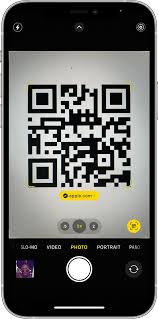
How to Scan QR Codes: A Step-by-step Guide
Are you curious about how to scan QR codes? No worries, we’ve got you covered! In this article, we’ll show you the easiest way to scan QR codes using your smartphone, tablet, or computer.
What Are QR Codes?
QR codes, also known as Quick Response codes, are those square symbols that appear on the internet, newspapers, and other publications. If you frame them with your mobile camera or webcam, they can take you directly to a website, show you digital recognition cards, or even more!
How Do I Scan QR Codes?
Scanning QR codes is incredibly easy. Here’s how:
- Download a QR Code Scanner App: There are many free apps available on the Play Store and Apple Store that can help you scan QR codes. We’ll be using two popular ones – Binary Eye and QR & Barcode Scan.
- Open The App: Once downloaded, open the app and grant it access to your camera.
- Point The Camera at The QR Code: Frame the QR code with your camera, and wait for a few seconds until the app recognizes it.
- Tap on The Recognized QR Code: The app will display the link associated with the QR code. Tap on it to open it directly.
Scanning QR Codes With Android
If you’re using an Android smartphone, here’s how you can scan QR codes:
- Download the Binary Eye app from the Play Store.
- Open the app and grant access to your camera.
- Point the camera at the QR code and wait for a few seconds until it’s recognized.
- Tap on the recognized QR code to open its associated link.
Scanning QR Codes With Oppo
If you have an OPPO smartphone, here’s how you can scan QR codes:
- Open the pre-installed camera app.
- Tap on the Google Lens icon and select “Open Camera”.
- Point the camera at the QR code and wait for a few seconds until it’s recognized.
- Tap on the recognized QR code to open its associated link.
Scanning QR Codes With Huawei
If you’re using a HUAWEI smartphone, here’s how you can scan QR codes:
- Open the pre-installed camera app.
- Tap on the ring icon in the top-right corner of the screen.
- Select “To THE Lens” and follow the configuration process.
- Point the camera at the QR code and wait for a few seconds until it’s recognized.
- Tap on the recognized QR code to open its associated link.
Scanning QR Codes With Iphone
If you have an iPhone, here’s how you can scan QR codes:
- Open the pre-installed camera app.
- Point the camera at the QR code and wait for a few seconds until it’s recognized.
- Tap on the recognized QR code to open its associated link.
Scanning QR Codes With PC
If you don’t have a smartphone, but still want to scan QR codes, here are some solutions:
- Use the Google Chrome browser extension – “QR Code Scanner”.
- Install the “QR Tails Scan” app from the Microsoft Store.
- Download and install the “Binary Eye” app on your computer.
Scanning QR Codes With Photo
If you want to scan QR codes using a photo, here’s how:
- Use the Binary Eye app (Android) or the Photos app (iPhone) to open the image containing the QR code.
- Tap on the QR code and select “Open”.
- The app will display the link associated with the QR code.
Conclusion
Scanning QR codes is an incredibly easy process that can take you directly to a website, show you digital recognition cards, or even more! With these step-by-step guides, you’ll be able to scan QR codes using your smartphone, tablet, or computer. Happy scanning!
Frequently Asked Questions (FAQs)
- What is a QR Code?
A QR code is a Quick Response code that can take you directly to a website, show you digital recognition cards, or even more.
- How do I Scan a QR Code?
To scan a QR code, open the camera app and point it at the QR code. Wait for a few seconds until it’s recognized, then tap on the QR code to open its associated link.
- Can I Scan QR Codes With my Pc?
Yes, there are several apps and browser extensions that allow you to scan QR codes using your computer.
- How do I Scan QR Codes Using a Photo?
To scan a QR code using a photo, open the image containing the QR code in the Binary Eye app (Android) or Photos app (iPhone), then tap on the QR code to open its associated link.
- What Are Some Popular Apps For Scanning QR Codes?
Some popular apps for scanning QR codes include Binary Eye, QR & Barcode Scan, and Google Lens.


