
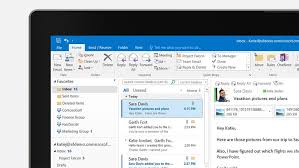
How to Use Outlook: A Comprehensive Guide
Are you new to using Outlook? Or perhaps you’ve been using it for a while, but want to learn more about its features and functionality? Look no further! In this article, we’ll take you through a step-by-step guide on how to use Outlook, covering everything from creating an account to using the app on your smartphone or tablet.
Why Use Outlook?
Outlook is a powerful email client developed by Microsoft that offers a wide range of features and tools to help you manage your emails, calendar, contacts, and tasks. With Outlook, you can create multiple accounts, including your personal and work email addresses, and access them all from one place. You can also use the app on your smartphone or tablet, making it easy to stay connected on-the-go.
Creating an Account
To get started with Outlook, you’ll need to create a new account. Here’s how:
- Go to the Microsoft website and click on “Create a free account”
- Fill out the registration form with your details, including your name, email address, password, and security questions
- Click on “Next” to complete the registration process
Setting Up Your Account
Once you’ve created an account, it’s time to set it up. Here are the steps:
- Open Outlook and click on “Connect to Outlook.Com”
- Enter your email address and password to sign in
- Click on “Next” to configure your account settings
Using Outlook on Your Computer
Outlook is available for both Windows and macOS, and offers a range of features and tools to help you manage your emails, calendar, contacts, and tasks. Here are some of the key features:
- Email: Use Outlook to send and receive emails, including attachments and meetings
- Calendar: Keep track of your schedule with Outlook’s calendar feature
- Contacts: Store all your contacts in one place with Outlook’s address book
- Tasks: Create to-do lists and set reminders with Outlook’s task manager
Using Outlook on Your Smartphone or Tablet
Outlook is also available as an app for smartphones and tablets, making it easy to stay connected on-the-go. Here are some of the key features:
- Email: Use Outlook to send and receive emails, including attachments and meetings
- Calendar: Keep track of your schedule with Outlook’s calendar feature
- Contacts: Store all your contacts in one place with Outlook’s address book
- Tasks: Create to-do lists and set reminders with Outlook’s task manager
Additional Features
Outlook offers a range of additional features, including:
- File: Use Outlook’s file feature to store emails and attachments in separate folders
- Activity: Keep track of your tasks and activities with Outlook’s activity feature
- Delay Send: Schedule emails to be sent at a later time using Outlook’s delay send feature
- Recall: Recall an email that has already been sent, using Outlook’s recall feature
Troubleshooting Common Issues
Are you experiencing problems with Outlook? Don’t worry! Here are some common issues and solutions:
- Error Messages: If you’re seeing error messages when trying to access your account, try restarting the app or checking your internet connection.
- Slow Performance: If Outlook is running slowly, try closing unnecessary windows or checking for updates.
- Syncing Problems: If you’re experiencing syncing problems between devices, try restarting the app or checking your network settings.
Conclusion
Outlook is a powerful email client that offers a wide range of features and tools to help you manage your emails, calendar, contacts, and tasks. Whether you’re using it on your computer or smartphone, Outlook makes it easy to stay connected and organized. With its intuitive interface and robust features, Outlook is the perfect choice for anyone looking to take their email game to the next level.
Faqs
- Q: How do I Create a New Account?
A: To create a new account, go to the Microsoft website and click on “Create a free account” - Q: What Are Some of The Key Features of Outlook?
A: Some of the key features of Outlook include email, calendar, contacts, tasks, file, activity, delay send, and recall - Q: How do I Use The App on my Smartphone or Tablet?
A: To use the app on your smartphone or tablet, download it from the App Store or Google Play store and follow the instructions to set it up. - Q: What if I’m Experiencing Problems With Outlook?
A: If you’re experiencing problems with Outlook, try restarting the app, checking your internet connection, or contacting customer support for help. - Q: Can I Use Outlook on Multiple Devices at Once?
A: Yes, Outlook allows you to access your account on multiple devices at once, making it easy to stay connected and organized across different platforms. - Q: How do I Sync my Emails Between Devices?
A: To sync your emails between devices, make sure that all devices are running the latest version of Outlook and are connected to the same network or internet connection. - Q: Can I Delete Emails Automatically With Outlook?
A: Yes, Outlook offers a feature called “Automatic Storage” which allows you to set up rules for deleting emails automatically. - Q: How do I Recall an Email That Has Already Been Sent?
A: To recall an email that has already been sent, use the recall feature in Outlook and follow the instructions to send a revised copy of the email.


