
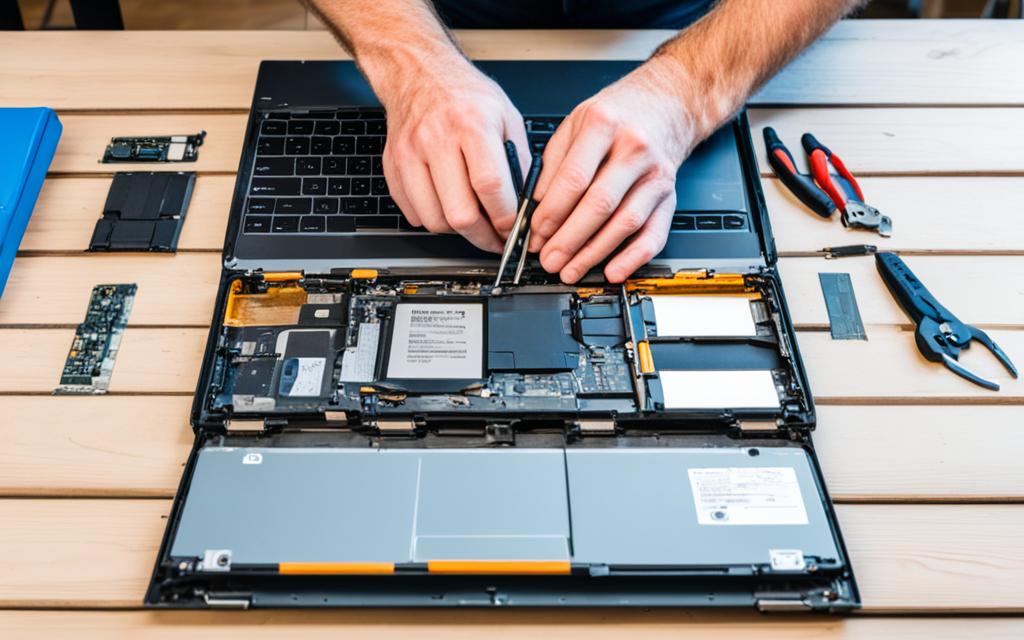
How to Regenerate The Battery of a Portable Computer: A Step-by-step Guide
Are you tired of your portable computer’s battery not lasting as long as it used to? Do you want to give it a new lease on life without breaking the bank? Look no further! In this article, we will guide you through the process of regenerating the battery of your portable computer, step by step.
Why Regenerate Your Battery?
Before we dive into the process, let’s talk about why regenerating your battery is a good idea. Over time, batteries can lose their capacity to hold a charge, leading to shorter battery life. This can be due to various factors such as frequent charging and discharging, high temperatures, or simply aging. Regenerating your battery can help restore its original capacity, giving you more hours of use on the go.
Precautions Before Starting
Before we begin, it’s essential to note that regenerating your battery requires some technical know-how and caution. If you’re not comfortable with basic computer maintenance, it’s recommended to seek the assistance of a professional or contact your device manufacturer for guidance.
Step 1: Prepare Your Battery
The first step is to prepare your battery for regeneration. Make sure your portable computer is turned off and unplugged from any power source. If your battery is swollen or leaking, do not attempt to regenerate it, as this can lead to further damage.
Step 2: Check The Health of Your Battery
To determine if your battery needs regeneration, follow these steps:
- On Windows 10/11, press the Windows key + R to open the Run dialog box.
- Type
powercfg /batteryreportand press Enter. - This will generate a battery report that you can view in Notepad.
Check the “design capacity” and “full charge capacity” values. If they are significantly different (more than 10-20%), your battery may need regeneration.
Step 3: Calibrate Your Battery
Calibrating your battery involves charging it to 100% and then letting it discharge to 0%. This process helps the battery gauge its capacity accurately. To calibrate your battery:
- Charge your portable computer to 100%.
- Leave it unplugged for at least an hour.
- Recharge it to 100% and repeat this process three to four times.
Step 4: Update Your Firmware (Optional)
If you have a relatively new portable computer, you might be able to update its firmware. This can help improve the battery’s performance. To do so:
- Check your device manufacturer’s website for firmware updates.
- Follow their instructions to install the latest firmware.
Step 5: Replace Your Battery (Optional)
If regenerating your battery doesn’t work, or if it’s too old or damaged, consider replacing it with a new one. This is usually the most cost-effective solution and ensures optimal performance for your portable computer.
Additional Tips
To help extend your battery life:
- Avoid letting your battery drain to 0% on a regular basis.
- Keep your portable computer away from extreme temperatures.
- Update your firmware periodically.
- Consider investing in a high-quality power bank or portable charger.
By following these steps, you should be able to regenerate your battery and enjoy longer hours of use on the go. Remember to always follow proper safety precautions when working with batteries.
Faqs
Here are some frequently asked questions about regenerating your battery:
- Q: How Long Does it Take to Regenerate a Battery?
A: The time it takes to regenerate a battery varies depending on its age, condition, and usage. On average, it can take anywhere from 2-6 hours. - Q: Can I Regenerate my Battery if It’s Too Old or Damaged?
A: If your battery is significantly worn out or damaged, it might be more cost-effective to replace it with a new one. - Q: How Often Should I Regenerate my Battery?
A: Depending on how frequently you use your portable computer and other factors, you may need to regenerate your battery every 6-12 months.
By regenerating your battery regularly, you can enjoy longer hours of use on the go and reduce waste. If you’re unsure about any part of this process, don’t hesitate to consult a professional or contact your device manufacturer for guidance.


