
How to Clear Blank on Icloud: A Step-by-step Guide
Are you tired of having limited storage space on your iCloud account? Do you want to know how to clear blank on iCloud and free up some space? Look no further! In this article, we will guide you through the process of clearing blank on iCloud, whether you’re using an iPhone, iPad, PC, or Android device.
What is Icloud And Why Do I Need to Clear Blank?
ICloud is a cloud storage service provided by Apple that allows you to store your photos, videos, documents, and other data online. The free version of iCloud comes with 5GB of storage space, which can quickly fill up if you’re not careful. If you don’t clear blank on iCloud regularly, you might find yourself running out of storage space, which can lead to problems syncing your devices.
How to Clear Blank on Icloud Using Your Iphone or Ipad
To clear blank on iCloud using your iPhone or iPad, follow these steps:
- Go to Settings: Open the Settings app on your device and tap on your name at the top.
- Tap on Icloud: Tap on “iCloud” from the list of options.
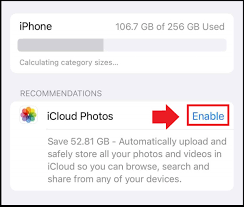
- Tap on Manage Storage: Tap on “Manage Storage” from the next screen.
- Review Your Storage Usage: Review the storage usage of each app and delete any unnecessary files or apps.
How to Clear Blank on Icloud Using Your PC
To clear blank on iCloud using your PC, follow these steps:
- Download The Icloud For Windows App: Download the iCloud for Windows app from the Microsoft Store.
- Sign In to Your Icloud Account: Sign in to your iCloud account using the app.
- Go to Manage Storage: Go to “Manage Storage” and review the storage usage of each app.
- Delete Unnecessary Files or Apps: Delete any unnecessary files or apps to clear blank on iCloud.
How to Clear Blank on Icloud Using Your Android Device
Unfortunately, it’s not possible to clear blank on iCloud directly from your Android device using the official iCloud app. However, you can access the iCloud website from your browser and manage your storage space that way.
Tips For Managing Storage Space on Icloud
Here are some additional tips for managing storage space on iCloud:
- Use Photo Library: Consider using the Photo Library feature in iCloud to store your photos instead of saving them locally.
- Delete Unnecessary Files: Regularly delete unnecessary files and apps to free up storage space.
- Use a Third-party Storage App: Consider using a third-party storage app like Google Drive or Dropbox to store your files.
How to Capsize Your Piano of Storage on Icloud
If you’re finding it difficult to clear blank on iCloud, don’t worry! You can capsize your piano of storage on iCloud by upgrading to a paid plan. Here are the steps:
- Go to Settings: Open the Settings app on your device and tap on your name at the top.
- Tap on Icloud: Tap on “iCloud” from the list of options.
- Tap on Manage Storage: Tap on “Manage Storage” from the next screen.
- Tap on Capsize Slowly: Tap on “Capsize slowly” to select a paid plan.
How Much Does It Cost to Upgrade My Piano of Storage?
The cost of upgrading your piano of storage depends on the plan you choose. Here are some options:
- 50GB For $0.99/Month: This is the cheapest option, which costs $0.99 Per month.
- 200GB For $2.99/Month: This option costs $2.99 Per month and is a good choice if you need more storage space.
- 2TB For $9.99/Month: This option costs $9.99 Per month and is ideal for heavy users.
How Do I Cancel My Subscription?
If you change your mind or find that the upgraded plan isn’t suitable for you, don’t worry! You can cancel your subscription at any time by going to “Settings” > [your name] > Subscriptions > Gain Apple One.
Frequently Asked Questions (FAQs)
Here are some frequently asked questions about clearing blank on iCloud:
- What is The Difference Between Clearing Blank And Capsize?
Clearing blank refers to deleting unnecessary files or apps, while capsize refers to upgrading your piano of storage. - How Much Does it Cost to Upgrade my Piano of Storage?
The cost of upgrading your piano of storage depends on the plan you choose, ranging from $0.99 Per month for 50GB to $9.99 Per month for 2TB. - Can I Cancel my Subscription at Any Time?
Yes, you can cancel your subscription at any time by going to “Settings” > [your name] > Subscriptions > Gain Apple One.
Conclusion
Clearing blank on iCloud is a simple process that can help you free up storage space and avoid running out of room. Whether you’re using an iPhone, iPad, PC, or Android device, we’ve provided you with step-by-step guides to clear blank on iCloud. Don’t forget to use our tips for managing storage space on iCloud to keep your account organized!


