
The Ultimate Guide to Opening Mkv Files on Various Platforms
Are you tired of struggling to open MKV files on your computer or mobile device? Look no further! This comprehensive guide will walk you through the steps to successfully play, convert, and compress MKV files on Windows, Mac, Android, iPhone, and iPad.
What is an Mkv File?
Before we dive into the nitty-gritty, let’s quickly understand what an MKV file is. MKV stands for Matroska Video, a free, open-standard video container format that allows you to store various types of media files, including video, audio, and subtitles.
Opening Mkv Files on Windows
If you’re using Windows Media Player (WMP) to play your MKV files, you might encounter issues. To resolve this, follow these steps:
- Install The Necessary Codec: Download and install the K-Lite Codec Pack, a free and compatible package with all Windows operating systems.
- Launch Wmp: Initiate WMP from the Start menu or by double-clicking on its icon in the folder where it’s installed.
- Drag And Drop The Mkv File: Drag the MKV file you want to play into the WMP window, select “Video” from the menu bar, and click on the “Play” button.
Opening Mkv Files on Mac
If you’re a Mac user, you might need to install Perian, a free codec pack that allows QuickTime Player to read MKV files. Here’s how:
- Download Perian: Visit the Perian website and download the latest version (1.2.3) For your macOS version.
- Install Perian: Open the downloaded file (.Dmg), drag the Perian icon to the Applications folder, and install it by following the on-screen instructions.
- Launch Quicktime Player: Initiate QuickTime Player from the Launchpad, Spotlight, Siri, or the Applications folder.
- Open The Mkv File: Select “File” > “Open Recent” (or press Command + O) and choose the MKV file you want to play.
Opening Mkv Files With Vlc
Alternatively, you can use VLC media player, a free and open-source software available for Windows, Mac, and Linux. To open an MKV file with VLC:
- Download And Install Vlc: Visit the official VLC website and download the latest version for your operating system.
- Launch Vlc: Open VLC from its installation directory or by searching for it in the Start menu (Windows) or Spotlight (Mac).
- Drag And Drop The Mkv File: Drag the MKV file into the VLC window, select “File” > “Open File,” and choose the MKV file.
Opening Mkv Files on Android
If you’re using an Android device, follow these steps to play your MKV files with VLC:
- Download And Install Vlc: Visit the Google Play Store and download the latest version of VLC for your Android device.
- Launch Vlc: Open VLC from its icon in the app drawer or by searching for it in the search bar.
- Select The Mkv File: Choose the MKV file you want to play from the “Folders” section, select “Open,” and let VLC handle the playback.
Opening Mkv Files on Iphone And Ipad
To open your MKV files with VLC on an iOS device:
- Download And Install Vlc: Visit the App Store and download the latest version of VLC for your iPhone or iPad.
- Launch Vlc: Open VLC from its icon in the home screen or by searching for it in the search bar.
- Select The Mkv File: Choose the MKV file you want to play from the “Files” section, select “Open,” and let VLC handle the playback.
Converting Mkv Files to Mp4
If you need to convert your MKV files to MP4 format for better compatibility on various devices, follow these steps:
- Handbrake (Windows/Mac/Linux): Download and install HandBrake, a free and open-source video converter.
- Media Converter (Android): Download and install Media Converter from the Google Play Store.
- The Converter Video (iOS): Download and install The Converter Video from the App Store.
Compressing Mkv Files
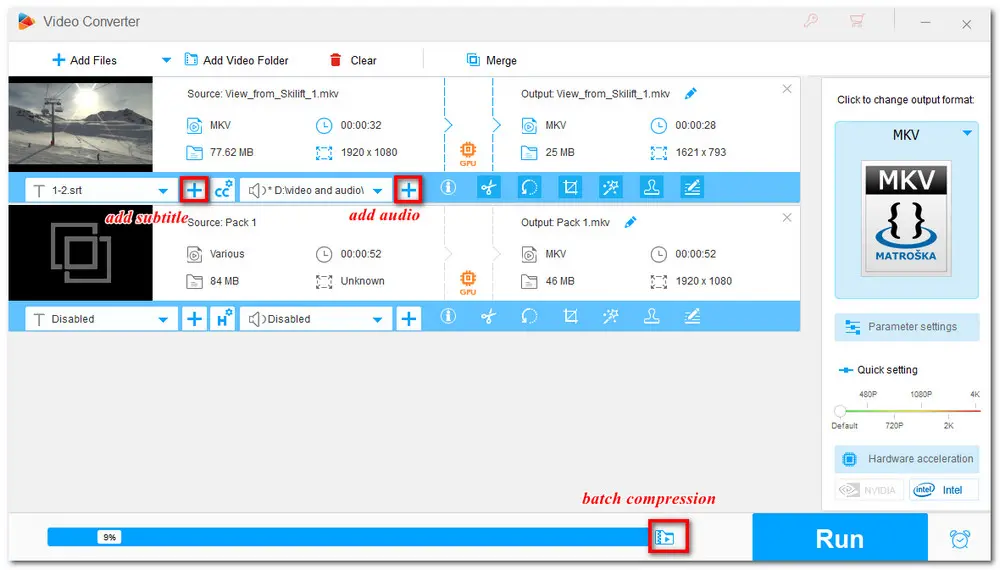
If your MKV files are too big, follow these steps to compress them:
- Handbrake: Use HandBrake to compress your MKV file by selecting a preset or configuring the settings manually.
- Video Compress (Android): Download and install Video Compress from the Google Play Store and use it to compress your MKV file.
- Management Intelligent Video (iOS): Download and install Management Intelligent Video from the App Store and use it to compress your MKV file.
By following this comprehensive guide, you should be able to successfully open, convert, and compress your MKV files on various platforms. Happy movie-watching!
Frequently Asked Questions
- What is an Mkv File?
An MKV file is a video container format that allows storing various types of media files, including video, audio, and subtitles. - Why Can’t I Open my Mkv File With Windows Media Player?
You might need to install the necessary codec package, such as K-Lite Codec Pack, to resolve this issue. - How do I Convert an Mkv File to Mp4 Format?
Use HandBrake (Windows/Mac/Linux), Media Converter (Android), or The Converter Video (iOS) to convert your MKV files to MP4 format. - Can I Compress my Mkv File to Reduce Its Size?
Yes, use HandBrake, Video Compress (Android), or Management Intelligent Video (iOS) to compress your MKV file. - What Are Some Alternative Media Players That Support Mkv Playback?
Some popular alternatives include VLC, Kodi, and PotPlayer for Windows; and VLC, Infuse, and XBMC on Mac. - Can I Use a Media Player That Doesn’t Require Installing Any Additional Codecs?
Yes, try using VLC, which can play back various formats, including MKV, without the need for additional codec installation. - How do I Fix Issues With Subtitles or Audio Playback in my Mkv File?
Try adjusting the settings in your chosen media player to optimize subtitle and audio playback.
I hope you found this guide helpful!


