
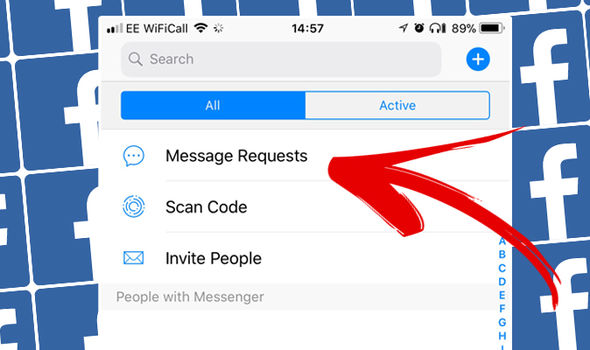
Unlocking Facebook’s Hidden Messages: A Step-by-step Guide
Are you tired of missing out on important messages from friends or family members because they’re hidden on Facebook? Don’t worry, we’ve got you covered! In this article, we’ll take you through a comprehensive guide on how to see hidden messages on Facebook, whether you’re using a smartphone, tablet, computer, or Windows 10/11.
Why Can’t I See Hidden Messages on Facebook?
Before we dive into the nitty-gritty of seeing hidden messages, it’s essential to understand why they might be hidden in the first place. There are several reasons why messages might not appear in your Facebook feed:
- You’ve hidden a conversation with someone
- A message is marked as spam or unwanted
- The sender has chosen to hide their message
Smartphone And Tablet: How to See Hidden Messages on Facebook
To see hidden messages on Facebook using a smartphone or tablet, follow these steps:
- Open the Messenger app on your device.
- Tap on the menu icon (three horizontal lines) in the top left corner.
- Select “File” from the menu options.
- Scroll through the list of conversations to find the one you’re interested in.
- Tap on the conversation to view its contents.
If you want to see hidden messages that aren’t visible in the Messenger app, follow these additional steps:
- Open Facebook and navigate to the Messages section.
- Select “Required” from the menu options.
- Choose between “People I know” (messages from friends or family members) and “Spam” (messages marked as unwanted).
- Tap on a conversation to view its contents.
Computer: How to See Hidden Messages on Facebook
To see hidden messages on Facebook using a computer, follow these steps:
- Open Facebook and navigate to the Messages section.
- Select the three horizontal lines in the top right corner.
- Choose “See all” from the menu options.
- Scroll through the list of conversations to find the one you’re interested in.
If you want to see hidden messages that aren’t visible in Facebook, follow these additional steps:
- Open Messenger.Com and navigate to the Messages section.
- Select “File” from the menu options.
- Scroll through the list of conversations to find the one you’re interested in.
- Tap on the conversation to view its contents.
How to Recover Hidden Posts on Facebook
If you’ve accidentally hidden a post or need to recover a deleted message, follow these steps:
- Open Facebook and navigate to your profile page.
- Select the three horizontal lines in the top right corner.
- Choose “Settings” from the menu options.
- Select “Activity Log” from the left-hand menu.
- Scroll through the list of actions to find the one you’re interested in.
If you want to recover a hidden post that’s not visible on your profile, follow these additional steps:
- Open Facebook and navigate to your profile page.
- Select the three horizontal lines in the top right corner.
- Choose “Settings” from the menu options.
- Select “Activity Log” from the left-hand menu.
- Scroll through the list of actions to find the one you’re interested in.
How to See Hidden Posts on a Friend’s Profile
If you want to see hidden posts on a friend’s profile, follow these steps:
- Open Facebook and navigate to your friend’s profile page.
- Select the three horizontal lines in the top right corner.
- Choose “See all” from the menu options.
- Scroll through the list of posts to find the one you’re interested in.
Conclusion
Facebook can be a powerful tool for staying connected with friends and family, but it’s not always easy to see hidden messages or recover deleted content. By following these step-by-step guides, you’ll be able to unlock Facebook’s hidden features and stay on top of your social media game.
Faqs
Q: How do I See Hidden Messages on Facebook?
A: To see hidden messages on Facebook, follow the steps outlined in this article for smartphones, tablets, computers, or Windows 10/11 devices.
Q: Why Can’t I See Hidden Messages on Facebook?
A: Hidden messages might not appear in your Facebook feed due to various reasons such as hiding a conversation with someone, marking a message as spam or unwanted, or the sender choosing to hide their message.
Q: How do I Recover Hidden Posts on Facebook?
A: To recover hidden posts on Facebook, follow the steps outlined in this article for smartphones, tablets, computers, or Windows 10/11 devices.
Q: How do I See Hidden Posts on a Friend’s Profile?
A: To see hidden posts on a friend’s profile, follow the steps outlined in this article for smartphones, tablets, computers, or Windows 10/11 devices.
Q: Why Are Some Messages Marked as Spam or Unwanted?
A: Messages might be marked as spam or unwanted due to various reasons such as receiving unsolicited messages, sending messages to someone who has blocked you, or violating Facebook’s terms and conditions.
Q: How do I Prevent Hidden Messages From Appearing in The Future?
A: To prevent hidden messages from appearing in the future, make sure to regularly check your Facebook notifications and messages section. Additionally, consider unfollowing or blocking users who tend to send you unwanted messages.
By following these tips and guides, you’ll be able to stay on top of your social media game and avoid missing out on important messages from friends and family members!


