
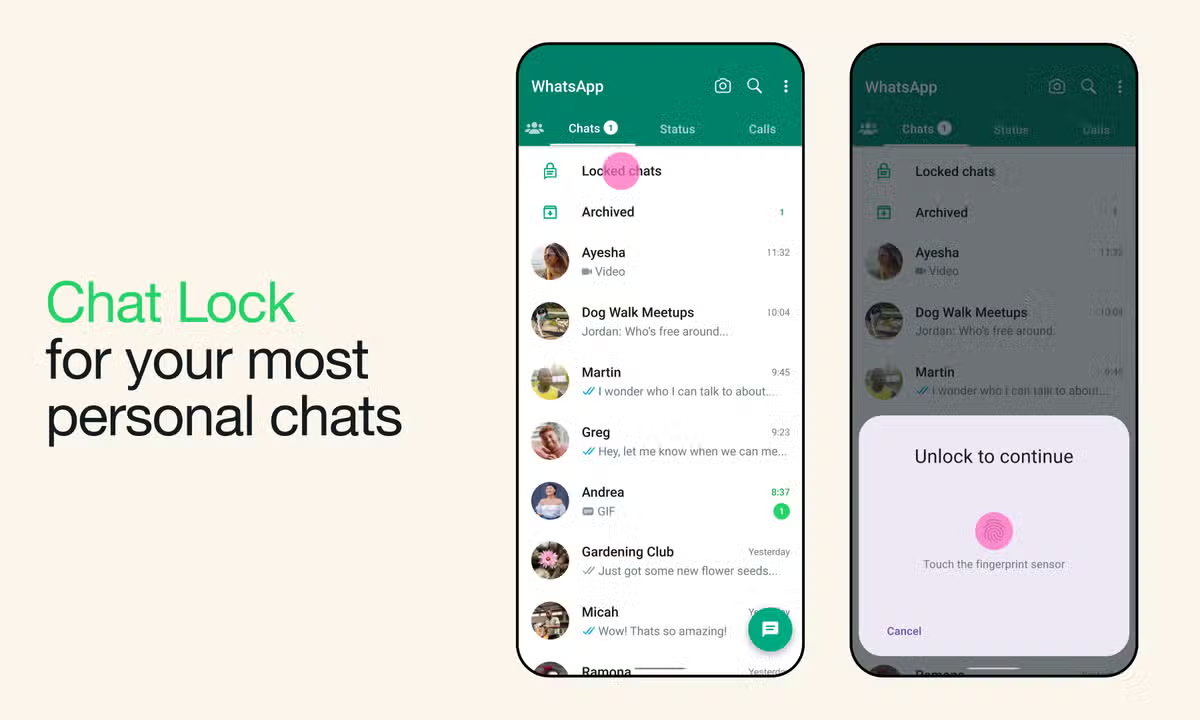
How to Pin a Conversation on Whatsapp
Are you tired of scrolling through countless conversations on WhatsApp? Do you wish you could keep track of specific chats or messages? Look no further! In this article, we will guide you through the process of pinning a conversation on WhatsApp, making it easier to access and manage your conversations.
What is Pinning on Whatsapp?
Pinning on WhatsApp allows you to highlight specific conversations, making them easily accessible from the chat screen. This feature is available on both Android and iOS devices, as well as on the web version of WhatsApp.
Benefits of Pinning a Conversation on Whatsapp
Pinning a conversation on WhatsApp offers several benefits:
- Easy Access: Pinning a conversation makes it easily accessible from the chat screen, saving you time and effort.
- Reduced Clutter: By pinning important conversations, you can reduce the clutter on your chat screen, making it easier to focus on what matters most.
- Improved Organization: Pinning conversations helps you organize your chats in a more structured way, making it easier to find specific messages or conversations.
How to Pin a Conversation on Whatsapp (Android)
To pin a conversation on WhatsApp for Android:
- Open Whatsapp: Open the WhatsApp app on your Android device.
- Access Chat Screen: Access the chat screen by tapping on the “Chats” tab.
- Select Conversation: Select the conversation you want to pin by tapping on it.
- Pin Conversation: Tap on the “Pin” icon (represented by a small pin) next to the conversation name to pin it.
How to Pin a Conversation on Whatsapp (iOS)
To pin a conversation on WhatsApp for iOS:
- Open Whatsapp: Open the WhatsApp app on your iOS device.
- Access Chat Screen: Access the chat screen by tapping on the “Chats” tab.
- Select Conversation: Select the conversation you want to pin by swiping left and then tapping on the “Pin” icon (represented by a small pin).
- Confirm Pinning: Confirm that you want to pin the conversation by selecting the “Pin” option.
How to Pin a Conversation on Whatsapp Web
To pin a conversation on WhatsApp web:
- Access Whatsapp Web: Access the WhatsApp web version by scanning the QR code or using your phone number.
- Select Conversation: Select the conversation you want to pin by clicking on it.
- Pin Conversation: Click on the “Pin” button (represented by a small pin) next to the conversation name to pin it.
Tips And Tricks For Pinning Conversations on Whatsapp
Here are some additional tips and tricks to keep in mind when pinning conversations on WhatsApp:
- Limiting Pinned Conversations: You can only pin a maximum of three conversations at any given time. If you need to pin more, consider archiving or deleting less important conversations.
- Archiving Conversations: Archiving conversations is another way to manage your chats and keep them organized. Archived conversations are still accessible but not visible on the main chat screen.
- Deleting Conversations: If you no longer need a conversation, you can delete it altogether. However, be aware that deleted conversations cannot be recovered.
Conclusion
Pinning a conversation on WhatsApp is a simple yet effective way to manage your chats and stay organized. By following the steps outlined in this article, you can easily pin specific conversations, making them easily accessible from the chat screen. Whether you’re using an Android or iOS device, or accessing WhatsApp web, the process remains the same.
Frequently Asked Questions (FAQs)
Here are some frequently asked questions about pinning conversations on WhatsApp:
- Q: How do I Unpin a Conversation on Whatsapp?
A: To unpin a conversation on WhatsApp, simply tap on the “Unpin” icon next to the conversation name. - Q: Can I Pin More Than Three Conversations on Whatsapp?
A: Unfortunately, no. You can only pin a maximum of three conversations at any given time. - Q: How do I Access Archived Conversations on Whatsapp?
A: Archived conversations are still accessible but not visible on the main chat screen. To access them, tap on the “Archived” tab in the chat menu. - Q: Can I Delete a Conversation on Whatsapp?
A: Yes, you can delete a conversation on WhatsApp by tapping on the three dots next to the conversation name and selecting the “Delete” option.
Conclusion
Pinning conversations on WhatsApp is a simple yet effective way to manage your chats and stay organized. By following the steps outlined in this article, you can easily pin specific conversations, making them easily accessible from the chat screen. Whether you’re using an Android or iOS device, or accessing WhatsApp web, the process remains the same.
Additional Resources
For more information on how to use WhatsApp, including features like pinning conversations, visit the official WhatsApp website:
- Whatsapp Website: Www.Whatsapp.Com
We hope this article has been helpful in guiding you through the process of pinning conversations on WhatsApp. If you have any further questions or concerns, feel free to ask!


