
How to Leave a Discord Server
Are you tired of being part of a Discord server that no longer serves your needs? Do you want to leave a community that has become toxic or annoying? Look no further! This guide will walk you through the steps on how to leave a Discord server.
Understanding Servers And Channels
Before we dive into the process, it’s essential to understand the difference between servers and channels. A server is like a big club where users can join and participate in various conversations. Channels, on the other hand, are smaller groups within a server that focus on specific topics or activities.
Why Can’t I Just Leave a Channel?
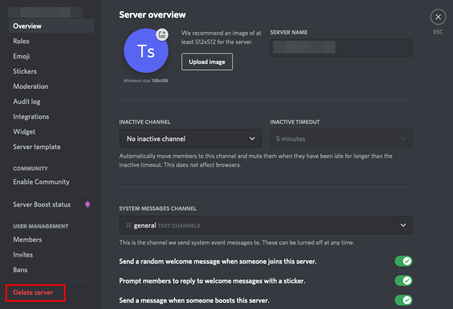
Unlike channels, servers cannot be left without deleting them entirely. This means that if you want to abandon a channel, your only option is to leave the entire server and lose access to all its other channels.
Leaving a Discord Server on Computer
To leave a Discord server on your computer, follow these steps:
- Open Discord on your browser or launch the app.
- Log in to your account by entering your email address or phone number and password.
- Click on the three dots next to the server name you want to leave.
- Select “Leave Server” from the dropdown menu.
That’s it! You will be removed from the server, and all its channels will become inaccessible to you.
Leaving a Discord Server on Smartphone or Tablet
The process is similar on mobile devices:
- Open the Discord app on your device.
- Log in to your account by entering your email address or phone number and password.
- Tap on the three dots next to the server name you want to leave.
- Select “Leave Server” from the dropdown menu.
Leaving a Channel
If you only want to leave a channel without deleting the entire server, follow these steps:
- Access the server where the channel is located.
- Right-click on the channel and select “Mute Channel.”
- Go back to the server’s main page and toggle off the “Show muted channels” option.
By following these steps, you will be able to mute the channel without leaving the entire server.
What If I Want to Rejoin a Server?
If you decide that you want to rejoin a server you previously left, you can do so by clicking on the “Join Server” button or accepting an invitation from someone who is still part of the community.
Conclusion
Leaving a Discord server might seem like a daunting task, but it’s actually quite straightforward. By following these simple steps, you will be able to leave a community that no longer suits your needs and explore other options that better align with your interests.
Faqs:
Q: Can I delete a channel without leaving the server?
A: No, deleting a channel is not possible. You can only mute it or leave the entire server.
Q: How do I rejoin a server after leaving it?
A: You can rejoin a server by clicking on the “Join Server” button or accepting an invitation from someone who is still part of the community.
Q: Can I leave a channel without losing access to other channels in the same server?
A: Yes, you can mute a channel without deleting it. However, this will only prevent you from seeing its content; others will still be able to post in that channel.
Q: What if I’m having trouble leaving a server?
A: If you’re experiencing issues with leaving a server, try restarting the app or checking for any updates.
Q: Can I report a toxic server or community?
A: Yes, Discord has policies against harassment and toxicity. You can report servers or communities that violate these policies by contacting their support team.
Q: How do I prevent my account from getting banned for leaving a server?
A: To avoid being banned, make sure you follow Discord’s terms of service and don’t engage in any behavior that could be considered toxic or spammy.
Final Thoughts
Leaving a Discord server can be a difficult decision, especially if it was once an enjoyable community. However, sometimes it’s necessary to move on and explore other options that better suit your needs. By following these simple steps, you will be able to leave a server with confidence and without worrying about any potential consequences.


