
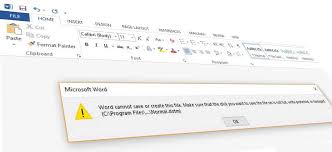
How to Damage a File Word: A Step-by-step Guide
Are you curious about how to damage a file in Microsoft Word? Look no further! In this article, we will guide you through the process of damaging a file in various operating systems, including Windows, Mac, and mobile devices.
Why Damage a File Word?
Before we dive into the step-by-step guide, let’s discuss why someone might want to damage a file in Microsoft Word. Perhaps you need to create a copy of an important document but don’t want others to access it. Or maybe you’re trying to prank a friend by making their file unreadable. Whatever your reason, we’ve got you covered.
Damaging a File Word on Windows
To damage a file in Microsoft Word on Windows, follow these steps:
- Open The File: First, open the file that you want to damage using Microsoft Word.
- Change The File Extension: Right-click on the file and select “Rename.” Change the file extension from .Docx or .Doc to .Txt.
- Modify The Content: Open the document in Notepad (or any other text editor) and modify its content. You can add random characters, delete some parts of the text, or simply make it unreadable.
- Save The Modified File: Save the modified file with the same name but with a .Txt extension.
Damaging a File Word on Mac
To damage a file in Microsoft Word on a Mac, follow these steps:
- Open The File: First, open the file that you want to damage using Microsoft Word.
- Change The File Extension: Select “Get Info” from the Finder menu and click on the “Extensions” tab. Check the box next to “.Txt.”
- Modify The Content: Open the document in TextEdit (or any other text editor) and modify its content. You can add random characters, delete some parts of the text, or simply make it unreadable.
- Save The Modified File: Save the modified file with the same name but with a .Txt extension.
Damaging a File Word on Android
To damage a file in Microsoft Word on an Android device, follow these steps:
- Download a File Manager: Download a file manager app like Files by Google or ES File Explorer.
- Open The File: Open the file that you want to damage using the file manager app.
- Change The File Extension: Rename the file from .Docx or .Doc to .Txt.
- Modify The Content: Use the built-in text editor of the file manager app (or download a separate text editor) to modify the content of the document.
Damaging a File Word on Iphone/ipad
To damage a file in Microsoft Word on an iPhone or iPad, follow these steps:
- Download Documents by Readdle: Download the Documents app from the App Store.
- Open The File: Open the file that you want to damage using the Documents app.
- Change The File Extension: Tap on the “…” Icon and select “Rename.” Change the file extension from .Docx or .Doc to .Txt.
- Modify The Content: Use the built-in text editor of the Documents app (or download a separate text editor) to modify the content of the document.
Online Tools For Damaging Files
If you don’t have access to a computer or mobile device, there are online tools that can help you damage files in Microsoft Word. One such tool is Corrupt-to-Rows.Com, which allows you to upload your file and make it unreadable within minutes.
Conclusion
Damaging a file in Microsoft Word may seem like a complex task, but with these step-by-step guides, you should be able to do it easily on various operating systems. Whether you’re trying to create a copy of an important document or prank a friend, we’ve got the solution for you.
Frequently Asked Questions
- Q: Is Damaging a File Word Illegal?
A: No, damaging a file in Microsoft Word is not illegal. However, it’s essential to ensure that you have the right to modify the file. - Q: Will Damaging a File Affect Its Content?
A: Yes, damaging a file can change its content or make it unreadable. - Q: Can I Undo The Damage to a File?
A: In most cases, yes. If you’ve modified the file and saved it as a new document, you should be able to revert back to the original file by deleting the modified version. - Q: Is Damaging a File Word Safe?
A: As with any online tool or software, there’s always some risk involved when using them to damage files. Make sure you’re using reputable tools and websites.
Additional Resources
If you need more information about damaging files in Microsoft Word or have questions not covered here, we recommend checking out our article on How to Damage a File.


