
Ios 17: Unlocking The Power of Standby
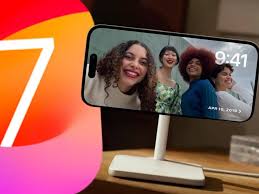
As we delve into the exciting world of iOS 17, one feature that has been making waves is the introduction of StandBy. This innovative function transforms your iPhone into a sleek display device that showcases time, photos, and widgets, all while keeping your phone charged in the background.
In this article, we’ll explore the ins and outs of StandBy, including its requirements, how to activate it, and how to personalize it to suit your preferences.
What is Standby?
StandBy is a modality that turns your iPhone into a digital display device when it’s not in use. It shows time, photos, and widgets on the screen, allowing you to easily check notifications, weather updates, and more without having to unlock your phone.
How Does Standby Work?
To activate StandBy, your iPhone must be running iOS 17. You can find the requirements and compatible devices in our guide on how to download iOS 17.
Once activated, place your iPhone horizontally with the screen locked, either using a Lightning cable or MagSafe charger. If your phone is unblocked or not placed in the correct position, StandBy will not activate.
Actuating Standby on Ios 17
To enable StandBy on your iOS 17 device:
- Open Settings and select StandBy.
- Tap the toggle switch next to StandBy to turn it ON.
- If you’re using an iPhone 14 Pro or later, tap “Always On Display” to keep the screen lit for up to 20 seconds or automatically when in a dark room.
Personalizing Standby
StandBy offers three customizable screens based on your preferences:
- Clock And Calendar: This screen displays two widgets that can be personalized with clocks, calendars, and other features.
- Photo Gallery: Swipe right from the home screen to access this feature, which allows you to browse through a selection of photos from your Photo library.
- Custom Clocks: Select from five different clock styles or create your own by modifying the clock’s colors.
To customize StandBy:
- Tap the “Settings” app and select “StandBy”.
- Choose the screen you want to modify, then swipe left or right to browse through available options.
- Tap on a widget to personalize it or add new ones.
- Use Face ID or Touch ID to unlock your iPhone when modifying widgets.
How to Personalize Standby’s Clock And Calendar Widget
To customize the clock and calendar widget:
- Open Settings and select “StandBy”.
- Choose the “Clock and Calendar” screen, then swipe left or right to browse through available options.
- Tap on a widget to personalize it or add new ones.
How to Personalize Standby’s Photo Gallery
To customize the photo gallery feature:
- Swipe right from the home screen to access the photo gallery feature.
- Open Photos and select a collection of photos you want to display in StandBy.
- Tap on an image to add it to your selection, then swipe left or right to browse through other available options.
How to Personalize Standby’s Custom Clocks
To customize the custom clocks feature:
- Select the “Custom Clocks” screen, then swipe left or right to browse through available options.
- Choose a clock style and tap on it to personalize its colors.
Benefits of Using Standby
StandBy offers several benefits, including:
- A convenient way to check time, notifications, and weather updates without unlocking your phone
- The ability to display photos from your Photo library on the screen
- Customizable clocks and widgets that can be tailored to your preferences
Conclusion
StandBy is an exciting feature in iOS 17 that transforms your iPhone into a digital display device. With its customizable screens and features, you can personalize StandBy to suit your needs.
Whether you want to keep track of time, browse through photos, or simply enjoy a sleek digital display, StandBy has something for everyone. So why not give it a try and experience the power of StandBy?
Frequently Asked Questions (FAQs)
- What Are The Requirements For Using Standby?
StandBy requires iOS 17 to be installed on your iPhone.
- How do I Activate Standby on my Ios 17 Device?
To activate StandBy, open Settings and select StandBy, then tap the toggle switch next to it to turn it ON.
- Can I Customize Standby’s Clock And Calendar Widget?
Yes, you can personalize the clock and calendar widget by tapping on a widget to add new ones or modify existing ones.
- How do I Customize Standby’s Photo Gallery Feature?
To customize the photo gallery feature, swipe right from the home screen to access it, then select a collection of photos you want to display in StandBy.
- Can I Use Face ID or Touch ID to Unlock my Iphone When Modifying Widgets?
Yes, you can use Face ID or Touch ID to unlock your iPhone when modifying widgets.
- What Are The Benefits of Using Standby?
StandBy offers several benefits, including a convenient way to check time, notifications, and weather updates without unlocking your phone, as well as customizable clocks and widgets that can be tailored to your preferences.
- Can I Use Standby With my Iphone 14 Pro or Later?
Yes, you can use StandBy with your iPhone 14 Pro or later, but you’ll need to enable “Always On Display” to keep the screen lit for up to 20 seconds or automatically when in a dark room.


