
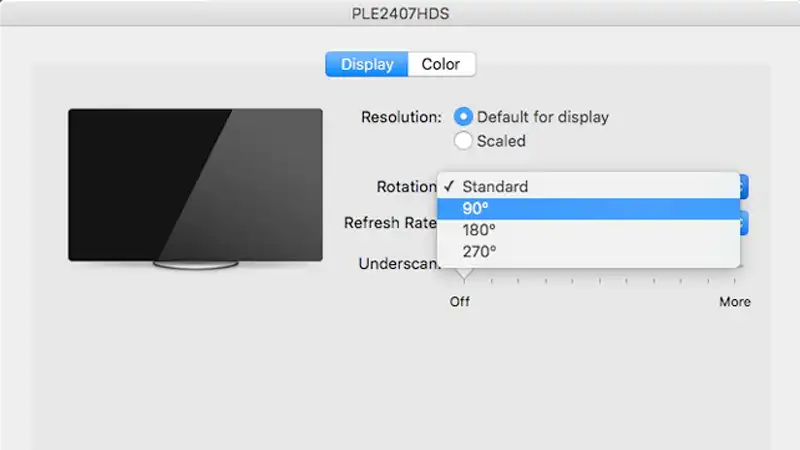
How to Rotate a Monitor on Pc: A Step-by-step Guide
Are you tired of dealing with an incorrectly rotated monitor? Do you want to know how to rotate your monitor without any hassle? Look no further! In this article, we will guide you through the process of rotating a monitor on PC, using different methods and tools.
Understanding The Basics
Before we dive into the nitty-gritty details, it’s essential to understand the basics. Rotating a monitor involves changing its orientation from horizontal to vertical or vice versa. This can be useful in various situations, such as when working with graphics design software that requires a specific orientation.
Method 1: Using Windows Settings
The first method we’ll explore is using the built-in settings on your PC. Here’s how:
- Step 1: Right-click on an empty area of the desktop and select “Settings.”
- Step 2: Click on “Display” from the left-hand menu.
- Step 3: Click on “Orientation” and choose the desired orientation (Horizontal, Vertical, or Inverted).
- Step 4: Click on the “Apply” button to save your changes.
That’s it! If you’re using Windows 10 or later, this method should work seamlessly. However, if you’re experiencing issues or using an older version of Windows, don’t worry; we have alternative methods for you.
Method 2: Using Nvidia Control Panel
If you’re using a graphics card from NVIDIA, you can use the NVIDIA Control Panel to rotate your monitor. Here’s how:
- Step 1: Right-click on an empty area of the desktop and select “NVIDIA Control Panel.”
- Step 2: Click on “Display” from the left-hand menu.
- Step 3: Click on “Rotate Monitor” and choose the desired orientation (Horizontal, Vertical, or Inverted).
- Step 4: Click on the “Apply” button to save your changes.
Method 3: Using Amd/ati Catalyst Control Center
If you’re using an AMD graphics card, you can use the AMD/ATI Catalyst Control Center to rotate your monitor. Here’s how:
- Step 1: Right-click on an empty area of the desktop and select “AMD/ATI Catalyst Control Center.”
- Step 2: Click on “Display” from the left-hand menu.
- Step 3: Click on “Rotate Monitor” and choose the desired orientation (Horizontal, Vertical, or Inverted).
- Step 4: Click on the “Apply” button to save your changes.
Method 4: Using Intel Graphics Control Panel
If you’re using an Intel graphics card, you can use the Intel Graphics Control Panel to rotate your monitor. Here’s how:
- Step 1: Right-click on an empty area of the desktop and select “Intel Graphics Control Panel.”
- Step 2: Click on “Display” from the left-hand menu.
- Step 3: Click on “Rotate Monitor” and choose the desired orientation (Horizontal, Vertical, or Inverted).
- Step 4: Click on the “Apply” button to save your changes.
Method 5: Using Irotate Software
If you’re experiencing issues with the above methods or prefer a software-based solution, you can use the iRotate software. Here’s how:
- Step 1: Download and install the iRotate software from the official website.
- Step 2: Launch the software and follow the on-screen instructions to rotate your monitor.
Method 6: Using Screen Rotate Software
If you’re using a Windows version older than Windows 10, you can use the Screen Rotate software to rotate your monitor. Here’s how:
- Step 1: Download and install the Screen Rotate software from the official website.
- Step 2: Launch the software and follow the on-screen instructions to rotate your monitor.
Conclusion
Rotating a monitor on PC is not as complicated as it seems. With these methods, you can easily change the orientation of your monitor without any hassle. Whether you’re using Windows settings or specific software, we’ve got you covered. So next time you find yourself struggling with an incorrectly rotated monitor, just remember: There’s always a solution.
Frequently Asked Questions (FAQs)
- Q: How do I rotate my monitor on PC?
- A: You can use the built-in settings in Windows, NVIDIA Control Panel, AMD/ATI Catalyst Control Center, Intel Graphics Control Panel, or software like iRotate.
- Q: Which method is best for me?
- A: The best method depends on your specific situation and preferences. If you’re using Windows 10 or later, the built-in settings are usually the most straightforward option. Otherwise, consider using NVIDIA Control Panel or AMD/ATI Catalyst Control Center.
- Q: Can I rotate my monitor using keyboard shortcuts?
- A: Yes, you can use keyboard shortcuts like Ctrl + Alt + right arrow (or equivalent) to rotate your monitor in certain situations.
- Q: How do I prevent my monitor from rotating automatically when spinning the device?
- A: You can disable automatic rotation by going to Settings > Display > Orientation and selecting “Standard” or changing it manually.
We hope this guide has been helpful!


