
How to Transform Jpg Into Pdf: A Step-by-step Guide
Are you struggling to transform your JPG images into PDF files? Look no further! In this article, we will guide you through the process of converting JPG to PDF on various devices, including Windows 10, Mac, Android, and iPhone.
What is Jpg And Pdf?
JPG (Joint Photographic Experts Group) is a format used for storing images. On the other hand, PDF (Portable Document Format) is a file format that preserves the layout and formatting of documents, making it easy to share and view on different devices.
Why Convert Jpg to Pdf?
Converting JPG to PDF has several benefits:
- Easy Sharing: PDF files are easily shared and viewed on various devices, including computers, tablets, and smartphones.
- Preserved Formatting: PDF files preserve the layout and formatting of documents, making it easy to maintain consistency across different platforms.
- Security: PDF files can be password-protected and encrypted for added security.
How to Convert Jpg to Pdf on Windows 10
To convert JPG to PDF on Windows 10, follow these steps:
- Open The Image With The Photos App: Right-click on the image file and select “Open with” > “Photos.”
- Click on The Three Dots in The Top Bar: Click on the three dots in the top bar of the Photos app.
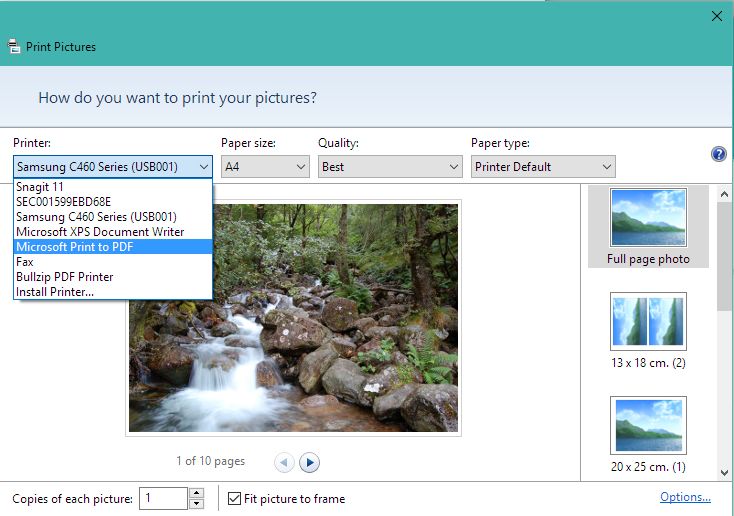
- Select “Print”: Select “Print” from the menu.
- Choose “Microsoft Print to Pdf”: Choose “Microsoft Print to PDF” as the printer.
- Click “Print”: Click “Print” to save the image as a PDF file.
How to Convert Jpg to Pdf on Mac
To convert JPG to PDF on Mac, follow these steps:
- Open The Image With Preview: Double-click on the image file to open it in Preview.
- Click on The Three Dots in The Top Bar: Click on the three dots in the top bar of Preview.
- Select “Export”: Select “Export” from the menu.
- Choose “PDF”: Choose “PDF” as the format.
- Click “Save”: Click “Save” to save the image as a PDF file.
How to Convert Jpg to Pdf Online
To convert JPG to PDF online, follow these steps:
- Visit The Ilovepdf Website: Visit the iLovePDF website and click on the “JPG to PDF” button.
- Upload Your Image: Upload your image file to the website.
- Select The Orientation And Margins: Select the orientation and margins for your PDF file.
- Click “Convert”: Click “Convert” to convert the image to a PDF file.
How to Convert Jpg to Pdf on Android
To convert JPG to PDF on Android, follow these steps:
- Open The Gallery App: Open the Gallery app and select the image you want to convert.
- Tap The Share Button: Tap the share button and select “Save as PDF” from the menu.
- Choose a Location: Choose a location to save the PDF file.
- Tap “Save”: Tap “Save” to save the image as a PDF file.
How to Convert Jpg to Pdf on Iphone
To convert JPG to PDF on iPhone, follow these steps:
- Open The Photos App: Open the Photos app and select the image you want to convert.
- Tap The Share Button: Tap the share button and select “Save as PDF” from the menu.
- Choose a Location: Choose a location to save the PDF file.
- Tap “Save”: Tap “Save” to save the image as a PDF file.
Conclusion
Converting JPG to PDF is a simple process that can be completed on various devices, including Windows 10, Mac, Android, and iPhone. By following these steps, you can easily transform your JPG images into PDF files, making it easy to share and view them on different platforms.
Faqs
- What is The Difference Between Jpg And Pdf?
JPG (Joint Photographic Experts Group) is a format used for storing images, while PDF (Portable Document Format) is a file format that preserves the layout and formatting of documents. - Why Convert Jpg to Pdf?
Converting JPG to PDF has several benefits, including easy sharing, preserved formatting, and security. - How do I Convert Jpg to Pdf on Windows 10?
To convert JPG to PDF on Windows 10, open the image with the Photos app, click on the three dots in the top bar, select “Print,” choose “Microsoft Print to PDF” as the printer, and click “Print.” - How do I Convert Jpg to Pdf on Mac?
To convert JPG to PDF on Mac, open the image with Preview, click on the three dots in the top bar, select “Export,” choose “PDF” as the format, and click “Save.” - How do I Convert Jpg to Pdf Online?
To convert JPG to PDF online, visit the iLovePDF website, upload your image file, select the orientation and margins for your PDF file, and click “Convert.” - How do I Convert Jpg to Pdf on Android?
To convert JPG to PDF on Android, open the Gallery app, tap the share button, select “Save as PDF” from the menu, choose a location to save the PDF file, and tap “Save.” - How do I Convert Jpg to Pdf on Iphone?
To convert JPG to PDF on iPhone, open the Photos app, tap the share button, select “Save as PDF” from the menu, choose a location to save the PDF file, and tap “Save.” - What Are The Benefits of Converting Jpg to Pdf?
The benefits of converting JPG to PDF include easy sharing, preserved formatting, and security.


