
Downloading Zoom on Pc: A Step-by-step Guide
Are you looking for a way to connect with others remotely? Look no further than Zoom, the popular video conferencing platform. In this article, we will guide you through the process of downloading and installing Zoom on your PC.
Minimum Requirements to Download Zoom
Before you start, make sure your computer meets the minimum requirements to download and install Zoom. Here are the system specifications:
- Operating System: Windows 11 (version 5.9.0 Or later), Windows 10, Windows 8 or 8.1, Windows 7, macOS 10.10 Or later, Ubuntu 12.04 Or later, Mint 17.1 Or later, Red Hat Enterprise Linux 6.4 Or later, Oracle Linux 6.4 Or later, CentOS 6.4 Or later, Fedora 21 or later, OpenSUSE 13.2 Or later, and ArchLinux (64-bit version only)
- Processor: Single Core 1GHz or higher, Dual Core 2GHz or higher (Intel i3/i5/i7 or equivalent AMD)
- RAM: 4GB
Downloading Zoom on PC
Now that you have checked the system requirements, it’s time to download Zoom. Here are the steps:
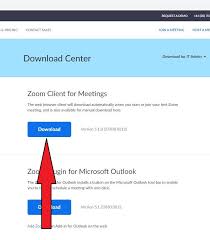
- Go to the official website of Zoom and click on the “Download” button.
- If your browser is not in Italian, select the language from the menu at the bottom of the page.
- Click on the “Download 32-bit Client” or “Download ARM Client” link if you have a 32-bit Windows or an ARM-based PC.
Installing Zoom on PC
Once you have downloaded the installer, follow these steps:
- Double-click on the ZoomInstallerFull.Exe file and click on the “Yes” button to allow the program to make changes to your computer.
- Wait for the installation process to complete, indicated by the progress bar at the bottom of the window.
Using Zoom on PC
Now that you have installed Zoom, here’s how to use it:
- Launch Zoom and sign in with your account credentials or create a new meeting.
- To join an existing meeting, click on the “Join” button and enter the meeting ID or link.
- To create a new meeting, click on the “New Meeting” button and add participants.
Using Zoom on Browser
You can also use Zoom directly from your browser without installing the app. Here’s how:
- Go to the official website of Zoom and sign in with your account credentials.
- Click on the “Join” button and enter the meeting ID or link.
- To create a new meeting, click on the “New Meeting” button and add participants.
Troubleshooting
If you encounter any issues during the installation process, try the following:
- Check that your browser is updated to the latest version.
- Ensure that your internet connection is stable and fast enough for video conferencing.
- Try restarting your computer and reinstalling Zoom.
Conclusion
Downloading and installing Zoom on your PC is a straightforward process. With these steps, you should be able to connect with others remotely using this popular video conferencing platform.
Frequently Asked Questions (FAQs)
- What Are The Minimum System Requirements For Downloading And Installing Zoom?
The minimum system requirements for downloading and installing Zoom include Windows 11 (version 5.9.0 Or later), Windows 10, Windows 8 or 8.1, Windows 7, macOS 10.10 Or later, Ubuntu 12.04 Or later, Mint 17.1 Or later, Red Hat Enterprise Linux 6.4 Or later, Oracle Linux 6.4 Or later, CentOS 6.4 Or later, Fedora 21 or later, OpenSUSE 13.2 Or later, and ArchLinux (64-bit version only). - How do I Download And Install Zoom on my Pc?
To download and install Zoom on your PC, go to the official website of Zoom, click on the “Download” button, select the language from the menu at the bottom of the page, and follow the installation process. - Can I Use Zoom Directly From my Browser Without Installing The App?
Yes, you can use Zoom directly from your browser without installing the app by going to the official website of Zoom and signing in with your account credentials or creating a new meeting. - What Are The System Requirements For Using Zoom on Browser?
The system requirements for using Zoom on browser include a stable and fast internet connection, an updated browser version, and a compatible operating system (Windows 11, Windows 10, Windows 8 or 8.1, Windows 7, macOS 10.10 Or later, Ubuntu 12.04 Or later, Mint 17.1 Or later, Red Hat Enterprise Linux 6.4 Or later, Oracle Linux 6.4 Or later, CentOS 6.4 Or later, Fedora 21 or later, OpenSUSE 13.2 Or later, and ArchLinux (64-bit version only)). - How do I Troubleshoot Issues During The Installation Process?
To troubleshoot issues during the installation process, check that your browser is updated to the latest version, ensure that your internet connection is stable and fast enough for video conferencing, and try restarting your computer and reinstalling Zoom.


