
How to Backup Icloud on Iphone: A Step-by-step Guide
Are you wondering how to backup your iCloud data on your iPhone? Look no further! In this article, we will guide you through the process of backing up your iCloud data on your iPhone, as well as provide alternative methods for backing up your data without using iCloud.
Why Backup Your Icloud Data?
Backing up your iCloud data is essential in case your device is lost, stolen, or damaged. It ensures that all your important data, including contacts, photos, and app data, are safely stored on Apple’s servers. This way, you can easily restore your data to a new device or recover it if needed.
How to Backup Icloud on Iphone
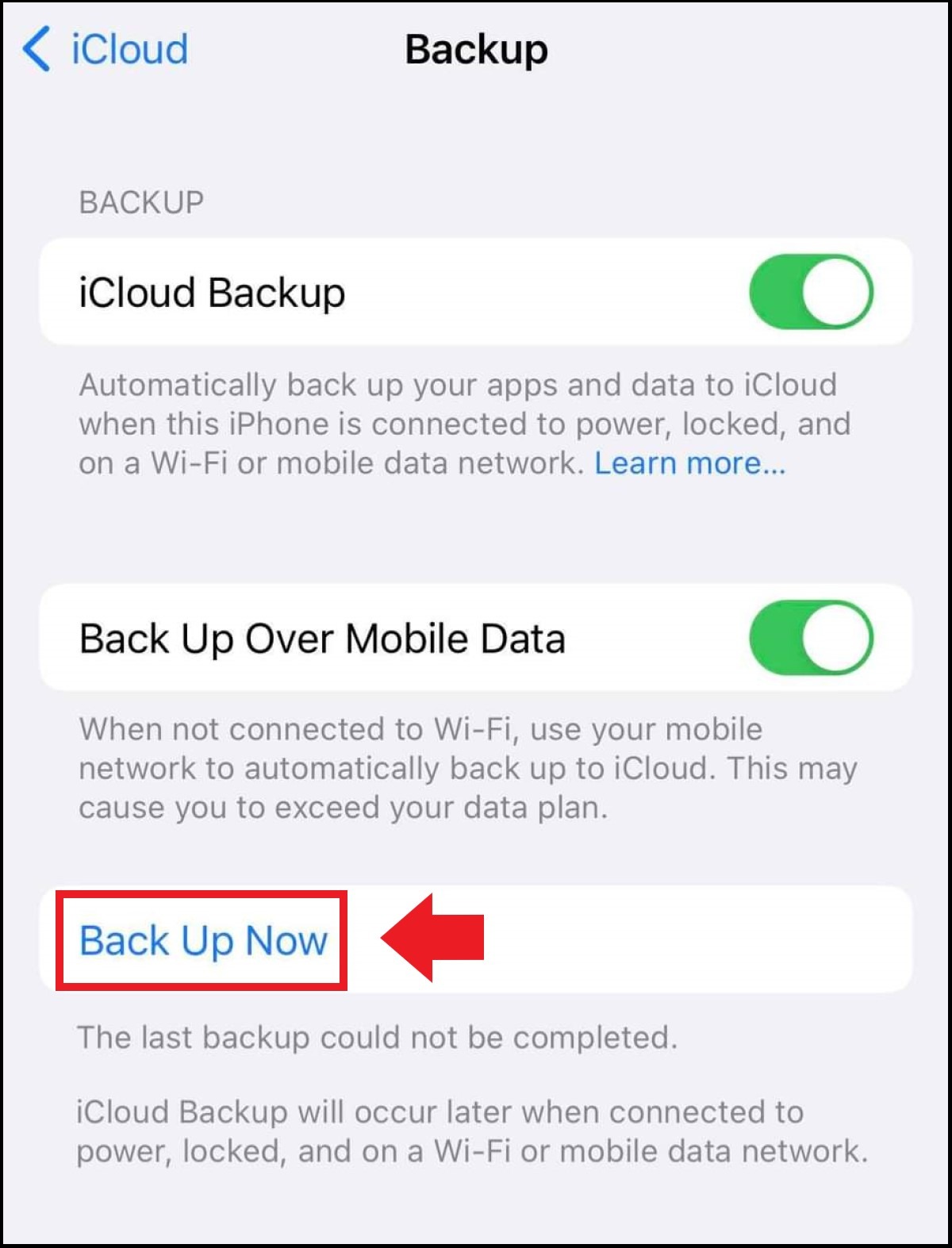
To backup your iCloud data on your iPhone, follow these simple steps:
- Go to Settings: Open the Settings app on your iPhone and tap on your name at the top.
- Tap on Icloud: Select the option that says “iCloud” from the list of options.
- Tap on Backup: Scroll down and select the “Backup” option.
- Turn on Icloud Backup: Switch the toggle to turn on iCloud backup.
- Choose What to Include in The Backup: Decide which data you want to include in the backup, such as apps, photos, and more.
How to Manually Backup Your Iphone
In addition to using iCloud, you can also manually backup your iPhone by:
- Connecting Your Iphone to a Computer: Connect your iPhone to a computer with iTunes installed.
- Opening Itunes: Open iTunes on the computer and select your iPhone from the list of devices.
- Selecting The Backup Option: Click on the “Backup Now” button to manually backup your iPhone.
How to Backup Icloud on PC
If you prefer to backup your iCloud data on a PC, follow these steps:
- Download Itunes: Download and install iTunes on your PC if you haven’t already.
- Connect Your Iphone to The Computer: Connect your iPhone to the PC using a cable.
- Open Itunes: Open iTunes and select your iPhone from the list of devices.
- Select The Backup Option: Click on the “Backup Now” button to manually backup your iPhone.
How to Backup Icloud on Mac
To backup your iCloud data on a Mac, follow these steps:
- Go to System Preferences: Click on the Apple menu and select “System Preferences”.
- Click on Apple ID: Select the option that says “Apple ID” from the list of options.
- Select Icloud: Scroll down and select the “iCloud” option.
- Choose What to Include in The Backup: Decide which data you want to include in the backup, such as apps, photos, and more.
Alternative Methods For Backing Up Your Data
If you don’t have enough space on your iCloud account or prefer not to use it, there are alternative methods for backing up your data. These include:
- Using a Third-party App: There are many third-party apps available that can help you backup and restore your iPhone data.
- Using a Cloud Storage Service: Services like Google Drive, Dropbox, and OneDrive can also be used to backup and store your important files.
Conclusion
Backing up your iCloud data is an essential step in ensuring that your important information is safely stored on Apple’s servers. By following the steps outlined in this article, you can easily backup your iCloud data on your iPhone, PC, or Mac. Remember, it’s always better to be safe than sorry!
Frequently Asked Questions
- Q: What Happens if I Lose my Iphone?
A: If you lose your iPhone, you can restore your data from a backup by using the “Restore from iCloud” option on a new device. - Q: How Much Space Does Icloud Use?
A: ICloud uses 5 GB of free storage space that is shared among all devices associated with your Apple ID. - Q: Can I Exclude Certain Data From my Backup?
A: Yes, you can choose which data to include in your backup by selecting the “Backup” option and then choosing what to include. - Q: How Often Should I Back up my Data?
A: It’s recommended that you back up your data regularly, such as weekly or monthly, to ensure that all your important files are safely stored. - Q: Can I Use a Third-party App to Backup my Data?
A: Yes, there are many third-party apps available that can help you backup and restore your iPhone data.
I hope this article has been helpful in understanding how to backup iCloud on your iPhone, PC, or Mac!


