
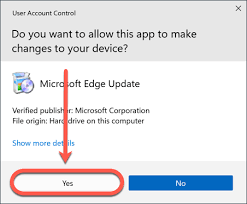
Updating Microsoft Edge: A Step-by-step Guide
Are you tired of using an outdated version of Microsoft Edge? Do you want to stay up-to-date with the latest features and security patches? Look no further! In this article, we will guide you through the process of updating Microsoft Edge on various devices and operating systems.
Why Update Microsoft Edge?
Microsoft Edge is a modern web browser that has evolved significantly over the years. The latest version, based on the Chromium engine, offers improved performance, security, and features compared to its predecessors. Updating Microsoft Edge ensures you have access to the most recent version, which includes bug fixes, security patches, and new features.
Updating Microsoft Edge on Windows 10
If you’re using Windows 10, updating Microsoft Edge is a straightforward process. Here’s how:
- Open Microsoft Edge: Click on the Microsoft Edge icon in your taskbar or search for it in the Start menu.
- Click on The Three Dots: In the top-right corner of the browser window, click on the three dots (⋯).
- Select Help & Feedback: From the drop-down menu, select “Help & feedback.”
- Check For Updates: Microsoft Edge will automatically check for updates. If an update is available, you’ll see a notification.
- Restart Microsoft Edge: Click on the “Relaunch” button to restart the browser and apply the updates.
Updating Microsoft Edge on Macos
If you’re using macOS, updating Microsoft Edge is also relatively simple:
- Open Microsoft Edge: Find Microsoft Edge in your Applications folder or search for it in Spotlight.
- Click on The Three Dots: In the top-right corner of the browser window, click on the three dots (⋯).
- Select About Microsoft Edge: From the drop-down menu, select “About Microsoft Edge.”
- Check For Updates: Microsoft Edge will automatically check for updates. If an update is available, you’ll see a notification.
- Restart Microsoft Edge: Click on the “Relaunch” button to restart the browser and apply the updates.
Updating Microsoft Edge on Android
To update Microsoft Edge on your Android device:
- Open The Google Play Store: Find the Google Play Store icon on your home screen or in your app drawer.
- Search For Microsoft Edge: Type “Microsoft Edge” in the search bar to find the app.
- Tap on Update: If an update is available, you’ll see a notification prompting you to update.
- Restart Microsoft Edge: After updating, restart the browser to apply the changes.
Updating Microsoft Edge on Ios/ipados
To update Microsoft Edge on your iOS or iPadOS device:
- Open The App Store: Find the App Store icon on your home screen or in your app drawer.
- Search For Microsoft Edge: Type “Microsoft Edge” in the search bar to find the app.
- Tap on Update: If an update is available, you’ll see a notification prompting you to update.
- Restart Microsoft Edge: After updating, restart the browser to apply the changes.
Troubleshooting Common Issues
If you encounter any issues during the update process, here are some common solutions:
- Automatic Updates Not Working? Ensure that your device is connected to the internet and that automatic updates are enabled.
- Update Failing? Try restarting your device or the browser and attempt the update again.
Conclusion
Updating Microsoft Edge is a simple process that ensures you have access to the latest features, security patches, and performance improvements. By following these step-by-step guides for Windows 10, macOS, Android, and iOS/iPadOS devices, you’ll be able to stay up-to-date with the most recent version of Microsoft Edge.
Faqs
- What Happens if I Update Microsoft Edge Manually?
Updating Microsoft Edge manually will overwrite any existing settings or extensions. - Will Updating Microsoft Edge Affect my Saved Data?
No, updating Microsoft Edge will not delete your saved bookmarks, history, or other data. - Can I Use Microsoft Edge on Multiple Devices Simultaneously?
Yes, you can install and use Microsoft Edge on multiple devices, but each device must be updated separately.
We hope this article has helped you update Microsoft Edge successfully! If you have any further questions or concerns, feel free to ask in the comments section below.


