
How to Reset TV Sharp Aquos: A Step-by-step Guide
Are you experiencing issues with your Sharp Aquos TV, such as slow performance or the need to remove personal data? Look no further! In this article, we will guide you through a simple process on how to reset your TV Sharp Aquos.
Introduction
If you’re reading this article, chances are you’ve encountered some problems with your Sharp Aquos TV. Maybe it’s not responding as quickly as it used to, or perhaps you want to remove all personal data and settings from the device. Whatever the reason, don’t worry – resetting your TV is a straightforward process that we’ll walk you through.
What You Need to Know
Before we begin, make sure you have a basic understanding of your TV’s menu system and how to navigate it using your remote control. Also, ensure that all connected devices, such as antennas or soundbars, are properly set up and functioning correctly.
Resetting Your Sharp Aquos With Android
If you’re using an Android-based Sharp Aquos TV (which is the most common model), follow these steps:
- Ensure Proper Connections: Double-check that your antenna, Ethernet cable (if not using Wi-Fi), and any external devices are connected correctly.
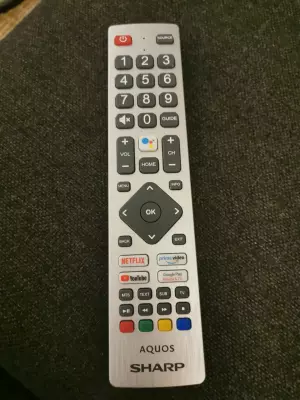
- Press The Home Button: Turn on your TV and press the Home button on your remote control.
- Navigate to Settings: Use the directional arrows to go to the cogwheel icon in the top-right corner, then select “Settings”.
- Select Reboot Options: Scroll down and choose the option that says “Reboot” or “Reset device”.
- Confirm Your Action: Press the “OK” button to confirm your intention to reboot the device.
- Wait For The Reboot Process: Let your TV complete its reboot cycle, which may take a few seconds.
Post-reboot Steps
After the reboot is complete:
- Select Your Preferred Language: Choose the language you prefer from the list of available options.
- Connect to Wi-fi (if Applicable): If you’re using Wi-Fi, select it as your network source and enter your password if prompted.
- Sign in With Google Account (optional): If you have a Google account associated with your TV, sign in now.
- Configure Device Settings: Make any necessary adjustments to the device’s settings.
- Install Apps or Software Updates: Install new apps or update existing ones as needed.
Resetting Other Sharp Aquos Models
If you’re using an older model of Sharp Aquos without Android, follow these steps:
- Identify Your Menu System: Check your TV’s manual or online documentation to see if it has a dedicated “Settings” section.
- Locate The Reset Option: Look for the “Reset device” or “Reboot” option in your menu. If you can’t find it, look for a combination of buttons (usually power button + volume down) that initiates a hard reset.
Consequences And Safety Considerations
Remember to carefully follow these steps as neglecting them might lead to damage to the TV’s internal system or harm when using specific features like HDMI.


