
How to Open The Doors of Your Router For Utorrent: A Step-by-step Guide
Are you tired of struggling with slow downloads and failed uploads in uTorrent? The problem might not be with your torrent client, but rather with the configuration of your router. In this article, we will guide you through the process of opening the doors of your router for uTorrent, ensuring a smooth and fast download experience.
Understanding The Problem
When you install uTorrent on your computer, it needs to connect to the internet to download files. However, if your router’s firewall is blocking the connection, uTorrent may not be able to establish a stable link, resulting in slow or failed downloads. This is where opening the doors of your router comes into play.
What Do You Need to Do?
To open the doors of your router for uTorrent, you’ll need to access your router’s configuration panel and create a new rule or virtual server that allows uTorrent to communicate with the internet. The specific steps may vary depending on your router model and brand.
Step 1: Identify Your Router’s Configuration Panel
First, you’ll need to access your router’s configuration panel. This is usually done by typing your router’s IP address in a web browser. The most common IP addresses are 192.168.1.1 Or 192.168.0.1.
Step 2: Log In to Your Router
Once you’ve accessed the configuration panel, log in using your admin username and password. If you don’t know these details, consult your router’s manual or search online for instructions specific to your device.
Step 3: Create a New Rule or Virtual Server
In the configuration panel, look for the section dedicated to port forwarding or virtual servers. Here, you’ll need to create a new rule that allows uTorrent to communicate with the internet. The specific steps may vary depending on your router model and brand.
Step 4: Configure The Rule or Virtual Server
When creating the new rule or virtual server, you’ll need to specify the following details:
- Name interface: Choose a name for this new connection.
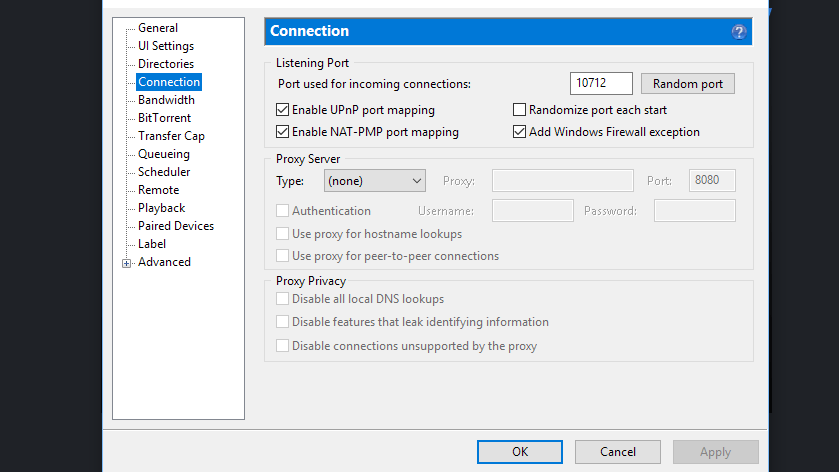
- Internal door (or initial Door): Enter the number of the port used by uTorrent.
- External door (or final Door): Re-enter the same port number as above.
- IP Destination (or Address IP server): Enter your local PC’s IP address.
- Type #bring (or Protocol): Select TCP.
Step 5: Save And Apply The Changes
After completing the configuration, save and apply the changes. In some cases, you may need to restart your router for the new settings to take effect.
Testing The Configuration
To ensure that the configuration has been applied correctly, use uTorrent’s built-in test feature to verify the opening of the doors in your router.
Troubleshooting Tips
If you encounter any issues during the process or after testing the configuration, here are some troubleshooting tips:
- Check that your firewall is not blocking uTorrent.
- Restart your router and try again.
- Reconfigure your router’s port settings.
- Contact your ISP for assistance.
Conclusion
Opening the doors of your router for uTorrent is a relatively simple process that can significantly improve your torrenting experience. By following these steps, you should be able to configure your router correctly and enjoy fast and stable downloads with uTorrent.
Frequently Asked Questions (FAQs)
- What Are The Benefits of Opening The Doors of my Router For Utorrent?
- Opening the doors of your router allows uTorrent to communicate with the internet without any restrictions, resulting in faster and more stable downloads.
- How do I Access my Router’s Configuration Panel?
- Type your router’s IP address (usually 192.168.1.1 Or 192.168.0.1) Into a web browser to access the configuration panel.
- What Are The Necessary Steps to Open The Doors of my Router For Utorrent?
- Identify your router’s configuration panel, log in using admin credentials, create a new rule or virtual server, configure the settings, and save and apply the changes.
- Can I Use a Vpn With Utorrent to Ensure Safe And Anonymous Downloads?
- Yes, you can use a VPN with uTorrent to ensure safe and anonymous downloads. Popular VPN options include NordVPN, Surfshark, ExpressVPN, and PrivadoVPN.
- How do I Test The Configuration of my Router For Utorrent?
- Use uTorrent’s built-in test feature to verify the opening of the doors in your router.
- What Are Some Common Issues That May Arise During This Process?
- Common issues include firewall restrictions, incorrect port settings, or router malfunctions. Consult the troubleshooting tips provided above for assistance.
- Can I Use This Guide With Other Torrent Clients Besides Utorrent?
- This guide is specifically tailored for uTorrent. However, the principles of opening the doors of your router apply to other torrent clients as well.


