
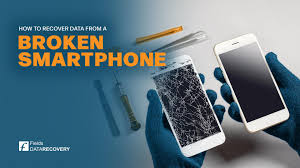
How to Recover Photos From a Broken Iphone
Losing your phone can be stressful enough, but losing all your photos on top of that can be devastating. If you’ve broken your iPhone and are worried about losing all your precious memories, don’t panic! In this article, we’ll show you how to recover photos from a broken iPhone.
Why You Need to Recover Photos From a Broken Iphone
When you break your iPhone, the last thing on your mind is probably recovering photos. But, if you have important memories stored on your phone, it’s essential to take action immediately. Here are some reasons why:
- Preventing Data Loss: If your iPhone is beyond repair or has been damaged, it’s crucial to retrieve data before it’s too late.
- Preserving Memories: Photos and videos captured with your iPhone hold memories that are irreplaceable. Saving them means preserving a piece of your history.
- Peace of Mind: Knowing you’ve saved valuable photos can provide peace of mind during an already stressful situation.
How to Recover Photos From a Broken Iphone: 3 Methods
We’ll explore three methods for recovering photos from a broken iPhone:
- Icloud Backup: If your iPhone was syncing with iCloud, you might be able to access and download your saved photos directly from the cloud.
- Itunes or Devices Apple: Using iTunes or Devices Apple on Windows can help you recover photos even if there’s no backup.
- Software of Third Parties: Apps like Dr. Fone by Wondershare allow for recovery and backup of iPhone data, including photos.
Method 1: Icloud Backup
Accessing Icloud
If your iPhone was syncing with iCloud, accessing the cloud can be a straightforward way to recover saved photos:
- Open Icloud.Com on any device (computer or mobile).
- Sign in using your Apple ID and password.
- Navigate to Photos, then click Albums.
Method 2: Itunes or Devices Apple
Using Itunes or Devices Apple can also help:
- Connect your iPhone to a computer with the latest version of iTunes installed.
- Open iTunes, and select your iPhone in the top left corner.
- Select Summary, then click on Back Up Now.
Method 3: Software of Third Parties
Dr. Fone by Wondershare is one example:
- Download Dr. Fone from their official website.
- Install it on your computer and follow the instructions to connect your iPhone.
- Once connected, select the files you want to recover and click Recover.
Bonus Tip: Preventing Data Loss
To prevent data loss in the future, consider:
- Regular backups using iTunes or iCloud.
- Storing photos on cloud services like Google Photos, Dropbox, or OneDrive.
- Using a phone case with built-in protection against drops and other accidents.
By understanding how to recover photos from a broken iPhone, you can rest assured that your valuable memories are safe.


