
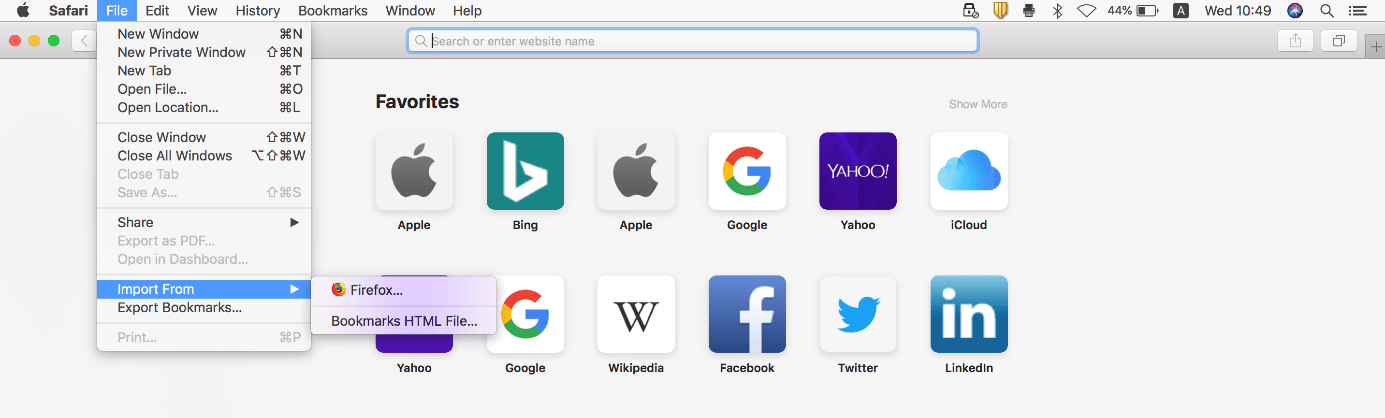
Adding Favorite Websites on Safari: A Step-by-step Guide
Are you tired of typing long URLs every time you want to visit your favorite websites? Do you wish there was a way to save them for quick access? Look no further! In this article, we will show you how to add favorite websites on Safari and make your browsing experience even more convenient.
Why Add Favorite Websites on Safari?
Adding favorite websites on Safari allows you to save the ones you visit most often, making it easy to access them with just a click. This feature is particularly useful for frequent users of specific websites, such as social media platforms, news sites, or online shopping portals.
How to Add Favorite Websites on Safari: Iphone And Ipad
To add favorite websites on Safari using your iPhone or iPad, follow these steps:
- Open Safari: Launch the Safari browser app on your device.
- Visit Your Favorite Website: Open the website you want to save as a favorite by typing its URL in the address bar or searching for it.
- Tap The Share Icon: Tap the share icon (represented by an arrow inside a square) located at the bottom of the screen.
- Select “Add to Favorites”: From the menu that appears, select “Add to Favorites.”
- Name Your Favorite Website: If desired, you can rename your favorite website by tapping on its name and entering a new one.
- Save Changes: Tap on “Save” to save your changes.
How to Add Favorite Websites on Safari: Mac
To add favorite websites on Safari using your Mac, follow these steps:
- Open Safari: Launch the Safari browser app on your computer.
- Visit Your Favorite Website: Open the website you want to save as a favorite by typing its URL in the address bar or searching for it.
- Select “Bookmarks”: From the menu at the top of the screen, select “Bookmarks.”
- Choose “Add Bookmark”: Select “Add Bookmark” from the dropdown menu.
- Name Your Favorite Website: If desired, you can rename your favorite website by tapping on its name and entering a new one.
- Save Changes: Click on “Done” to save your changes.
How to View Your Favorite Websites
To view your saved favorite websites on Safari, follow these steps:
- Open Safari: Launch the Safari browser app on your device or computer.
- Select “Bookmarks”: From the menu at the top of the screen (on Mac) or bottom of the screen (on iPhone and iPad), select “Bookmarks.”
- Choose “Favorites”: Select “Favorites” from the dropdown menu to view your saved favorite websites.
How to Delete a Favorite Website
To delete a favorite website on Safari, follow these steps:
- Open Safari: Launch the Safari browser app on your device or computer.
- Select “Bookmarks”: From the menu at the top of the screen (on Mac) or bottom of the screen (on iPhone and iPad), select “Bookmarks.”
- Choose “Favorites”: Select “Favorites” from the dropdown menu to view your saved favorite websites.
- Tap on The Edit Button: Tap on the edit button located at the bottom of the screen (on iPhone and iPad) or top right corner (on Mac).
- Swipe Left or Tap The “-” Icon: Swipe left on the website you want to delete or tap on the “-” icon next to it.
- Confirm Deletion: Confirm that you want to delete the website by tapping “Delete” or clicking “OK.”
Adding Bar of Favorites
To add a bar of favorites to Safari, follow these steps:
- Open Safari: Launch the Safari browser app on your device or computer.
- Select “Preferences”: From the menu at the top of the screen (on Mac) or bottom of the screen (on iPhone and iPad), select “Preferences.”
- Choose “Appearance”: Select “Appearance” from the dropdown menu.
- Check The Box Next to “Favorites Bar”: Check the box next to “Favorites Bar” to enable it.
Matter Favorites on Safari
To matter favorites on Safari, follow these steps:
- Open Safari: Launch the Safari browser app on your device or computer.
- Select “Preferences”: From the menu at the top of the screen (on Mac) or bottom of the screen (on iPhone and iPad), select “Preferences.”
- Choose “Advanced”: Select “Advanced” from the dropdown menu.
- Check The Box Next to “Show Develop Menu in Menubar”: Check the box next to “Show Develop Menu in Menubar” to enable it.
- Select “Develop”: From the menu at the top of the screen, select “Develop.”
- Choose “Empty Caches And Reset Safari”: Select “Empty Caches and Reset Safari” from the dropdown menu.
Conclusion
Adding favorite websites on Safari is a straightforward process that can save you time and effort when browsing the web. By following these steps, you can easily add your favorite websites to the favorites bar on Safari for quick access.


