
Extending a Partition on Your Computer: A Step-by-step Guide
Are you running out of space on your computer? Do you want to know how to extend a partition without reinstalling Windows or formatting your PC? Look no further! In this article, we will guide you through the process of extending a partition on your computer, whether it’s running Windows, macOS, or Linux.
Why Extend a Partition?
Before we dive into the nitty-gritty details, let’s talk about why you might need to extend a partition. There are several reasons why you might want to do this:
- You’ve installed new programs and they’re taking up too much space on your system drive.
- Your data drive is running low on space and you need more room for files.
- You’ve added new hardware, such as a solid-state drive (SSD), and you want to use the extra storage space.
Extending a Partition in Windows
If you’re using Windows 10 or earlier versions, you can extend a partition without reinstalling the operating system. Here’s how:
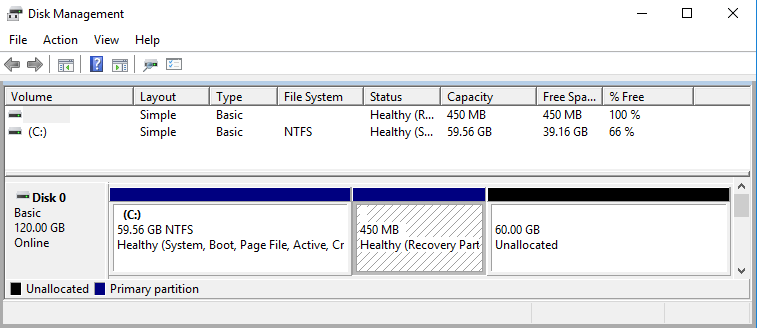
Step 1: Open The Disk Management Tool
Press the Windows key + R to open the Run dialog box. Type diskmgmt.Msc and press Enter.
Step 2: Select The Partition You Want to Extend
In the Disk Management tool, find the partition you want to extend (usually labeled as “Disk 0” or “Local Disk”). Right-click on it and select “Extend Volume.”
Step 3: Choose How Much Space to Add
In the “Extend Volume Wizard,” choose how much space you want to add to the partition. You can enter a specific amount in megabytes (MB) or click “Maximize” to use all available free space.
Step 4: Confirm The Changes
Click “Next” and then “Finish” to confirm the changes. The partition will be extended, and the extra space will be added.
Extending a Partition on Macos
If you’re using macOS, you can extend a partition without reinstalling the operating system. Here’s how:
Step 1: Open The Disk Utility Tool
Click the Apple menu and select “About This Mac.” Then click “System Information” and look for the “Storage” section. Click on it to open the Disk Utility tool.
Step 2: Select The Partition You Want to Extend
In the Disk Utility tool, find the partition you want to extend (usually labeled as “Disk X”). Click on it once to select it.
Step 3: Click The “Partitions” Tab
Click on the “Partitions” tab and then click on the “+” button at the bottom left of the window.
Step 4: Choose How Much Space to Add
In the new partition, choose how much space you want to add to the existing partition. You can enter a specific amount in megabytes (MB) or click “Maximize” to use all available free space.
Step 5: Confirm The Changes
Click “Apply” and then “OK” to confirm the changes. The partition will be extended, and the extra space will be added.
Extending a Partition on Linux
If you’re using Linux, you can extend a partition without reinstalling the operating system. Here’s how:
Step 1: Open The Gparted Tool
Click on the “Applications” menu and select “Accessories” > “Terminal.” Type sudo apt-get install gparted and press Enter to install GParted if it’s not already installed.
Step 2: Select The Partition You Want to Extend
In the GParted tool, find the partition you want to extend (usually labeled as “/dev/sdX”). Click on it once to select it.
Step 3: Right-click And Choose “Resize/Move”
Right-click on the selected partition and choose “Resize/Move.” A new window will open with options for resizing or moving the partition.
Step 4: Choose How Much Space to Add
In the resize/move window, enter a specific amount in megabytes (MB) to add to the existing partition. You can also click on the “+” button at the bottom left of the window to use all available free space.
Step 5: Confirm The Changes
Click “Apply” and then “OK” to confirm the changes. The partition will be extended, and the extra space will be added.
Conclusion
Extending a partition is a relatively simple process that can help you free up space on your computer. Whether you’re using Windows, macOS, or Linux, there are tools available to make this task easier. Remember to back up your data before attempting to extend a partition, and always follow the instructions carefully to avoid any potential issues.
Frequently Asked Questions
-
What is The Maximum Amount of Space I Can Add to a Partition?
The maximum amount of space you can add depends on the operating system and the available free space on the hard drive. -
Can I Extend a Partition if It’s Already Full?
No, you cannot extend a partition if it’s already full. You’ll need to delete some files or reduce the size of other partitions to make room for the extension. -
Will Extending a Partition Affect my Operating System?
In most cases, no, extending a partition will not affect your operating system. However, it’s always a good idea to back up your data before attempting any changes to your hard drive. -
Can I Extend Multiple Partitions at Once?
Yes, you can extend multiple partitions at once using the methods described above. -
Will Extending a Partition Improve my Computer’s Performance?
No, extending a partition will not improve your computer’s performance. It will simply give you more storage space on your hard drive. -
Can I Use a Third-party Tool to Extend a Partition?
Yes, there are several third-party tools available that can help you extend a partition. However, be sure to research and read reviews before using any software. -
How do I Back up my Data Before Attempting to Extend a Partition?
To back up your data, simply copy all the files from the drive or partition you want to extend to an external hard drive or cloud storage service. -
What Should I do if I Encounter Any Issues While Extending a Partition?
If you encounter any issues during the process, try restarting your computer and attempting again. If problems persist, consult online forums or seek assistance from a professional.


